

Subscription and billing
Vivlab POS comes with two plans. The Free plan applies by default, with no credit card. The Pro plan removes every limit and adds customer records as well as held tickets and quotes. The Billing and Usage sections of settings let you follow your usage, subscribe and manage the subscription.
What do you want to do?
- Compare the Free and Pro plans
- Follow your usage
- What happens when a limit is reached
- Upgrade to Pro
- Switch between monthly and yearly billing
- Cancel the Pro subscription
- View and download your invoices
Compare the Free and Pro plans
| Free | Pro | |
|---|---|---|
| Price | €0, forever | €39 excl. VAT per month or €390 excl. VAT per year |
| Receipts | 120 per year | Unlimited |
| Open registers | 1 | Unlimited |
| Active staff members | 1 | Unlimited |
| Split payments (card, cash, cheque, transfer) | Included | Included |
| Returns and credit notes | Included | Included |
| Customer records and loyalty program | Not included | Included |
| Held tickets and quotes | Not included | Included |
| Catalog, categories, promo codes and shipping | Included | Included |
| Reports and closings | Included | Included |
| Signed receipts and fiscal archives | Included | Included |
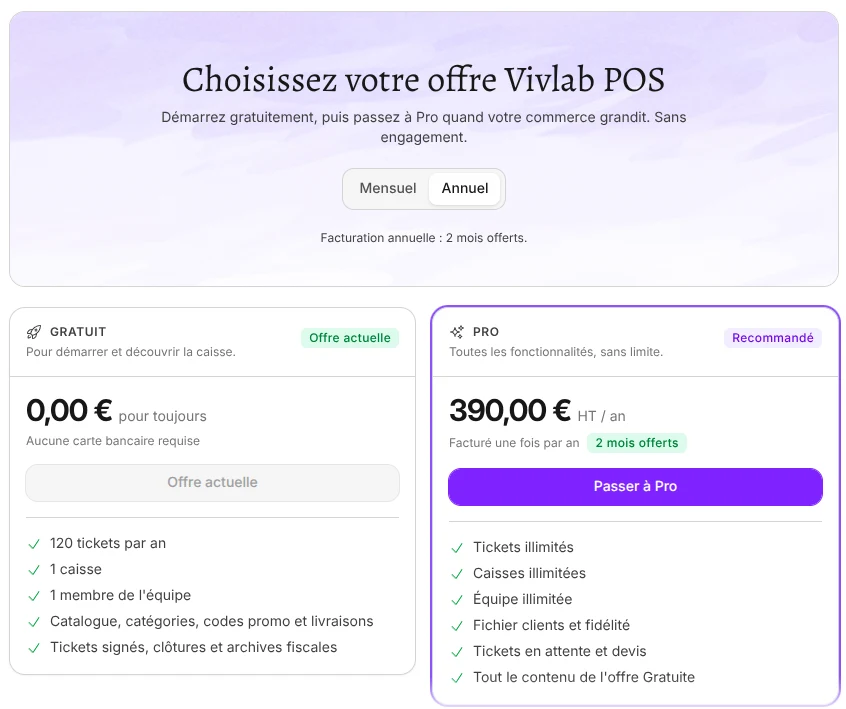
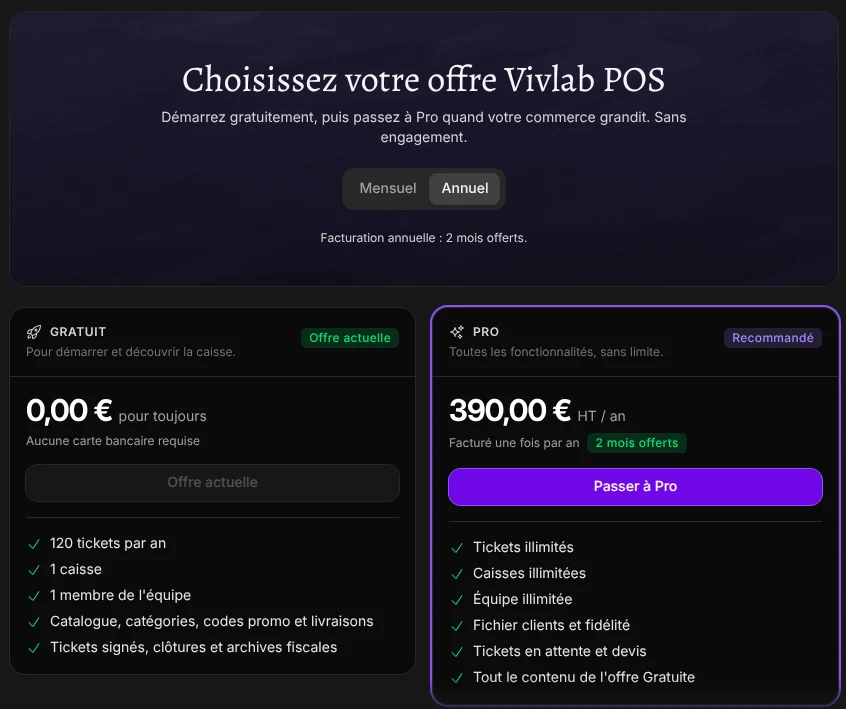
Pro prices exclude taxes: VAT is added. With yearly billing, you pay for 10 months instead of 12, so 2 months are free. There is no commitment.
To see this table in the register, open Settings > Billing and click Compare plans below the plan cards.
Follow your usage
- Open the Account menu at the bottom of the sidebar.
- Click Usage.
The section shows three counters:
- Receipts in (followed by the year): the number of sale receipts issued since January 1, across all registers;
- Open registers: registers that are not closed;
- Active staff: staff members whose status is active.
On the Free plan, the receipt counter resets on January 1. Returns and credit notes are not counted. The Free plan card at the bottom of the sidebar also shows how many of the 120 receipts you have used, with a bar that turns orange from 80%.
What happens when a limit is reached
On the Free plan, the register blocks whatever goes beyond the plan and shows the plans, with the message Sell without limits and unlock every register feature. A manager can click See plans to upgrade to Pro. A seller or supervisor sees a message asking them to have a manager upgrade the account to Pro.
- 120 receipts reached: the next sale cannot be recorded until January 1, or until you upgrade to Pro.
- One open register: creating a second register is refused.
- One active staff member: adding or activating a second staff member is refused.
- Customer records: the Members screen and adding a customer to a sale require the Pro plan.
- Held tickets and quotes: holding a ticket or creating a quote requires the Pro plan.
After returning to the Free plan
If a Pro account returns to the Free plan with several registers or staff members, nothing is deleted. The oldest open register and the oldest active manager stay usable. The other registers and staff members carry the Pro badge on the lock screen and can no longer be chosen until you upgrade to Pro again.
Upgrade to Pro
Only a Manager can subscribe. They can open the plans from Upgrade to Pro in the Account menu, from the Free plan card at the bottom of the sidebar, from See plans when a limit is reached, or from Settings > Billing.
- In Choose your Vivlab POS plan, choose Monthly or Yearly.
- On the Pro card, click Upgrade to Pro.
- Check the Total due today. For a promo code, click Add a promo code and enter it.
- Fill in the Billing address, your VAT number if the window offers it for a business, then your bank card in Payment method.
- Click Pay and activate Pro.
The message Your Pro subscription is active. Thank you! confirms the subscription. The limits are lifted immediately, for every register on the account. Payment is secured by Stripe: the register stores no bank details.
Switch between monthly and yearly billing
- Open Settings > Billing. The Your plan item shows Pro and the Renews on date.
- Click Change billing period.
- Choose Yearly or Monthly, then click Switch to yearly or Switch to monthly.
- Check the details shown in Change billing period, then click Confirm.
The change does not happen at the same time in both directions:
| Monthly to yearly | Yearly to monthly | |
|---|---|---|
| When | Immediately | At the end of the year already paid |
| What you pay | The new period, minus a Prorated adjustment for the days of the current month already paid. The amount appears in Due now. | Nothing before the change date, shown in Due on |
A scheduled switch to monthly billing appears in Your plan, with its date. To keep yearly billing, click Cancel this change.
Cancel the Pro subscription
- Open Settings > Billing, Cancellation item.
- Click Cancel subscription.
- Read the end date shown, then confirm with Cancel subscription.
The Pro subscription stays active until the end of the period already paid. Your plan then shows Your Pro subscription ends on followed by the date. After that, the Free plan applies: limited receipts, a single register and a single staff member, without customer records or held tickets. See After returning to the Free plan.
Until that date, you can change your mind: click Resume subscription in Your plan. Cancelling also cancels a switch to monthly billing that was already scheduled.
Subscription status
While the Pro subscription is active, no status is shown. Otherwise, Your plan shows the status next to the plan name: Payment overdue, Unpaid, Payment incomplete, Trial, Canceled or Paused.
View and download your invoices
- Open Settings > Billing.
- In Invoices, find the invoice by its date and amount. Its status is shown, for example Paid.
- Click View to open it online, or Download to get the PDF.
Vivlab POS subscription invoices appear here from the first payment. As long as you have never subscribed to Pro, the list shows No invoices.