

Receipts
Every sale you ring up produces a signed receipt, and every return produces a new receipt with negative amounts. This screen lists them all: find a receipt here to reprint it, email it to the customer or record the items they bring back.
What do you want to do?
- Find a receipt
- Read a receipt's details
- Reprint a receipt
- Email a receipt
- Record returned items
- Choose between a refund and a credit note
- Find a credit note and use it for a purchase
- Set how long credit notes stay valid
Find a receipt
The list shows receipts from newest to oldest. Each row shows the receipt number, its Type, the Date and time, the Payments used and the Total. A negative total (refund or credit note) appears in red.
There are three types of receipt:
- Sale: the receipt issued at checkout;
- Refund: the receipt issued when you give money back to the customer for returned items;
- Credit note: the receipt issued when the customer receives store credit instead of their money. A credit note is an amount the customer can spend on a future purchase in your store.
- Open Sell > Receipts.
- Type in Search by receipt, item or SKU: the receipt number, the name of an item sold or its SKU.
- To see only one type, choose Sale, Refund or Credit note in Type. All returns to the full list.
- Tap the row to open the receipt.
The quickest way is to scan the QR code printed on the receipt with your barcode scanner while the list is on screen: the receipt opens directly. Scanning a credit note's QR code opens the credit note receipt that issued it. A code that is not a register document goes into the search field.
By default, the list only shows receipts from the register you are signed in to, whose name appears below the title. A Manager can choose All registers in Register scope: each row then shows the register name.
Who can open receipts
Receipts is limited to the Supervisor and Manager roles. A Seller does not see this section, and scanning a receipt shows them "Your role does not allow opening receipts.". A Supervisor assigned to specific registers can only open receipts from those registers. Roles are set in Staff.
No receipts yet
Until the register has rung up a sale, the screen shows "Ring up this register's first sale" with a New sale button that leads to the sale screen. A Manager also finds All registers there to view the other registers' receipts.
Read a receipt's details
The receipt opens in a window. At the top you see its number (the button next to it copies it), its type, its total, its date and the register that issued it. The navigation arrows move to the previous or next receipt in the list without closing it.
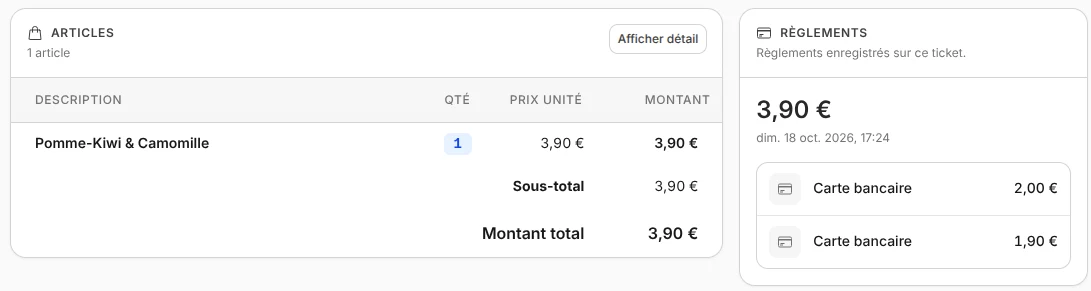
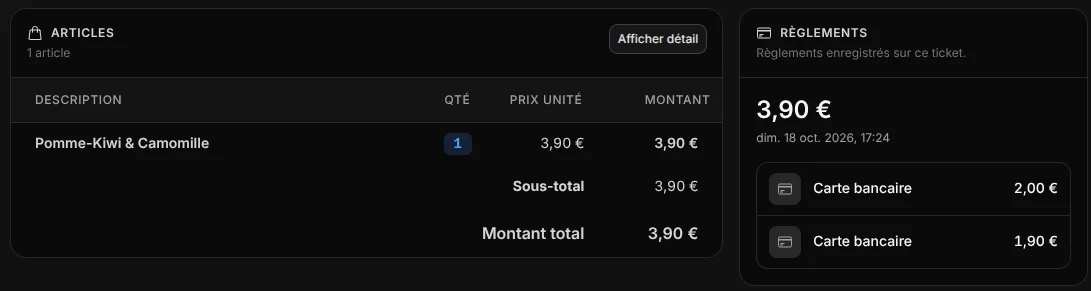
The window contains several cards:
- Items: each item with its quantity and amount. Show details adds the VAT breakdown, Hide details removes it;
- Shipping: the delivery address, when the sale has one;
- Payments: the total and each payment method with its amount, for example €20 in Cash and €15 by Card. For a credit note payment, the credit note reference appears under the method. A free sale shows "This sale is free. No payment is required.";
- Details: the Date and time, the Register, the Establishment, the Member (the ID of the customer linked to the sale), the Shipping method and the Signature hash;
- Return, on refund and credit note receipts only: the Original receipt link to the sale concerned, the Return reason and, for a credit note, its reference, amount, expiry date and status.
The signature hash is a code calculated from the receipt's content when it is issued. During an audit, it proves the receipt has not been changed since. That is why a recorded receipt cannot be edited or deleted: a mistake is corrected with a return, which produces a new receipt and leaves the original intact.
Reprint a receipt
- Open the receipt.
- Tap More actions (the three dots at the top right), then Print.
- Your device's print window opens: choose the receipt printer and confirm.
The first copy of a receipt, printed or emailed, is the original. Every later copy carries the word DUPLICATE in a box at the top of the receipt. If the customer already received their receipt at checkout, a reprint is therefore a duplicate. Each print is recorded in the activity history.
The printed receipt shows your logo and company details, the list of items, the payments, the signature hash and a QR code for finding it again by scanning. A credit note receipt also prints the credit note reference, its amount, its expiry date and a second QR code for the credit note itself. Paper width and receipt content are set in the settings, under Receipts & lock screen.
Printing does not open
If the message "Allow pop-ups to print your receipt." appears, your browser is blocking the print window. Allow pop-ups for the register in your browser settings, then tap Print again.
Email a receipt
- Open the receipt.
- Tap More actions, then Email receipt.
- Enter the Customer email address.
- Tap Send.
The message "Receipt sent to" followed by the address confirms the email went out. The customer receives a copy of the receipt in the register's language. As with printing, a receipt already printed or emailed once is sent marked as a duplicate.
The receipt is sent from the sending server set in the settings, under Emails.
If sending fails
- "This email address is not valid.": correct the address you entered.
- "Too many receipts sent recently. Try again later.": your account can email 200 receipts per hour, across all registers. Wait a little before trying again.
- "The email could not be sent. Check the sending server in the Emails settings.": check the Emails section of the settings.
Record returned items
When a customer brings items back, you record a return from the sale receipt. You can return some or all of the items, and come back to the same sale several times as long as quantities remain to be returned.
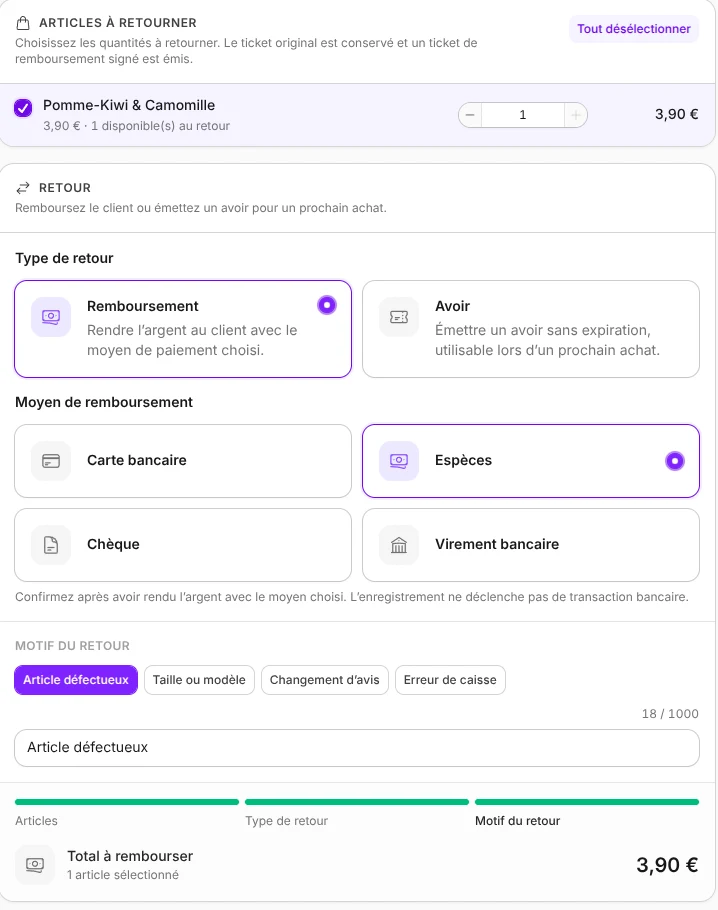
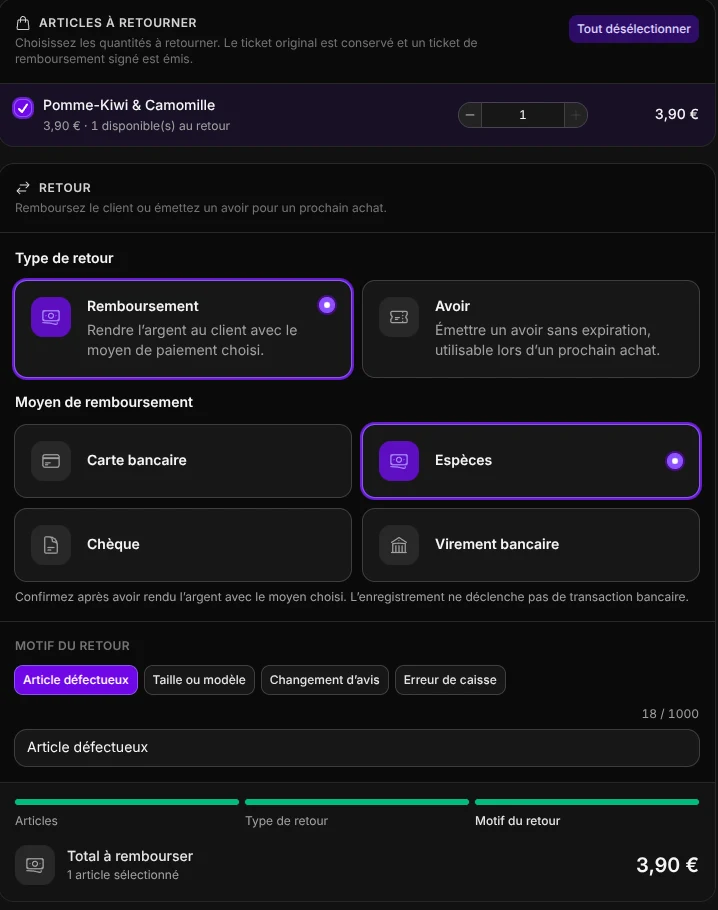
- Find the sale receipt, for example by scanning its QR code, and open it.
- Tap More actions, then Return items.
- In Items to return, tick each returned item or set its quantity with the + and - buttons. Under each item, "available to return" shows the quantity that can still be returned. Select all takes every remaining quantity.
- In Return type, choose Refund or Credit note (see the comparison). For a refund, choose the Refund method: Card, Cash, Cheque or Bank transfer.
- In Return reason, tap a suggested reason (Defective item, Size or model, Changed mind or Checkout error) or describe it in the field. The reason is required and appears on the refund receipt.
- Check the Refund total or the Credit note amount at the bottom of the window. For a refund, give the money back to the customer with the chosen method.
- Tap Validate.
The new receipt, of type Refund or Credit note, opens right away. Print it from More actions to hand it to the customer, especially for a credit note: its QR code is what they use to spend it. The original sale receipt does not change.
The amount given back is calculated item by item, in proportion to what the customer actually paid: a discount or coupon applied to the sale is deducted in the same proportion. A return does not refund the sale's shipping costs.
The return is recorded on the register you are signed in to, even if the sale was rung up on another register. Only a Sale receipt can be returned: refund and credit note receipts do not have the Return items action. When everything has already been returned, the window shows "All items have already been returned.".
Roles and plan
Recording a return is limited to the Supervisor and Manager roles. Refund and credit note receipts do not count toward the number of receipts included in the Free plan (see Billing).
The return could not be confirmed
If the register shows "The refund outcome could not be confirmed" or "The credit note issuance could not be confirmed", the connection may have dropped while it was being recorded. Before trying again, search Receipts for a refund or credit note receipt issued for this sale, so you do not refund twice. If the message says "The remaining quantities changed", another return was recorded on this receipt in the meantime: the available quantities are reloaded, check them and try again.
Choose between a refund and a credit note
| Refund | Credit note | |
|---|---|---|
| What the customer gets | Their money, by Card, Cash, Cheque or Bank transfer | Store credit to spend on a future purchase in your store |
| What the register does | Records the refund, without starting any bank transaction | Creates a credit note with a reference and a QR code |
| What you do | Give the money back yourself, with the chosen method, before validating | Print the credit note receipt and hand it to the customer |
| Method used | Your choice, even if it differs from the original payment | Not applicable |
| Zero amount | Possible, for example to take back a free item | Not possible: "A credit note requires a positive amount." |
| Duration | Not applicable | No expiry, or the validity period you set |
| Receipt type in the list | Refund | Credit note |
For an exchange, record the return as a credit note, then use that credit note to pay for the new item.
Find a credit note and use it for a purchase
To find a credit note, choose Credit note in Type or scan the credit note's QR code on the receipt list. On the credit note receipt, the Return card shows the Credit note reference (the button next to it copies it), its amount, the Valid until date (or No expiration) and its status:
- Available: the credit note has not been used yet;
- Partially used: part of it has been spent, and the Remaining balance appears under the amount;
- Used: nothing is left to spend;
- Expired: the validity date has passed and the credit note can no longer be used.
The customer spends their credit note at checkout, on any register in your account.
- At checkout, choose the Credit note payment method.
- Scan the QR code printed on the credit note or enter its Credit note reference, then tap Check credit note.
- The register shows the Usable balance and the Original amount. Tap Use followed by the suggested amount, or enter a smaller amount in Payment amount, then tap Accept.
- If the credit note does not cover the whole purchase, add another payment method, then finalize the sale.
A credit note can be spent over several purchases: the register shows the balance that will remain on the credit note after this purchase. An expired or fully used credit note is refused. Every role can take a credit note as payment, including a Seller.
Set how long credit notes stay valid
By default, a credit note never expires. You can limit its validity, which starts on the day it is issued.
- Open the account menu, then Settings.
- Open Receipts & lock screen and scroll to Credit notes.
- In Validity, choose Never expires, 3 months, 6 months, 1 year or 2 years. Custom opens the Validity (days) field, which accepts a whole number from 1 to 3,650 days.
- Save.
The new period applies to credit notes issued afterwards. Credit notes already issued keep the date printed on them. During a return, the Credit note option reminds you of the current period, for example "Issue a credit note valid for 365 days, usable on a future purchase.". The other settings are described in Settings.
INFO
Changing the settings is limited to the Manager role.