

Tax audit
In France, a business that takes payments from consumers must use point of sale software that guarantees its sales cannot be changed afterwards, and must be able to prove it during a tax audit. This screen gathers everything you and the tax administration need: the software's identity, the state of each register, the data integrity verification, the tax archives to download, the individual attestation and the documentation for tax inspectors.
What do you want to do?
- Know your obligations
- Find your way around the screen
- Check the software version
- Check the company details and the state of the registers
- Check that the data has not been changed
- Generate a tax archive
- Download and keep your archives
- Print the individual attestation
- Read or download the tax documentation
- Prepare for a tax audit
Know your obligations
Vivlab POS records each receipt permanently: a receipt can be neither changed nor deleted, and a mistake is corrected only through a return, which creates a new receipt with negative amounts (see Receipts). There is no training mode, no delete function and no offline mode. Some obligations remain yours, though:
- enter the establishment's SIRET number, or failing that its full address, before taking payments (see Settings);
- run the Z closure yourself on each trading day, the monthly closure after each month end and the annual closure after each fiscal year end (see Reports);
- generate, download and keep your archives for six years;
- complete and sign part 2 of the individual attestation;
- give the tax administration access to your data during an audit.
A few words come up on this screen:
- a hash (or fingerprint) is a string of 64 characters calculated from a piece of data. The slightest change to the data completely changes the hash: that is how tampering is detected;
- chaining means including in each receipt, each closure and each line of the activity history the hash of the previous record. Deleting, inserting or moving a record breaks the chain;
- a tax archive is a frozen, signed file containing all the register data of a past period.
Find your way around the screen
At the top of the screen, four tiles sum up the situation:
- Cash register software: the software version;
- Taxable person: Complete if your company details are all filled in, otherwise the number of missing fields;
- Registers: the number of registers and their combined perpetual turnover;
- Integrity verification: Not verified until you run a verification, then Compliant or the number of anomalies found.
Tap a tile to open the matching tab. Below the tiles, five tabs organize the screen:
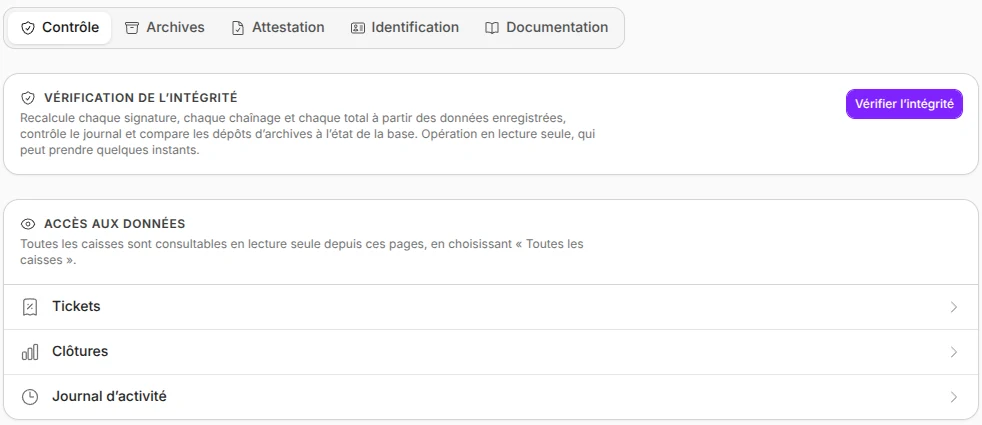
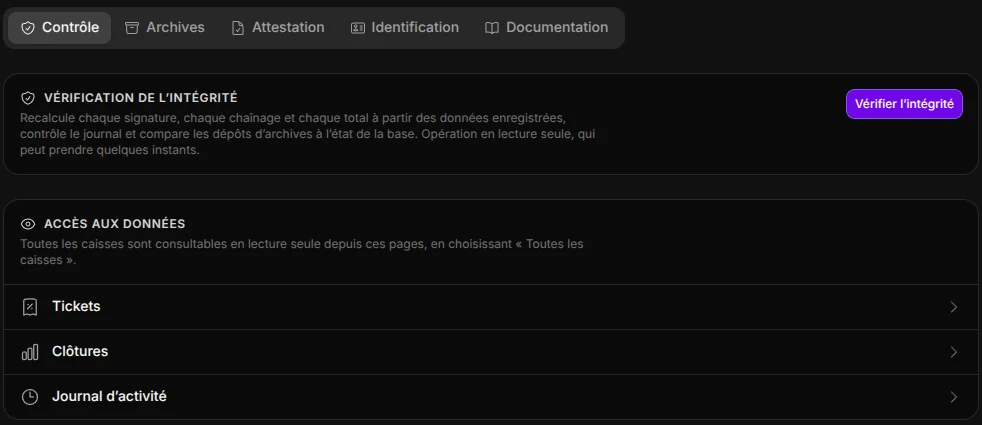
- Audit: the integrity verification and the links to the data;
- Archives: generating and downloading tax archives;
- Certificate: the individual attestation to print;
- Identification: the software, the company details and the state of the registers;
- Documentation: the documents for the tax administration.
Check the software version
In the Identification tab, the Cash register software block shows the Name (Vivlab POS), the Version and the Fiscal perimeter fingerprint. This fingerprint identifies exactly the code of the version's tax functions: it is the same for every business using the same version, and a tax inspector can compare it with the one declared by Vivlab.
The version also appears at the foot of each printed receipt and in Settings, General section.
Check the company details and the state of the registers
In the Identification tab, the Taxable person block repeats your company details as entered in the settings: Legal name, SIREN, SIRET, EU VAT number and Address. A missing detail shows Not provided: complete it in Settings, Company section.
The Registers block lists each register with:
- its Receipts issued;
- its Perpetual turnover incl. VAT, also called the grand total: the sum of all its receipts since it opened, never reset;
- its Latest closures: the number of the last Z, monthly and annual closure, or No closure.
Each closure is also deposited in Vivlab storage that nobody can change or delete during its retention period. The archived badge means this deposit is confirmed, deposit pending that it is not yet.
In the Audit tab, the Data access block links to Receipts, Closures and Activity history. In each of these screens, choose All registers to view the data of all your registers.
Check that the data has not been changed
The integrity verification recalculates, for all your registers, the hash of each receipt, closure, credit note and history line, checks the chaining and that numbers follow on, recomputes each closure's totals from the receipts, checks prints (a single original per receipt, duplicates after it) and compares the closure deposits with the state of the data. It changes nothing.
- In the Management menu, open Tax audit.
- In the Audit tab, Integrity verification block, tap Verify integrity.
- Wait: progress is shown, first Verifying the merchant-wide records, then register by register, for example Verifying register reg-02 (2/3).
- Read the report.
The report shows:
- No anomaly detected. in a green box if everything is in order;
- otherwise the number of anomalies, in a red box, and a table giving for each one its Family (Receipt, Register, Closure, Journal, Key, Credit note, Print, Provisional document or Archive), the failed Check with a short explanation, the Register, the Record concerned and a Technical detail;
- the report date, the current integrity key and the retired keys;
- the number of records verified: Receipts verified, Closures verified, Journal events, Credit notes, Original receipts issued (print or email), Provisional documents printed, Archive deposits and Tax archives generated.
The verification covers the data present when it starts. A sale or closure made during the verification will be checked by the next verification.
If an anomaly appears
An anomaly means the data concerned is not reliable. A single alteration can produce several: a changed receipt also makes the totals of the closures that include it inconsistent. Note the record concerned and contact Vivlab support.
Generate a tax archive
A tax archive gathers in a single signed file all the data of a past period, for all your registers: receipts and corrections, credit notes, closures and grand totals, print and email traces, printed provisional documents and activity history lines. The file is in JSON format, a text format any text editor can open.
- In Management > Tax audit, open the Archives tab.
- In Period to archive, choose Previous month, Previous fiscal year or Custom period. For a custom period, pick the start and end dates in the calendar.
- Tap Generate archive and wait while Generating the archive is shown.
The archive appears at the top of the list. Its generation is logged in the activity history (Archive created event). You can archive any past period, in one or several files, at any time.
A custom period has two limits:
- it ends yesterday at the latest (The period must end yesterday at the latest.);
- it covers one year at most (An archive covers at most one year.).
Previous fiscal year follows the First month of the fiscal year set in Settings, Company section.
What should you archive?
For each fiscal year, archive at least each of its months, or the whole fiscal year at once with Previous fiscal year. A monthly archive at the start of each month is a good habit.
Download and keep your archives
The archive list shows for each one its period, All registers, the date it was Generated on, its Size and the beginning of its hash (the full hash appears on hover). If the verification built into the archive found anomalies, a badge says so, for example 1 anomaly reported.
- In the Archives tab, tap Download on the archive's line.
- Save the file on the medium of your choice: external drive, USB stick or online storage.
The tab also shows the Archive signing key fingerprint. With the verification tool from the tax documentation, it lets you check an archive without going through Vivlab POS. Before your first archive, it says The signing key will be created with the first archive.
Keeping archives is your responsibility
Keep your archives for six years from the last transaction of the fiscal year concerned. Vivlab also keeps a tamper-proof copy of every generated archive, which you can download again from the same list, but the law requires you to keep your own copy.
Print the individual attestation
The individual attestation is the document certifying that your point of sale software meets the legal conditions. It follows the French tax administration's official model (BOI-LETTRE-000242), is in French as required, and has two parts:
- part 1 is completed and signed by Vivlab, the software publisher: it gives, among other things, the software version and your licence number (your account ID);
- part 2 is completed and signed by your company's legal representative. The legal name and SIRET are prefilled.
- In Management > Tax audit, open the Certificate tab.
- Check the Date of purchase or download and the Date of first use: they are prefilled with the start of the register's fiscal use, and you can change them.
- Check the Attestation preview, then tap Print.
- Fill in the dotted fields by hand and have part 2 signed by the company's legal representative.
If the print window does not open, allow pop-ups for Vivlab POS in your browser.
Part 1 not signed yet
Until Vivlab has completed and signed part 1, a warning above the preview says so: the attestation is only valid once the publisher has signed this part.
Read or download the tax documentation
The Documentation tab holds the documents to give a tax inspector. They are in French:
- the Manual for the tax administration: how to access the data, what each field contains, how totals are calculated and how to verify integrity and archives;
- the Tax archive format notice: how to read an archive file;
- the Archive verifier guide: how to use the verification tool;
- the Archive verifier (Node.js script): a small program that checks an archive on a computer, without going through Vivlab POS.
Tap Read to show a document on screen, Hide to close it, or Download to save it. The verifier, being a program, can only be downloaded.
Prepare for a tax audit
During an audit, the inspector views your data in Vivlab POS, read-only, with Manager role access.
- In Registers & team > Staff, add a Manager member reserved for the audit, for example "Tax audit" (see Staff). Their operations can then be identified in the activity history.
- On the day of the audit, sign in to Vivlab POS, choose the register then this member, and let the inspector choose their 4-digit PIN at the first unlock.
- Give the inspector the manual for the tax administration and the archive verifier from the Documentation tab, your downloaded archives and the signed individual attestation.
With the Free plan, limited to one active team member, you cannot add this dedicated member: open Vivlab POS with your own Manager access, or upgrade to the Pro plan (see Billing and usage).
The viewing screens also offer register actions (print, send, return, close). They are not needed for the audit and each one records a new operation: a reprint, for example, is recorded as a duplicate.
Who can open this screen
Tax audit is reserved for the Manager role. See Staff.