

Filters
A filter describes a characteristic of your products, for example color or size. Its values are called facets: Color is the filter, Red and Blue are its facets. Filters are shared with the dashboard and your online store, where customers use them to narrow down the products of a category. At the register, they sort the product list.
What do you want to do?
- Create a filter
- Tick the values on your products
- Add, sort or hide values
- Disable a filter
- Delete a filter
Create a filter
The list shows each filter's Name, its first Facets and its Status (Active or Inactive). Hover over the + counter to read the other values. Search for a filter finds a filter by its name.
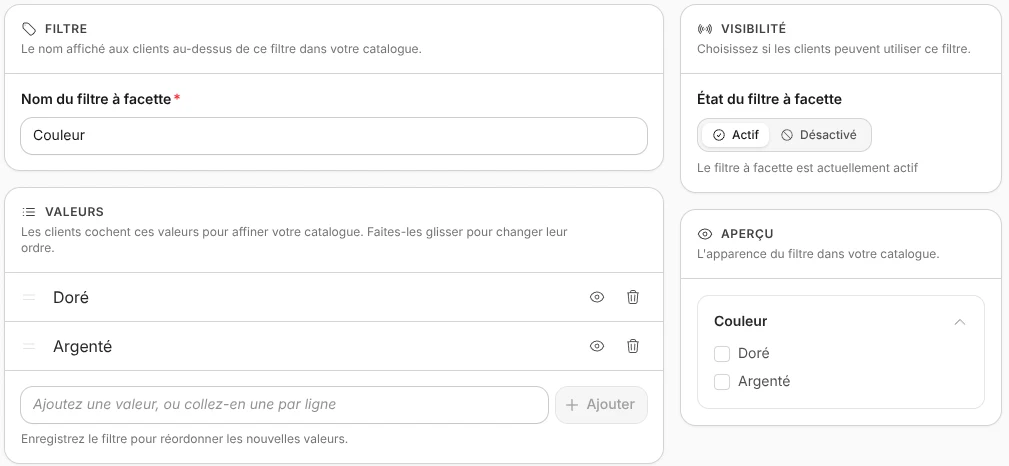
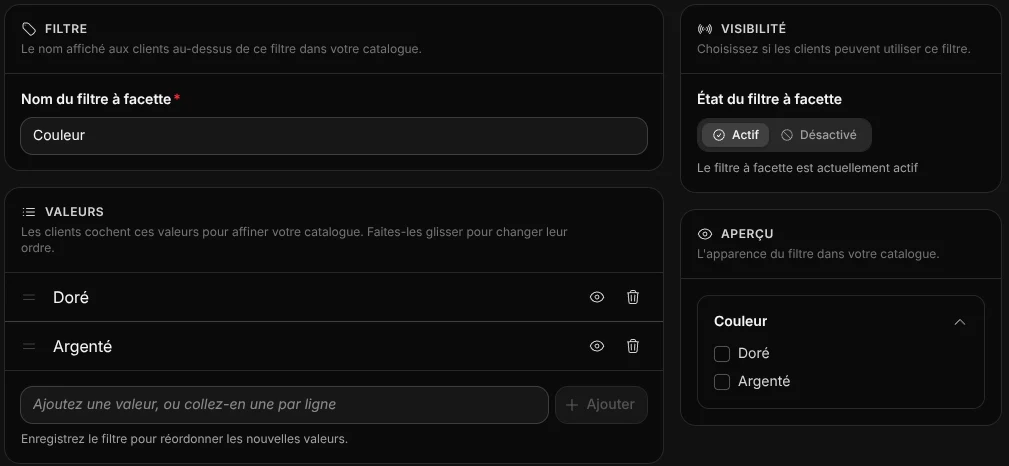
- Open Store > Filters, then click Create a facet filter.
- Enter the Facet filter name, shown to your customers online, for example Size.
- In Values, type S and press Enter, and so on. You can also paste a list, one value per line.
- Click Save.
The filter is active as soon as it is created. It stays empty on the online store until a product carries its values. The Preview, on the right of the window, shows the filter as it appears in the online catalog.
Manager role
Filters are managed with the Manager role. See Team.
Tick the values on your products
- Open Store > Products, then the product's form.
- In Product categorization, click the Filters field.
- Tick the product's values, for example S, M and L, click Validate, then Save.
In the product list, Filter then offers this filter and its values: choose Size > M to show only the products that carry this value.
Filters and variants
Filters don't read variants. A T-shirt sold in S, M and L must have these sizes ticked in Filters, on top of its variants.
Add, sort or hide values
Click the filter in the list, then:
- to add a value, type it in Add a value, or paste one per line, then press Enter or click Add;
- to change the order, drag the value by its handle. A value you have just added can be moved once the filter is saved;
- to hide a value without deleting it, click the eye (Hide this value). The trash can deletes the value.
Click Save. Two values with the same name are marked Duplicate: rename or delete one of them, or your customers will see it twice.
Disable a filter
- Click the filter.
- In Visibility, set the Facet filter status to Disabled.
- Click Save.
The filter disappears from the online store. The values ticked on your products are kept. For several filters, tick their rows in the list, then More actions > Activate or Deactivate.
Delete a filter
- Click the filter.
- Open the More actions menu (the three dots at the top of the window), then choose Delete.
- Confirm the deletion.
To delete several filters, tick their rows in the list, then More actions > Delete, and confirm.
Permanent deletion
A deleted filter also disappears from the dashboard and the online store. To remove it from the online store only, disable it.
Good to know
- No filters in the sale grid: at the register, the Sale screen is browsed with search and scanning. Filters sort the list in the Products section.
- Importing products: catalog import happens in the dashboard and ignores filter values that don't exist yet. Create your filters before importing.
- CSV export: exporting your filters to a CSV file happens on the dashboard Filters page.
- Where filters sit on the online category page is set on the dashboard Themes page.