Products
In Products, you create and manage everything you offer: physical items, downloads, subscriptions, information pages, events and donations. Use this page to add an item, import a catalog, change a price, adjust stock, replace photos, change the display order or temporarily stop selling a product.
A variant is a version of a product, such as a size, with its own price or stock. A CSV is a table saved as a file: each row describes an item and each column holds one kind of information. The import instructions below include a downloadable example.
Each row of the table shows the Product name, its Categories, its Facets, its Status, its Quantity and its Price. For a product with no stock limit, the quantity shown is Unlimited.
When a product reaches the stock alert threshold set in your notifications, the Qty label is underlined in red (out of stock or threshold reached) or amber (stock getting close). Click on a row to open the product page and edit it.
The small quick-edit button lets you correct a price or stock level without opening the full page, and the menu at the end of each row lets you duplicate or delete the product.
Check several rows to act in batch: a More actions button appears above the table to change the status, tag, categories or filters of the selected products at once, export them to a CSV file or delete them.
The dashboard is shown in French, with English captions.
Read the video steps
- — In Products, click “Create a product”.
- — Choose a physical product.
- — Scroll down and confirm.
- — The product is available for sale.
- — Enter the product name.
- — Add a product photo.
- — Upload the cup photo from your computer.
- — Check the crop and confirm the photo.
- — The photo is added to the product.
- — Briefly describe the cup.
- — Scroll to the pricing section.
- — Add a reference to identify the product.
- — Set the stock to 12 items.
- — Enter a price of €24.90.
- — Click “Save”.
- — The cup is visible with its photo, stock, and price.
Create a product
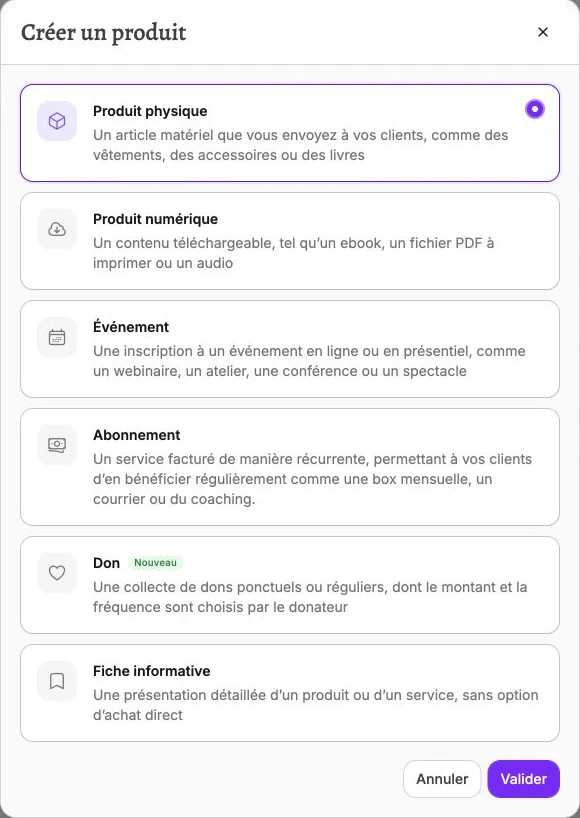
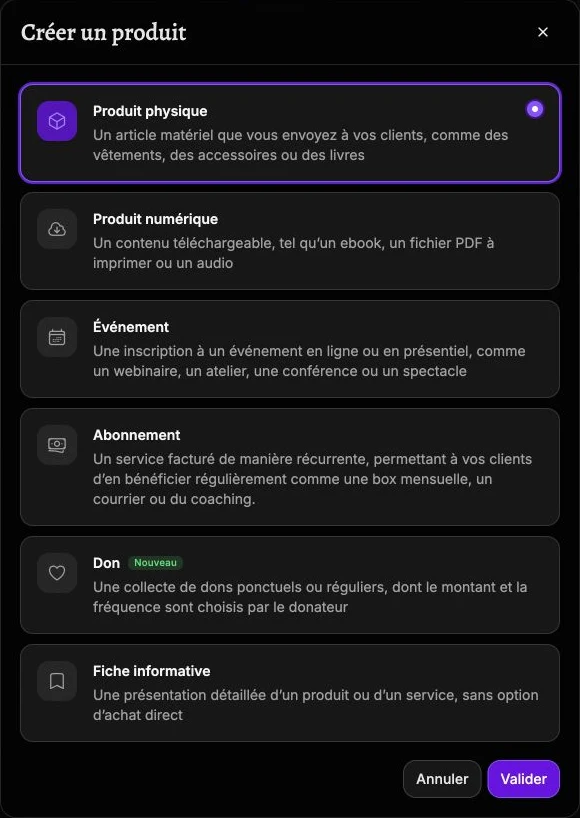
Click Create a product then choose the type that matches what you sell, since each type opens a form with settings for that product type:
| Type | Description | Examples |
|---|---|---|
| Physical product | Material item shipped to your customers | Clothing, accessories, books |
| Digital product | Downloadable content delivered to the customer after purchase | Ebook, printable PDF file, audio |
| Event | Registration for an online or in-person event, with a date and location | Webinar, workshop, conference, show |
| Subscription | Service billed on a recurring basis, delivered to the customer regularly | Monthly box, subscription newsletter, coaching |
| Donation | One-time or recurring donations, with the amount chosen by the donor | Charity, fundraiser, project support |
| Informational page | Detailed presentation with no direct purchase option | Service page, presentation of an offering |
Then confirm with Validate to open the creation form.
If your Amazon account is connected, creating a physical product opens the Create from the Amazon catalog window: search for a reference by keyword, ASIN, SKU or EAN, then click a result to pre-fill the form (name, images, weight, reference, matching categories and filters, automatically generated description). Close the window to start from a blank form.
Edit products
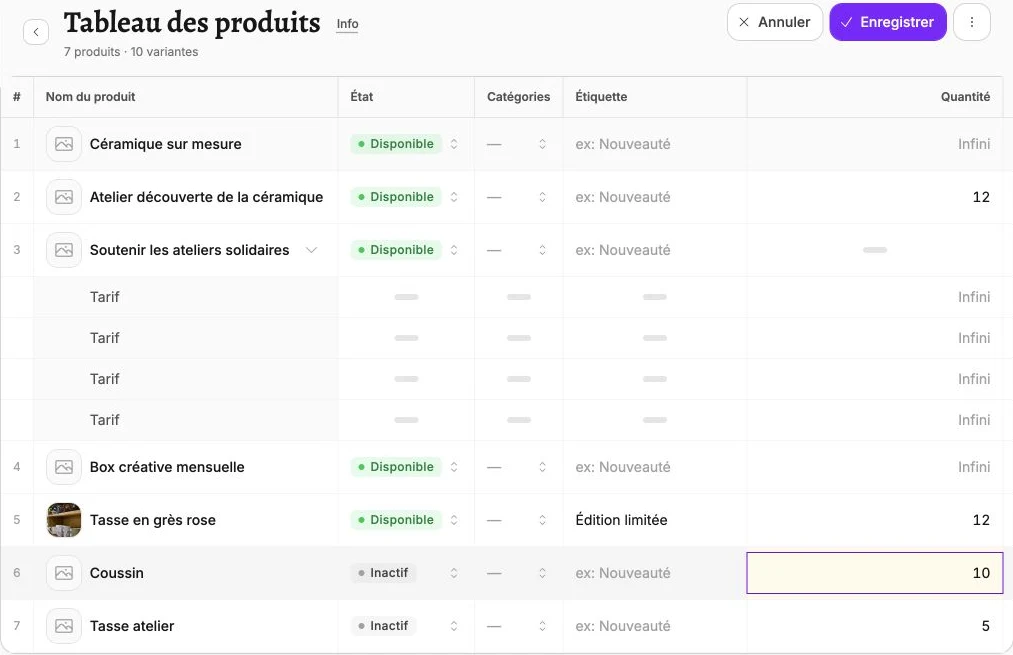
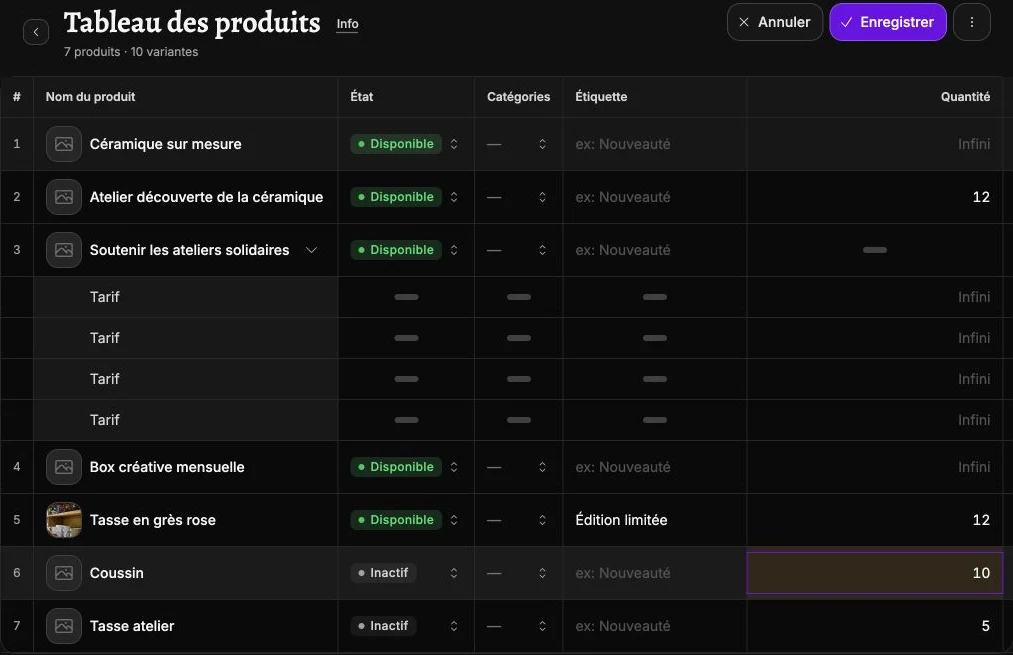
Rather than opening each product page one by one, this view gathers your whole catalog into an editable table: one row per product, its variants below. Come here for batch touch-ups, whenever an inventory count forces you to correct stock levels, a new price list applies to a whole range, the end of a season leads you to hide several products or your items need to be filed under the right categories.
To get there, open the three-dot menu ⋮, to the right of Create a product, and choose Edit products.
Each product is edited directly in the table:
- Status switches from Available to Hidden or Inactive in one click.
- Categories can be checked and unchecked to re-file the product.
- Tag edits the text shown on the product thumbnail, the same one as in Create a label.
- Quantity adjusts the stock. Leave the field empty for unlimited stock.
- Price is the sale amount including tax.
A product with several variants unfolds into one row per variant: Quantity and Price are then set variant by variant, while Status, Categories and Tag stay at the product level. A product with a single price is edited entirely on its own row.
Each changed value stays highlighted until it is saved, and a counter next to the Save button shows the number of pending changes. Click Save to apply everything at once: only the changed values are sent to your store. If you click Back without saving, you are asked to confirm so you do not lose your changes.
Import products with the assistant
Rather than creating each product by hand, the assistant rebuilds your entire catalog from a CSV file. Come here when you migrate from another e-commerce solution or when you receive a supplier's catalog: instead of re-entering each product one by one, you import the file and the assistant automatically derives every product, its variants, its prices, its images and its stock.
To start an import, open the three-dot menu ⋮, to the right of Create a product, and choose Import with the assistant. The same function is offered when your catalog is still empty, with Import products.
The assistant only accepts CSV files exported from your e-commerce solution (Shopify, PrestaShop, Squarespace, Etsy or Big Cartel) or a supplier catalog. You can drop up to 8 files, within a total limit of 18 MB.
For an accurate import, lay out your file with one row per product or variant and one column per piece of information (name, description, price, stock, reference, image…). Adding a column for your Categories and your Faceted filters is optional. For example:
| name | price | stock | reference | category | brand | filter | size |
|---|---|---|---|---|---|---|---|
| Crew-neck tee | 19.90 | 50 | 3401234567890 | Clothing > Tees | Vivlab | Organic cotton | M |
| Crew-neck tee | 19.90 | 35 | 3401234567891 | Clothing > Tees | Vivlab | Organic cotton | L |
| Ceramic mug | 12.00 | 120 | 3409876543210 | Accessories | Vivlab | Ceramic |
Download this example as a CSV file
Repeat the same name across several rows to create variants, changing only the column that differs (here the size): the assistant groups these rows under a single product, each keeping its price, stock and reference.
The category column links the product to your Categories, and the brand and filter columns to your Faceted filters. Enter the name or identifier of an entry you have already created and the assistant attaches the product to the matching ones.
Add an image column with the address (URL) of each photo: Vivlab downloads them and hosts them automatically on its platform, with no manual upload on your part.
WARNING
Your Categories and Faceted filters must already exist in your store to be assigned from the file. Create them first from your Categories and your Faceted filters: the assistant ignores any value that does not exist yet.
Once your files are added, click Analyze. The assistant reads their content and lists the detected products, each with its name, its image, its number of variants, its price range and the recognized categories and filters. Check the products to add to your catalog, uncheck the ones to leave out, then click Create: the assistant creates each product and shows the progress row by row.
Imported products behave like products entered manually. Then open each product page to check a price, complete a description or enable an option.
TIP
The assistant only uses the information present in the file: it does not invent prices or stock. Review the list of detected products before confirming it, then refine each page after creation.
Sync Faire
Once the Faire connection is set up, the Sync Faire option appears in the three-dot menu ⋮, to the right of Create a product. Come here to push your Vivlab products to your Faire shop, or to adjust from Vivlab the listings already on Faire (price, stock, status, category) without going back to the Faire interface.
The screen opens on two tabs:
- Synced with Faire lists the products already on Faire. Edit the Category, Wholesale price, Suggested retail price, Stock or Status of a product or variant, then click Save: only the modified values are sent to Faire.
- Not synced lists the Vivlab products that are not yet on Faire. Check the ones to push, fill in the Faire Category and the Wholesale price for each variant, then click Import: Vivlab creates the listings on Faire with their images, variants and stocks.
Click a row to expand the product's variants and adjust their price, stock or status individually.
WARNING
Faire requires the suggested retail price to be between 1.25 and 10 times the wholesale price. A variant outside this range is flagged in red and blocks saving until it is corrected.
Reorder products
Open the three-dot menu ⋮, to the right of Create a product, and choose Reorder to set the catalog's display order on your store. Three modes are available: Update date (recent), Creation date (recent), or Manual order to drag and drop each product to the desired place. Manual sort is useful for showcasing new arrivals or best-sellers.
Product page
Clicking on a product gives you access to all its settings, organized into several sections.
The Product status controls its visibility: Available to display and sell it, Hidden to remove it from the catalog while keeping a working direct link, or Inactive to make it completely unavailable.
Then fill in the Product name, used as the title and URL, then add the Product images (up to 16; drag and drop to reorder, the first one serves as the main image) and the Product description in the text editor with formatting options. The Generate description button drafts a description from the product's name and photos; each generation uses your AI credit.
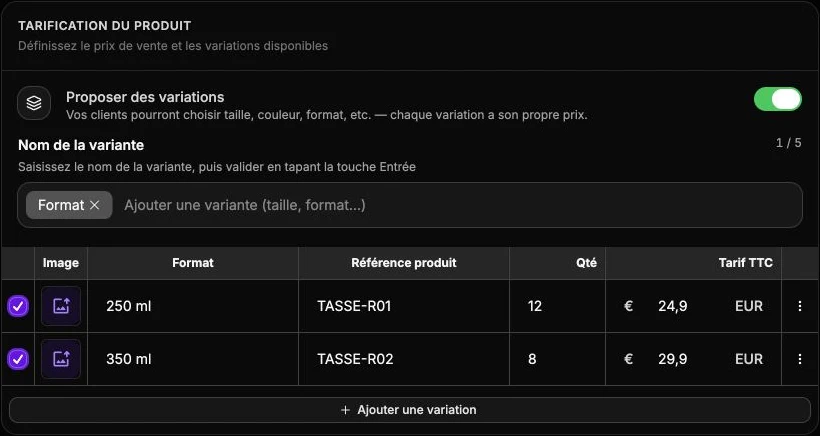
The Product pricing defines the prices and the variants offered (sizes, colors, formats). For each price, enter the Amount incl. VAT, the available Quantity (empty = unlimited stock) and the Product reference.
The 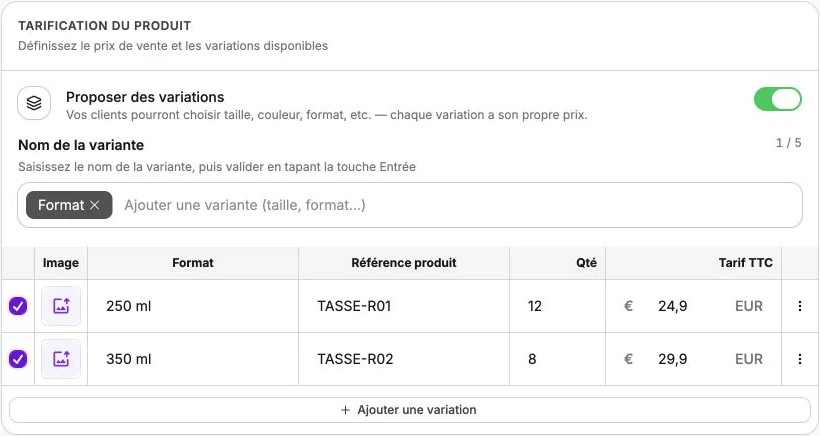
Product categorization links the item to the rest of the catalog: select the Categories it belongs to and check the values of Faceted filters to let visitors refine their search.
Enrich the product page
This section gathers all the optional add-ons that complement the product page. Each option is enabled with a switch and stays off until you need it. Some options only appear for certain product types (physical, digital, event, subscription, donation, informational page), this is noted each time.
Create a label
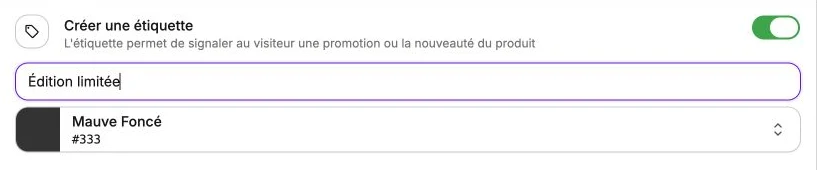
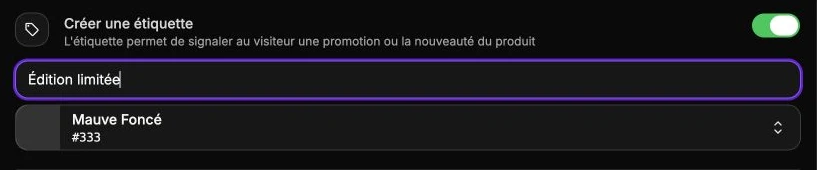
The label tells the visitor about a new arrival, an exclusive or a promotion right on the product thumbnail in the catalog. Type the text to display (for example New, Limited edition, -20%) then choose its color. The available colors come from your theme and your brand to stay consistent with your visual identity.
Flag a promotion
Displays a strikethrough price next to the sale price to highlight a discount. Enter the initial price: it must be strictly higher than the product's amount including tax, otherwise the promotion won't appear. This option is not available for informational pages.


Customize the SEO description
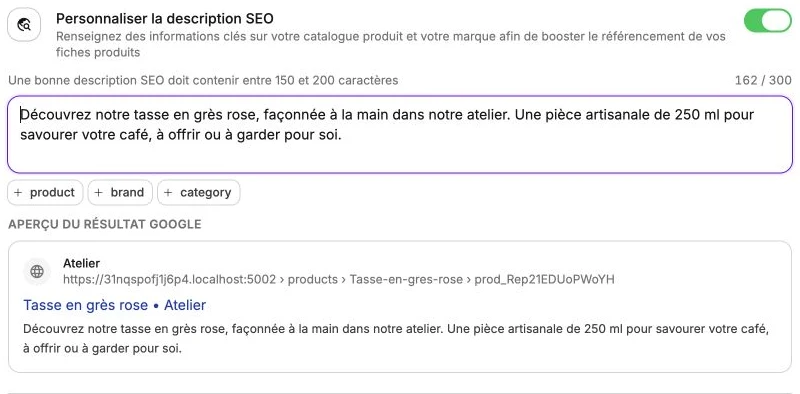
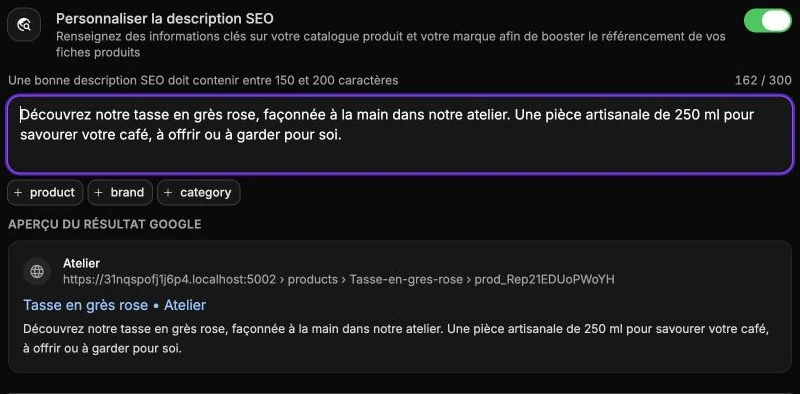
Lets you write specific text for search engines, separate from the description visible on the product page. The field comes pre-filled with the default text from your Product SEO templates, set in the SEO section: overwrite it to customize this product.
The buttons below the field insert a variable (product, brand, category) at the cursor position; each variable is replaced with the product's own value when the page appears in search results. Below the field, the Google result preview shows the final appearance: your site's favicon and domain, the title built from your title template, and the description with the variables filled in.
As long as you leave the default text unchanged, the product keeps following the general template. Aim for between 150 and 200 characters for optimal SEO, with a strict 300-character limit. This option is not available for informational pages.
Set a VAT rate
Applies a custom VAT rate to this product, different from your store's default rate. Useful for products subject to a reduced rate (books, food, press). Enter the rate as a percentage (for example 5.5). This option is not available for informational pages.


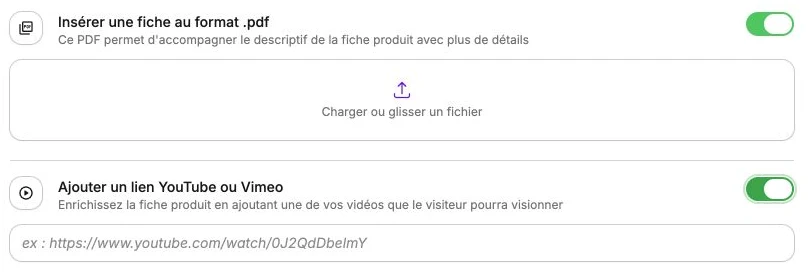
Insert a .pdf document
Adds a downloadable PDF document on the product page, in addition to the description. Handy for attaching technical instructions, a care sheet, a size guide or detailed documentation. One PDF per product; to replace it, delete the previous one first.
Add a YouTube or Vimeo link
Embeds a presentation video directly on the product page. Paste the full video URL (for example https://www.youtube.com/watch?v=...): the preview appears immediately below the field so you can check the appearance before saving.
Add a weight to the product
Sets the weight in kilograms used to automatically calculate shipping fees when your shipping options depend on weight. Available only for physical products. Decimals are accepted (for example 1.25) for greater precision.


Add custom text fields
Asks the customer to enter information at checkout (first name to engrave, gift card message, custom-fit clothing size, requested delivery date). Add as many fields as you need with Add and name each one based on what you expect from the customer. The answers entered then appear on the order. This option is not available for informational pages.


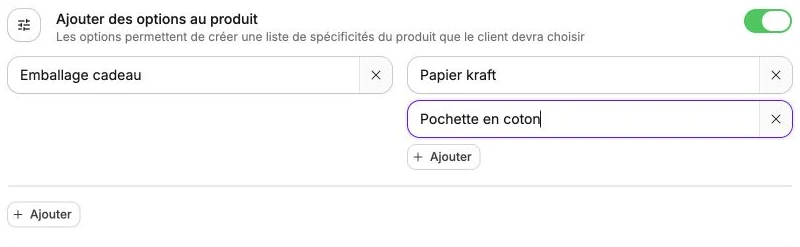
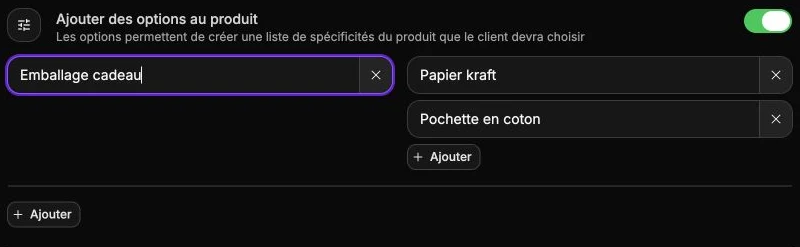
Add options to the product
Creates lists of choices the customer must make before adding the product to the cart (packaging color, scent, level of personalization). For each option, give it a name (for example Color) then list its values (for example Red, Blue, Black). Unlike the variants defined in Product pricing, options don't affect price or stock: they only collect the customer's choice. This option is not available for informational pages.
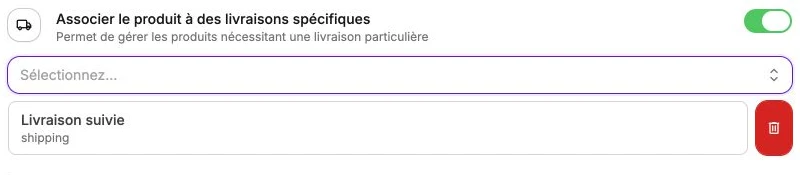
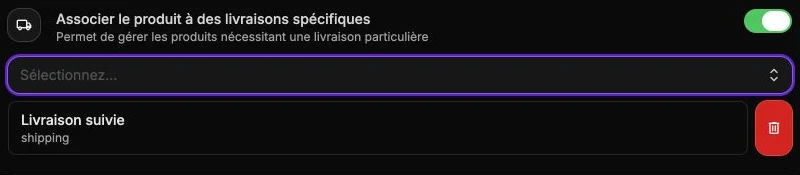
Link the product to specific shipping options
Restricts the shipping methods available for this product, overriding your global store list. Essential for bulky, fragile or refrigerated items that require a specific carrier. Select up to 8 shipping options. Available only for physical products.
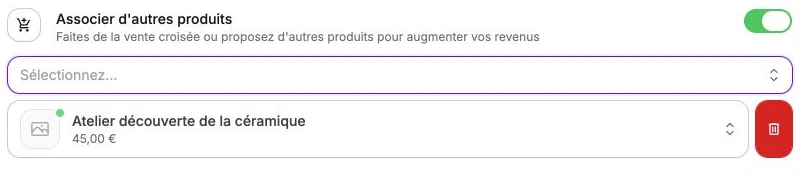
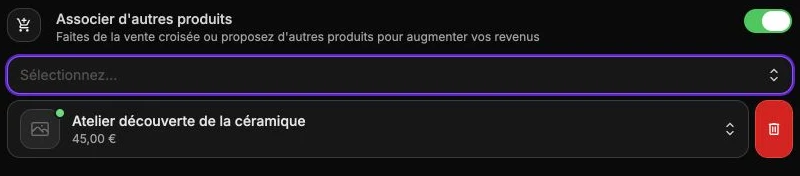
Link other products
Suggests up to 8 related products on the page to increase the average basket (cross-sell, matching accessories, frequently bought together). Search each product by name then add it to the list. This option is not available for informational pages.
Add a link in a button
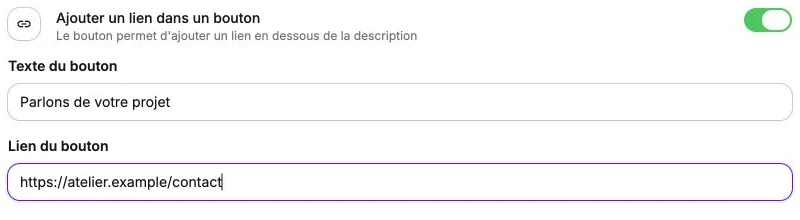
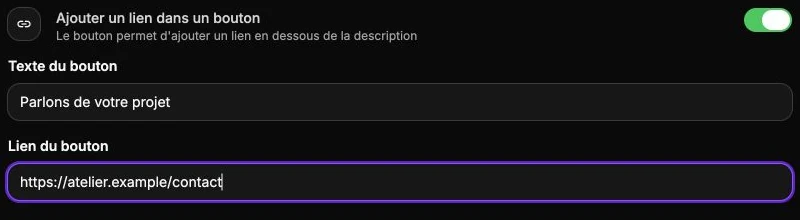
Displays a button below the description that links to an external or internal URL, in place of the buy button. Fill in the Button text (for example Learn more, Contact us) and the Button link. Available only for informational pages, since they have no buy button by default.
Type-specific specifics
Digital product
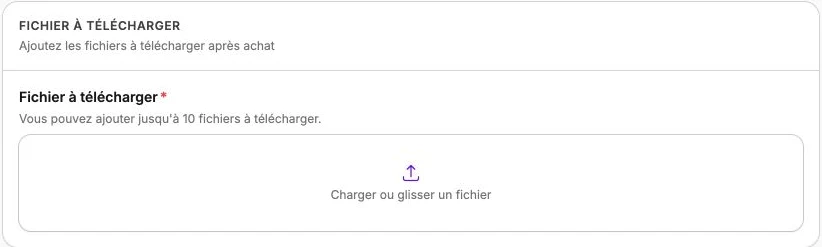
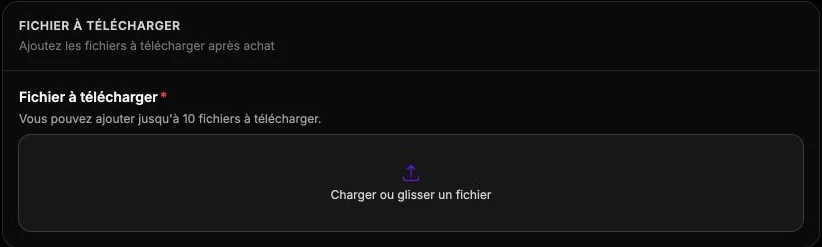
For a digital product, you attach to the page the downloadable files the customer will receive after their purchase (PDF ebooks, patterns, audio, video, print files, wallpapers), up to 10 files per product. A few important points:
- Automatic download: at the end of the order, the customer receives a confirmation e-mail containing an individual download link.
- Live updates: if you replace a file with a new version, all customers who already bought the product automatically get the update on their next download. Handy to fix a typo in an ebook or deliver a new season of content, but use with care.
- File name: give your files a clear name (e.g.
yoga-beginners-guide-v2.pdfrather thandocument_final-2.pdf): that's the name the customer sees when downloading.
Subscription
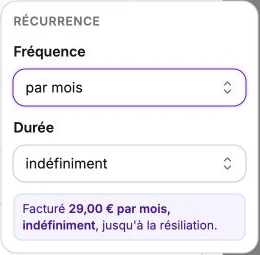
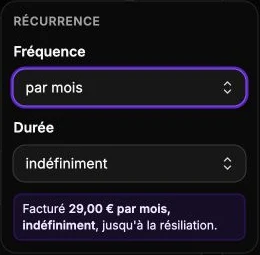
A subscription product charges your customer on a recurring basis, according to the frequency and duration you set in the Product pricing.
- Fixed or indefinite duration: you can fix a number of cycles (e.g. 12 months for a yearly box) or let the subscription run indefinitely until the customer asks to stop.
- Customer-initiated cancellation: customers with a member account can cancel from their personal area. Otherwise, they contact you and you cancel from Subscriptions. Explain the process on your Contact page or in your terms.
- Automatic renewal: each due date is billed automatically on the card the customer registered. You see the state of every subscription from the Subscription section.
Donation
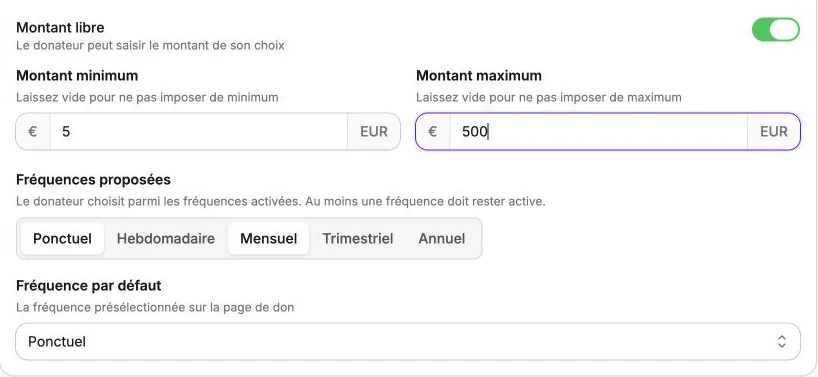
A Donation product collects one-time or recurring donations: the donor picks the amount and the frequency of their support at checkout.
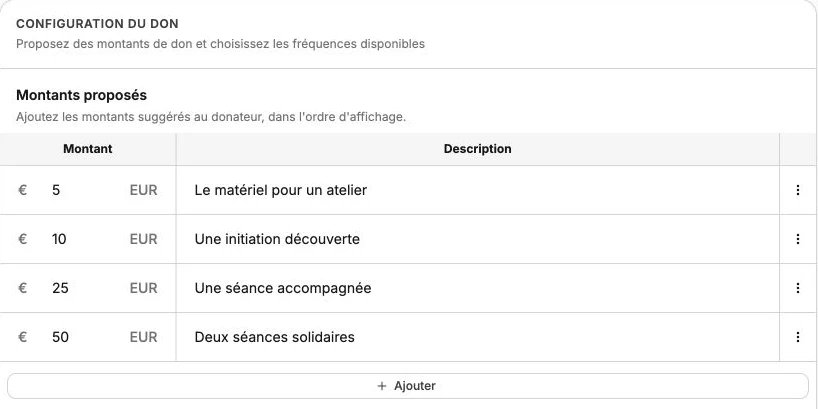
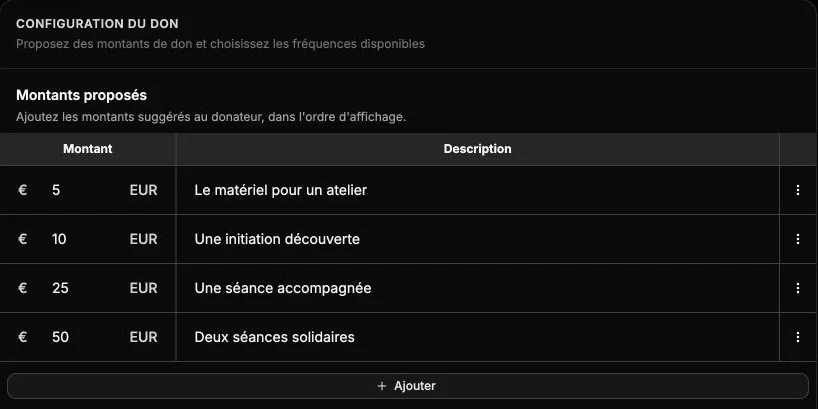
- Suggested amounts: each price on the product page becomes an amount suggested to the donor, shown in the order of the table. Add a short description next to an amount to explain what it funds (for example Funds one meal).
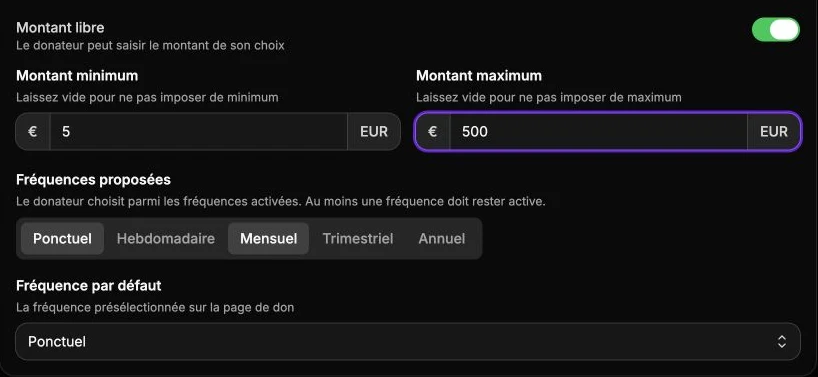
- Custom amount: enable this option to let donors enter an amount of their choice, with an optional Minimum amount and Maximum amount. The accepted amount cannot go below €0.50.
- Available frequencies: select the frequencies offered among One-time, Weekly, Monthly, Quarterly and Yearly, then pick the Default frequency preselected on the donation page.
- Recurring donations: a weekly, monthly, quarterly or yearly donation is charged automatically on the donor's card, like a subscription. You track and stop each recurring donation from the Subscription section, and a donor registered as a member manages it from their personal area.
- Email confirmation: after every donation, the donor receives the Donation confirmation email, customizable from your Emails.
TIP
A donation inherits your shop's default VAT rate. If your donations are not subject to VAT, enable the Set a VAT rate option on the product page and enter 0.
Event
An Event product looks like a physical product but represents an enrolment on a given date (workshop, conference, session, tasting, concert) rather than a shipment.
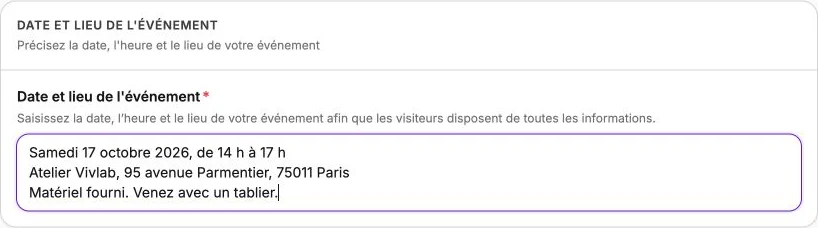
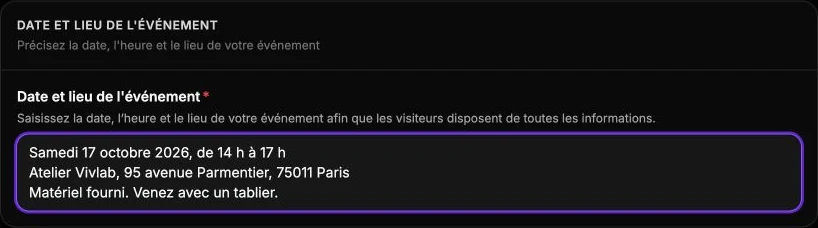
- Event date and location: the form has a dedicated required field: enter the date, time and address there so visitors have all the information before booking.
- Limiting seats: use the Quantity field in Product pricing to set the number of available seats. When stock reaches zero, the listing automatically goes to sold-out state.
- Communicate with attendees: the buyers list is available from the Orders page. For a group message (reminder, venue change), export the attendees' e-mails to contact them outside of Vivlab.