

Settings
The Settings page controls how your member area works: it's where you open or close customer accounts on your store, decide whether paying requires an account, and set up Google sign-in along with bot protection. Come here to launch the member area, choose between guest checkout and a required account at payment, add the "Continue with Google" button to your sign-in form, or protect sign-up with reCAPTCHA.
These settings control your customers' accounts on your site. Your own Vivlab sign-in is managed separately in Sign-in. Guest checkout means buying without creating an account; reCAPTCHA helps check whether a sign-in or sign-up attempt comes from a person rather than an automated program.
INFO
The member area and the loyalty program are part of the Business and Confort plans. Without one of them, these pages show an invitation to upgrade. You change plan from Manage my plan.
Member area
This is the master switch for your customer accounts. Enable members opens sign-up and sign-in on your store: your visitors create an account, reach their personal space and can collect loyalty points. Disable members closes everything: no customer account or loyalty program works on your site anymore.
This setting also governs the loyalty program. While the member area is disabled, loyalty stays inactive even if you turned it on from its own page: the member area takes precedence. Points already earned by your members stay on their balance and reappear as soon as you reopen the area.
Checkout accounts
This setting decides the role of the account at payment time: it sets whether a visitor can pay for their cart without signing up or must create an account first. It can only be changed once the Member area is enabled.
- Allow guest checkout: the visitor pays for their cart without signing up. Sign-up stays available without being forced; it's the option that removes the most friction before payment.
- Require an account: the visitor must sign in or create an account before paying.


Requiring an account ties every order to a member, who then finds their history, their addresses and their points balance. It also guarantees that every buyer is enrolled in your program, since an account is needed to earn and redeem points.
In return, asking people to sign up before payment can put off some hurried buyers. Guest checkout favors a simple buying journey; requiring an account favors a lasting relationship with the customer.
Abandoned cart recovery
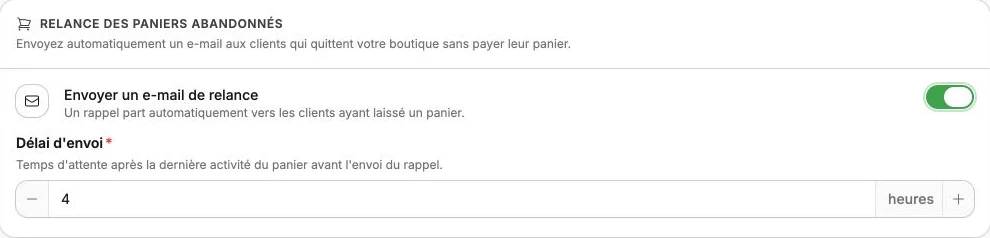
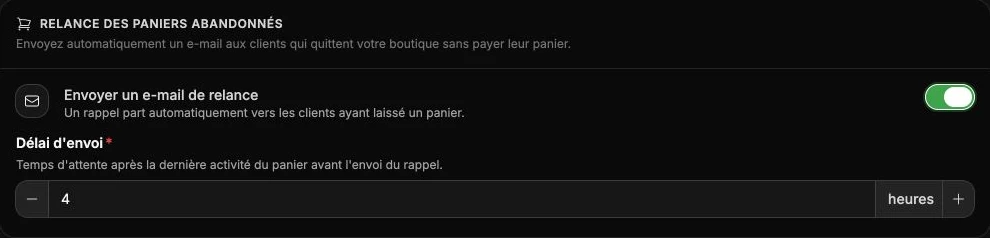
This recovery automatically emails customers who leave your store without paying for their cart, inviting them back to finish it. It feeds the Recovery column on the Abandoned carts page, where you track the carts involved and the reminders already sent.
Send a recovery email turns the reminder on: an email goes out on its own to members who left a cart. The Sending delay, in hours, sets how long to wait after the cart's last activity before the reminder goes out (4 hours suggested by default); allow enough time so you don't chase a customer who is still shopping.
INFO
The reminder only reaches members who agreed to receive it. Guest carts are never sent one: without prior consent, the CNIL forbids email marketing. You track the carts involved on the Abandoned carts page.
Login & security
Once the member area is open, your customers sign in with their email and password without any further setup. The two options below extend or strengthen that sign-in; add them when you need them.
Google sign-in
Google sign-in lets your customers identify themselves with their Google account, without creating or remembering a password. Once set up, the Continue with Google button is added to your sign-in and sign-up form. Turn on the Google sign-in switch to reveal the Client ID and Client secret fields: they come from Google and identify your store with its sign-in service.
To get them, create OAuth credentials in the Google Cloud console:
- Sign in, then create a project or select an existing one.
- Fill in the consent screen ("OAuth consent screen"): the application name shown to your customers and a support email.
- Create an "OAuth client ID" credential, with "Web application" as the application type.
- Under "Authorized redirect URIs", add your store's return address, replacing the domain with yours:
https://your-domain/pages/oauth/google - Confirm, then copy "Client ID" into Client ID and "Client secret" into Client secret.
- Save.
The Client secret is sensitive: it stays encrypted on our side and is never sent back to your site. You can replace it at any time by pasting a new value.
WARNING
The return address must match exactly the one entered at Google, domain included. If your store answers on a custom domain, use that domain, otherwise sign-in will fail when Google returns. The Continue with Google button only appears once the Client ID is filled in.
reCAPTCHA
reCAPTCHA v3 checks in the background that the person signing up or signing in is human, without forcing an image to recognize or a box to tick. Each attempt gets a score: if that score is too low, the request is refused. Turn on the reCAPTCHA switch to reveal the Site key and Secret key fields: they come from Google and link your forms to this check.
To create them, open the reCAPTCHA admin console:
- Give your site a name and choose the reCAPTCHA v3 type ("Score based").
- Add your store's domain to the list of allowed domains.
- Accept the terms, then confirm.
- Copy "Site key" into Site key and "Secret key" into Secret key.
- Save.
The Site key appears on your store's page to request a score from Google; the Secret key, kept encrypted on our side, is used to verify that score when someone signs up or signs in. Turn the switch off and accounts keep working, without this protection.
INFO
Google shows a small reCAPTCHA badge in a corner of your site: its presence is required by Google as soon as reCAPTCHA is active.