

Loyalty program
The Loyalty program page sets how your customers earn points on every order, then exchange them for discounts. It's also where you generate the program's terms of use. A single program applies, automatically, to all your members: there's nothing to set up account by account.
A bracket is a spending step used to calculate points, such as one step for every €5 spent. A tier is a reward the customer can obtain with a set number of points. The examples below show the calculation from purchase to discount.
Come here to turn your rewards program on or off, adjust the number of points granted on each purchase, choose which order amount is counted, offer a bonus on sign-up or for a birthday, or open new discount tiers.
The preview shown next to the form updates live: it shows what a member will see and lets you simulate the points earned on an order.
INFO
The loyalty program is part of the Business and Confort plans. Without one of them, the page shows an invitation to upgrade; you change plan from Manage my plan.
It also relies on the member area, which you open from Settings. While it stays closed, loyalty remains inactive even when set up here: the member area takes precedence. Google sign-in and reCAPTCHA protection are also configured from Settings.
Loyalty program
At the top of the page, choose Enable loyalty so your customers collect points on their purchases, or Disable loyalty to suspend the program. A badge, Active or Inactive, recalls its real state.
While it stays Inactive, your customers see nothing and earn no points: you set the program up at your own pace, nothing is lost in the meantime. Switching back to Disable loyalty suspends earning, but the points your members have already collected stay on their balance and become usable again as soon as you turn it back on.
WARNING
Loyalty only becomes Active if the member area is open. If you enable loyalty while the member area is closed, a message flags it and the badge stays Inactive: open the member area first from Settings.
Program identity
Start with a Program name (for example "Loyalty club"): it helps you spot it in your dashboard. The optional Program icon is shown in your customers' loyalty area: use a square, transparent image, larger than 128 × 128 px.
The Points name is the word shown to your customers for what they earn. Enter it in the singular; the shortcuts "points", "stars" and "credits" are offered, but nothing stops you writing your own.
Points expiry sets a period of inactivity, in months, after which unused points reset to zero, a way to encourage your customers to come back regularly; every earn or redemption restarts the clock. Leave the option off for points that never expire.
Earn points
Two settings drive the number of points earned, and the preview translates them live. Bracket amount is the spending step that grants points, expressed in euros (1 € by default). Points per bracket is the number of points granted for each full bracket reached.
The calculation divides the order amount by the bracket, then multiplies by the points, rounding down:
points = (amount ÷ bracket amount, rounded down) × points per bracket
With a 5 € bracket and 100 points per bracket, a 12 € order earns 200 points: (12 ÷ 5 = 2) × 100, two full brackets, the remainder doesn't count. A 1 € bracket comes down to granting points euro by euro.
Points calculation base chooses which amount is counted:
- Amount paid excluding shipping: the products total, taxes included and discounts deducted, without shipping fees.
- Total amount paid: the whole order, shipping fees and taxes included.
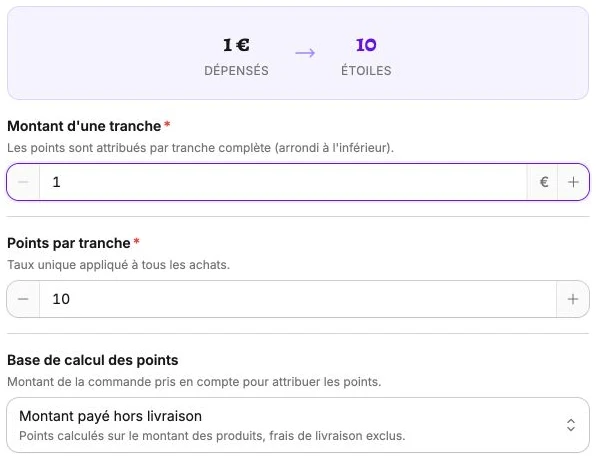
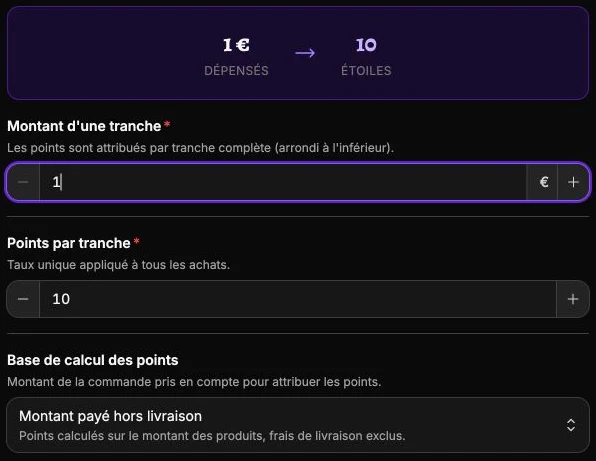
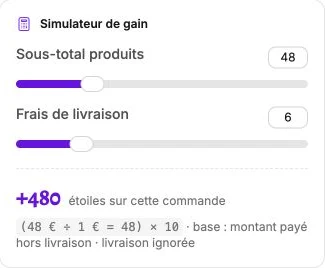
For an order of 48 € of products and 6 € of shipping (54 € total), the result changes with the settings:
| Bracket amount | Points per bracket | Calculation base | Points earned |
|---|---|---|---|
| 1 € | 1 | Amount paid excluding shipping | 48 |
| 1 € | 10 | Amount paid excluding shipping | 480 |
| 5 € | 1 | Amount paid excluding shipping | 9 |
| 10 € | 5 | Total amount paid | 25 |
The last two rows show the rounding: 9 brackets of 5 € out of 48 € (the remaining 3 € don't count), and 5 brackets of 10 € out of the 54 € paid (the remaining 4 € don't count).
Two optional bonuses add to this calculation. The Welcome bonus grants points when the account is created; the Birthday bonus grants some every year on the customer's birthday. Points are credited once the order payment is confirmed.
INFO
On a refund, full or partial, the points earned on the order are removed from the member's balance, in proportion to the refunded amount.
WARNING
Changing the configuration does not recalculate points already granted: member balances stay unchanged and the new settings only apply to orders placed after the change.
Stay careful if members already hold points. A refund can happen long after the purchase, and the matching removal is calculated using the settings in force at that moment. A bracket or a point count changed in between can therefore remove a balance different from the one credited at the start.
Redeem for a discount
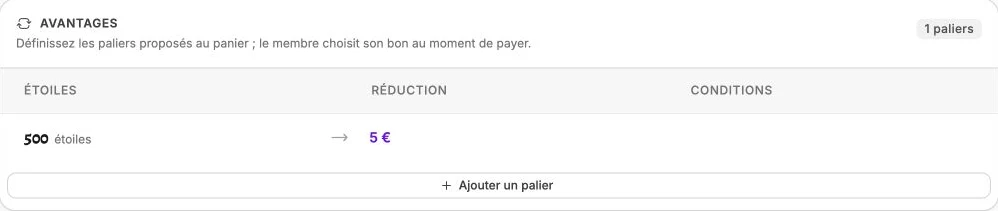
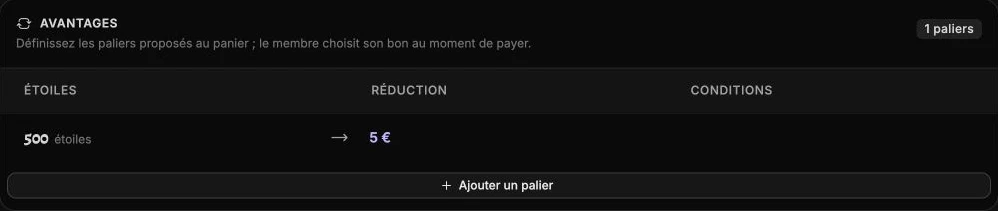
This section defines the exchange tiers: how many points the customer spends, and the discount they get in return. The table lists each tier with its Discount and its Conditions; add as many tiers as you like with Add a tier.
At payment time, the member picks the voucher that suits them: their points are debited and they receive a single-use discount code, reserved for their account, which you find in the Coupons section of their profile.
Each tier is edited like a discount code. Set the number of Points to spend, what the Discount applies to (products only, shipping only, or products and shipping), the Discount type (fixed amount or percentage) and its value.
Optional rules refine the voucher: Maximum discount to cap a percentage discount, Require a minimum order value, restricting to certain products or categories, and a Validity in days after which the voucher expires (unlimited if the field stays empty).
Member preview
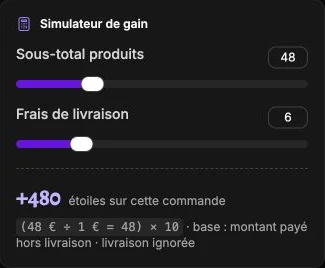
Next to the form, Member preview shows in real time what a customer will see: their balance, the next voucher to reach and the euro value of their points. The Earning simulator rounds out this preview: two sliders set the product subtotal and the shipping fees, and the calculation detail shows the points earned under your settings.
Nothing to save here, it's a check tool while you adjust the program.
Terms of use
This section generates a preview of the members and loyalty program terms of use, from your company information and your loyalty program. The text covers membership, the member account, earning and exchanging points, how long they stay valid, what happens to points when an order is refunded, personal data, changes to the terms, termination and contact.
It updates as soon as you change your program or your details. Nothing to fill in here: use this text as a starting point to publish or adapt for your customers. Show unfolds the preview, Hide folds it back.
Configuration examples
Here are three complete programs and what they earn a customer, from their first purchase to the discount.
Example 1: one point per euro
- Bracket amount: 1 €
- Points per bracket: 1
- Points calculation base: Amount paid excluding shipping
- Welcome bonus: 100 points
- Redeem for a discount: 100 points = 5 €
The customer gets 100 points as soon as they sign up. An 80 € product order adds 80, that is (80 ÷ 1) × 1, bringing their balance to 180 points: they exchange 100 points for a 5 € discount and keep the remaining 80.
Example 2: generous program
- Bracket amount: 1 €
- Points per bracket: 10
- Points calculation base: Total amount paid
- Redeem for a discount: 1,000 points = 10 €
A 50 € order, shipping included, earns 500 points: (50 ÷ 1) × 10. After two orders like this, the customer reaches 1,000 points and gets a 10 € discount.
Example 3: tiered reward
- Bracket amount: 10 €
- Points per bracket: 1
- Points calculation base: Amount paid excluding shipping
- Redeem for a discount: 50 points = 5 €
A 95 € product order earns 9 points: (95 ÷ 10 = 9) × 1, only 90 € count and the remaining 5 € are ignored. The customer builds up points order after order until reaching an exchange tier.