

MCP connector
Vivlab exposes an MCP (Model Context Protocol) connector that lets a compatible AI assistant, such as Claude, act directly on your store: find a product, write a product description, create a discount coupon, adjust a shipping rate or review your orders, all from a simple conversation. The assistant never receives your password: it goes through an authorization that you grant yourself and can revoke whenever you want.
Come here when you want to hand repetitive tasks to an AI (updating a batch of prices, translating descriptions, preparing a set of blog articles), query your catalog in plain language, or plug your own tool into your store's data. Everything the assistant does stays limited to your account and mirrors what you could do yourself in the dashboard.
What you need
Just one thing: an assistant or tool that knows how to connect to a remote MCP server. That includes the Claude app (desktop and web), Claude Code, Cursor and most recent MCP clients. You will also need your usual Vivlab credentials to confirm the authorization.
There is no key or token to copy: the connection sets itself up from a single address.
The connection address
The only thing to give your assistant is the connector address:
https://dashboard.vivlab.com/mcpFrom this address, your assistant automatically discovers how to authenticate and opens the Vivlab authorization page in your browser. There is nothing else to enter.
Authorize access
The first time your assistant connects, Vivlab asks for your approval:
- Enter
https://dashboard.vivlab.com/mcpin your assistant and start the connection. - Your browser opens on Vivlab. Sign in to your dashboard if you aren't already.
- An authorization page shows the connector's name and the access it requests. Review them, then click Authorize to confirm or Cancel to refuse.
- You return to your assistant: it is now linked to your store.
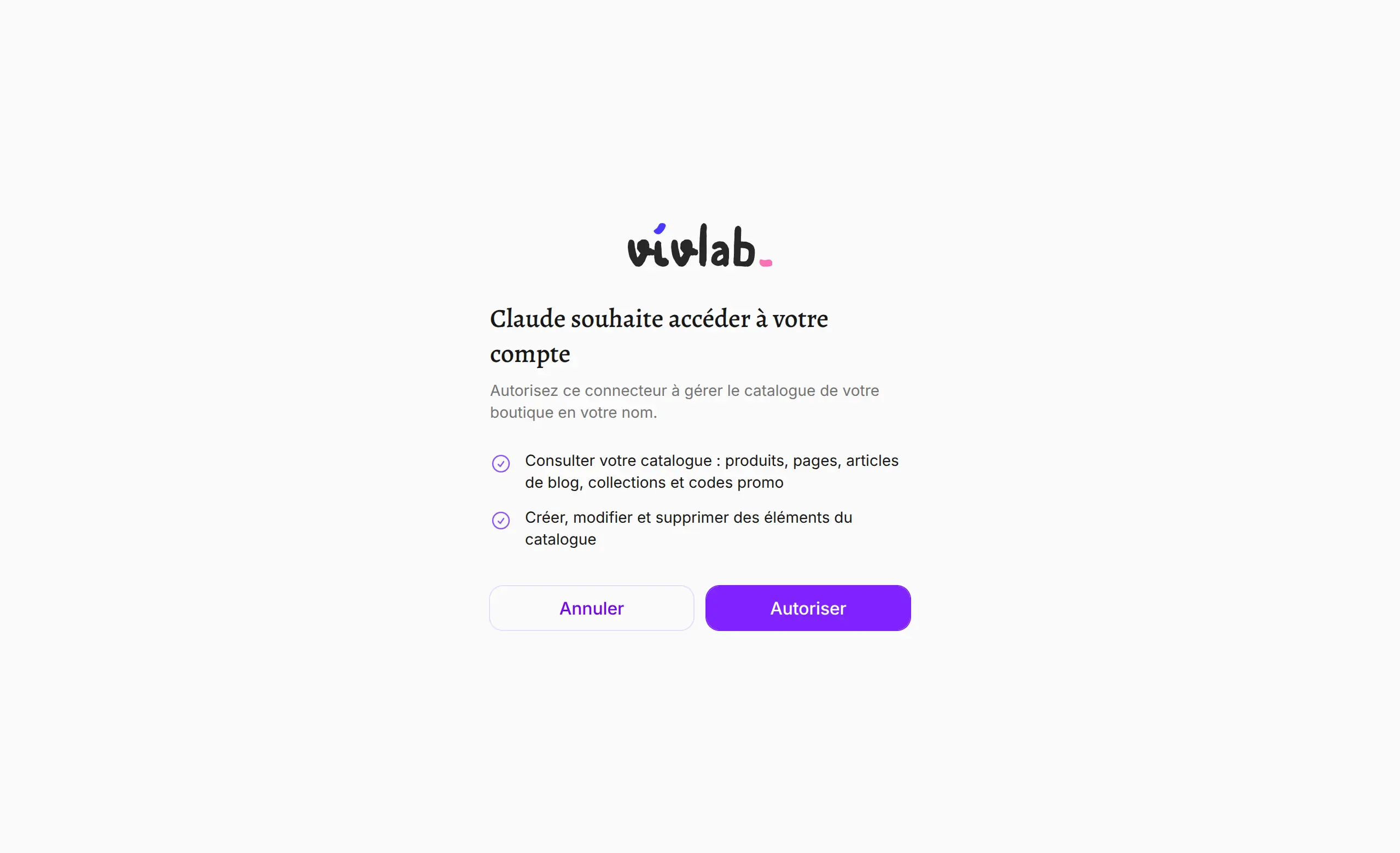
The authorization stays valid until you revoke it. Your assistant renews it on its own, so you don't have to go through this step again for every conversation.
WARNING
Once connected, the assistant acts on your behalf and can edit your store according to the access you granted. Only authorize tools you trust, and carefully review the actions it suggests before confirming them.
Read-only or editing
The authorization covers two distinct access levels:
- Viewing: the assistant can search and read your catalog (products, pages, blog articles, collections, coupons, orders) but changes nothing.
- Editing: the assistant can additionally create, update and delete items, and upload images or files.
The authorization page shows exactly which access is requested before you confirm. If you want a risk-free connection to review or analyze your data, use an assistant set to view-only; to let it carry out changes, grant editing.
Set up your assistant
The steps depend on the tool you use, but the address to provide is always the same.
Claude (app and web)
Open Claude's settings, the connectors section, then add a custom connector by pasting the address https://dashboard.vivlab.com/mcp. Claude then opens the Vivlab authorization page described above. Once access is granted, the Vivlab actions become available in your conversations. Adding custom connectors may require a paid plan.
ChatGPT
You can enable MCP servers in ChatGPT if you have a Pro, Plus, Business, Enterprise or Education account. Follow the instructions in OpenAI's documentation. Use the following settings when configuring your custom connector:
- The server address is
https://dashboard.vivlab.com/mcp. - Use "OAuth" as the connection method.
ChatGPT then opens the Vivlab authorization page described above.
Mistral (Vibe / Le Chat)
In Mistral Vibe (formerly Le Chat), open the settings, the connectors section, then add a custom connector by entering a name and the address https://dashboard.vivlab.com/mcp. Le Chat then opens the Vivlab authorization page described above. Once access is granted, enable the Vivlab connector in a conversation so it can act on your store. Adding custom connectors may require a paid plan.
Claude Code
In a terminal, add the connector with a single command:
claude mcp add --transport http vivlab https://dashboard.vivlab.com/mcpThen launch Claude Code and type /mcp to start the authorization: your browser opens on Vivlab to confirm access.
Cursor and other clients
Most MCP clients expect a small configuration file. Declare the Vivlab server as a remote connector:
{
  "mcpServers": {
    "vivlab": {
      "url": "https://dashboard.vivlab.com/mcp"
    }
  }
}
On the first call, the client opens the Vivlab authorization page in your browser. Check your tool's documentation for the exact location of this file.
What the assistant can manage
Once connected, the assistant handles the same data you do from the dashboard. Here is what it can do, area by area.
| Area | Available actions |
|---|---|
| Products | Search, view, create, update and delete a product with its prices |
| Categories | List, view, create, update and delete a category |
| Facet filters | List, view, create, update and delete a filter |
| Discount coupons | Search, view, create, update and delete a coupon |
| Shipping rates | Search, view, create, update and delete a rate |
| Pages | Search, view and update a page |
| Blog | Articles, authors, sections and tags: list, view, create, update and delete |
| Orders | Search, view and update an order |
| Subscriptions | Search and view (read-only) |
| Images and files | Upload an image or file and get its address to use on a listing |
Subscriptions always stay view-only. Every create, update and delete action is available only if you granted editing access; otherwise the assistant is limited to viewing.
Full list of tools
Every action the assistant can trigger maps to a "tool" it picks based on your request. The table below lists them all. The Access column shows whether the tool is Viewing (available as soon as you connect) or Editing (available only if you granted that access).
| Tool | Description | Access |
|---|---|---|
products_search | Search products | Viewing |
products_get | View a product and its prices | Viewing |
products_create | Create a product and its prices | Editing |
products_update | Update a product and its prices | Editing |
products_delete | Delete a product and its prices | Editing |
collections_list | List categories | Viewing |
collections_get | View a category | Viewing |
collections_create | Create a category | Editing |
collections_update | Update a category | Editing |
collections_delete | Delete a category | Editing |
facets_list | List facet filters | Viewing |
facets_get | View a facet filter | Viewing |
facets_create | Create a facet filter | Editing |
facets_update | Update a facet filter | Editing |
facets_delete | Delete a facet filter | Editing |
coupons_search | Search discount coupons | Viewing |
coupons_get | View a discount coupon | Viewing |
coupons_create | Create a discount coupon | Editing |
coupons_update | Update a discount coupon | Editing |
coupons_delete | Delete a discount coupon | Editing |
shippings_search | Search shipping rates | Viewing |
shippings_get | View a shipping rate | Viewing |
shippings_create | Create a shipping rate | Editing |
shippings_update | Update a shipping rate | Editing |
shippings_delete | Delete a shipping rate | Editing |
pages_search | Search pages | Viewing |
pages_get | View a page | Viewing |
pages_update | Update a page | Editing |
blog_articles_search | Search blog articles | Viewing |
blog_articles_get | View a blog article | Viewing |
blog_articles_create | Create a blog article | Editing |
blog_articles_update | Update a blog article | Editing |
blog_articles_delete | Delete a blog article | Editing |
blog_authors_list | List blog authors | Viewing |
blog_authors_get | View a blog author | Viewing |
blog_authors_create | Create a blog author | Editing |
blog_authors_update | Update a blog author | Editing |
blog_authors_delete | Delete a blog author | Editing |
blog_categories_list | List blog sections | Viewing |
blog_categories_get | View a blog section | Viewing |
blog_categories_create | Create a blog section | Editing |
blog_categories_update | Update a blog section | Editing |
blog_categories_delete | Delete a blog section | Editing |
blog_tags_list | List blog tags | Viewing |
blog_tags_get | View a blog tag | Viewing |
blog_tags_create | Create a blog tag | Editing |
blog_tags_update | Update a blog tag | Editing |
blog_tags_delete | Delete a blog tag | Editing |
invoices_orders_search | Search orders | Viewing |
invoices_orders_get | View an order | Viewing |
invoices_orders_update | Update an order | Editing |
invoices_subscriptions_search | Search subscriptions | Viewing |
invoices_subscriptions_get | View a subscription | Viewing |
images_upload | Upload an image and get its address | Editing |
files_upload | Upload a file and get its address | Editing |
Disconnect
To remove access, delete the Vivlab connector from your assistant's settings: it will no longer be able to reach your store. The authorization also expires on its own if it stops being used. As long as the connection exists, it only gives access to your account and nothing else.