

Members
The Members page gathers the customer accounts created on your store. A member is someone who signed up on your site to find their orders, follow their subscriptions and collect loyalty points.
Come here whenever a customer asks about their account, when you need to check their orders or subscriptions, find one of their addresses, adjust their loyalty points, share a file with them, leave an internal note or delete their account on request.
Click on a row to open the member's profile, with their contact details, their tags and the history of their orders, subscriptions, addresses and payment methods.
INFO
The member area is part of the Business and Confort plans. Without one of them, the page shows an invitation to upgrade; you change plan from Manage my plan.
Search
Search for a member by name, email or one of their tags. Each row shows the account's status (Active if the member signed in within the last 90 days, Inactive otherwise), their Sign-up date, their last Activity and their Tags.
Add a member
Most members are created on their own when customers sign up on your store. The Add a member button is for the cases where you enter a customer by hand, for example after a sale closed offline.
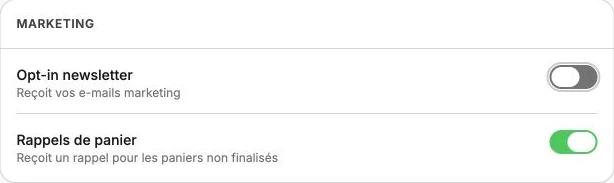
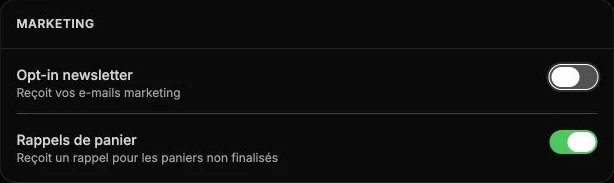
Only the Email is required. Then fill in the Full name, the Phone and the Language the customer will be contacted in. The Marketing section records their consents: Newsletter opt-in means they accept your marketing emails, Cart reminders that they accept abandoned cart recovery emails. Finish with their billing Address.
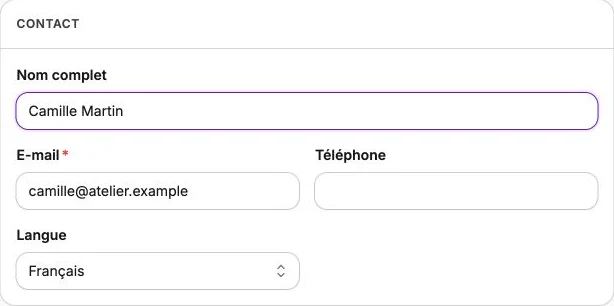
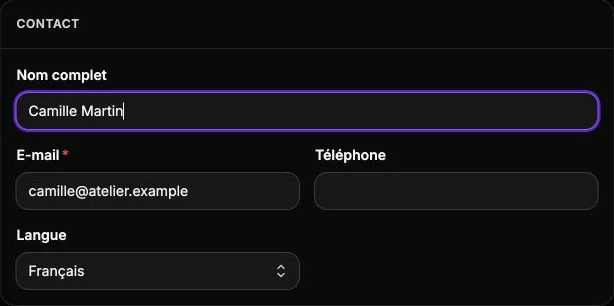
Shipping addresses, loyalty points, shared files and the internal note are then managed from the member's profile.
When the member area is disabled, a message at the top of the page flags it and points you to Settings to open it. From there you can launch your loyalty program.
Member profile
The profile opens on the member's name, an Active or Inactive badge based on their last sign-in, and a row of counters: orders placed, orders To process, points balance, Active vouchers and how long they've been a member (Member since).
The Contact section brings together their details (name, email, phone), their language, their loyalty program and points balance, their customer ID (it links the member to their record at our payment provider and fills in automatically on the first payment), their sign-up date, their last activity, their Newsletter and Cart reminders consents, their Sign-in method and their tags; the Edit button reopens the form described above.
The other sections detail the member's activity and profile:
- Points: the member's loyalty history (order earnings, bonuses, redemptions, refunds, adjustments). The Adjust points button credits or debits the account by hand, for example as a goodwill gesture: pick Credit or Debit, the number of points and, if needed, an internal note; the new balance shows before you confirm.
- Coupons: the discount codes reserved for this member, including the vouchers obtained by redeeming their points.
- Abandoned cart: the cart the customer left without checking out, if they have one.
- Orders: all of their orders, with their status and amount. Click on one to open it.
- Downloads: the files you share with this member; they find them in their account.
- Subscriptions: their subscriptions, ongoing or ended.
- Address: their billing address, used on their invoices.
- Shipping addresses: their shipping addresses. The Add button creates a new one, and each address can be edited or deleted.
- Payment: the cards saved at our payment provider, available once the member is linked to a customer ID.
- Internal note: a free comment visible only to your team; click Edit, write your note then Save.
Authentication
The Sign-in method row in the Contact section shows how the member identifies on your store, via Google or Email, or signals that No sign-in account exists yet.
At the bottom of the profile, the Account security zone offers Sign out all sessions, which ends all of their active sessions on their devices: use this at the customer's request or if you suspect their account is compromised, they will have to sign in again on their next visit.
INFO
Passwords are never stored in plain text. They are protected by hashing with Argon2id, today's reference algorithm for password security.
Delete a member
From the profile, the actions menu offers Delete member. The deletion is permanent: the member loses access to their account along with all of their loyalty points. To rule out any slip, the confirmation asks you to type "Delete permanently" before it goes through. Use this action to answer a request to delete an account.