

Blog theme
This page controls the appearance of the blog page, that is the list of articles your visitors see when they arrive on the blog. Set the ready-made theme, the article order, the colors, the grid and how images are displayed here. The Preview on the right updates as you make changes. Switch between Desktop and Mobile to check both versions. Your settings appear in the preview before you save.
Come here after enabling your blog in Settings, then whenever you change theme or adapt the grid to your publishing pace.
Your changes are saved in one go with Save at the top of the page, or discarded with Cancel.
General
This section sets the foundations of the theme: the ready-made template, the article order and the page colors.
Pick a Theme to apply a coherent template: besides the default theme, three named themes are available (Classic, Magazine and Typographic). The Magazine theme features the first article of the list in a large block above the grid. Set Sort by to choose the display order: leave "Default", or show recently updated articles first ("Update date (recent)") or recently created ones ("Creation date (recent)").
Set the page Background, then the Title color and the Description color to keep a readable contrast. The title and description shown at the top of the list are the ones entered in Settings.
Grid
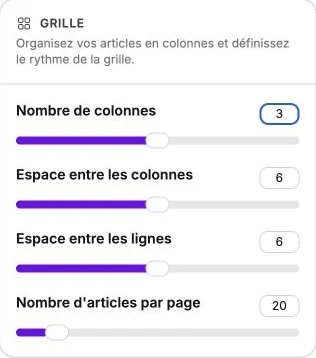
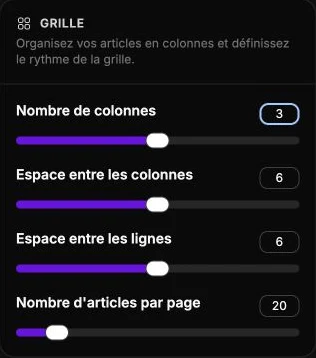
The grid defines how your articles are laid out on the page. A single column reads like a vertical feed, four or five columns make a dense wall of articles.
Set the Number of columns (from 1 to 5, 3 by default). Adjust the Space between columns and the Space between rows (from 0 to 20, 6 by default) to space out or tighten the grid. Set the Articles per page (from 10 to 100, 20 by default) to control pagination.
Media
This section drives how images are displayed: the article thumbnails and the banner of the featured article.
Pick the Image ratio (from the 5:8 portrait to the 8:5 landscape, 4:3 by default) so that every thumbnail shares the same proportion. The Banner ratio goes from the 1:1 square to very elongated strips (up to 7:1, 16:9 by default) and applies to the image of the article featured by the Magazine theme.
Set the Image corner radius (from 0 to 24 pixels) to soften the corners of thumbnails and banner. Enable Contain the banner or Contain the images to show the entire visuals without cropping.
TIP
The featured article is simply the first of the list: change Sort by to pick which article fills the Magazine theme's banner.
Grid spacing
This section adjusts the inner margins around the article grid. They control the space between the page edges and the first article.
Use All sides to apply the same margin on all four sides in a single setting. Use Top, Right, Bottom and Left to adjust each side independently.
Text spacing
This section adjusts the margins around each article's information (title, excerpt, date). They control the space between the image and the text beside it.
Set Top, Right, Bottom and Left to give the text more or less room depending on the density of your grid.
The presentation of each article opened from this list is set separately in the Article theme.