

Shipping
A shipping method is a way to hand a purchase over to the customer: home delivery, pickup from you, or a Mondial Relay pickup point. Each method has its own price, countries served and announced delay. Shipping methods are shared with the dashboard and your online store, where customers pick one at checkout. At the register, you add shipping to the sale when the customer pays at the counter but has the items delivered.
What do you want to do?
- Create a shipping method
- Add shipping to a register sale
- Charge by cart weight
- Offer free shipping above an amount
- Choose the countries served
- Announce the delivery delay
- Offer in-store pickup (Click & Collect)
- Deliver to Mondial Relay pickup points
- Ask the customer for a detail
- Disable a shipping method without deleting it
- Edit, duplicate or delete a shipping method
Create a shipping method
The list shows each method's Name, its type, its Delay, its Status (Active or Inactive) and its Amount. Under the amount, you see the number of prices in a weight grid, the per-item surcharge and the free shipping threshold. Search for a shipping rate finds a method by its name.
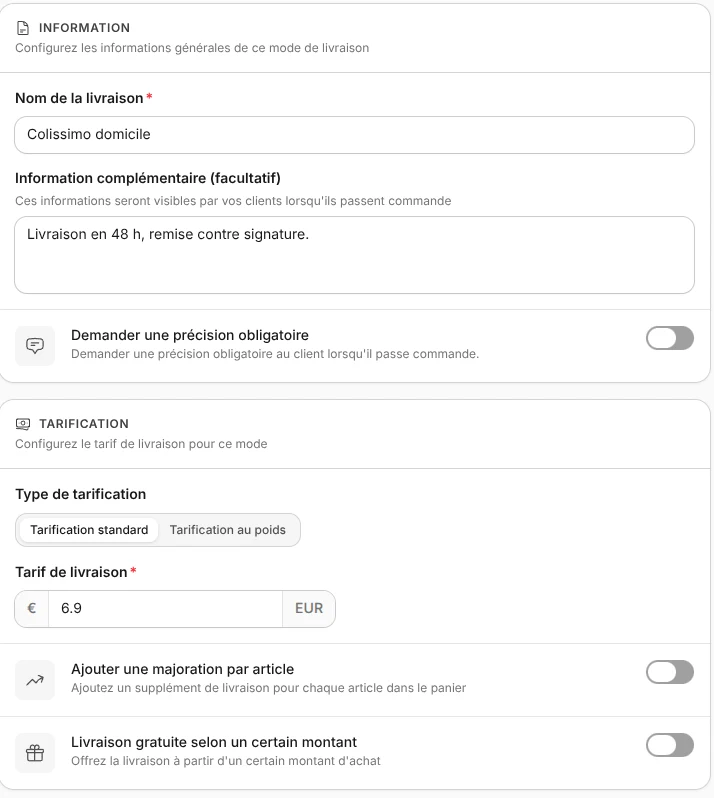
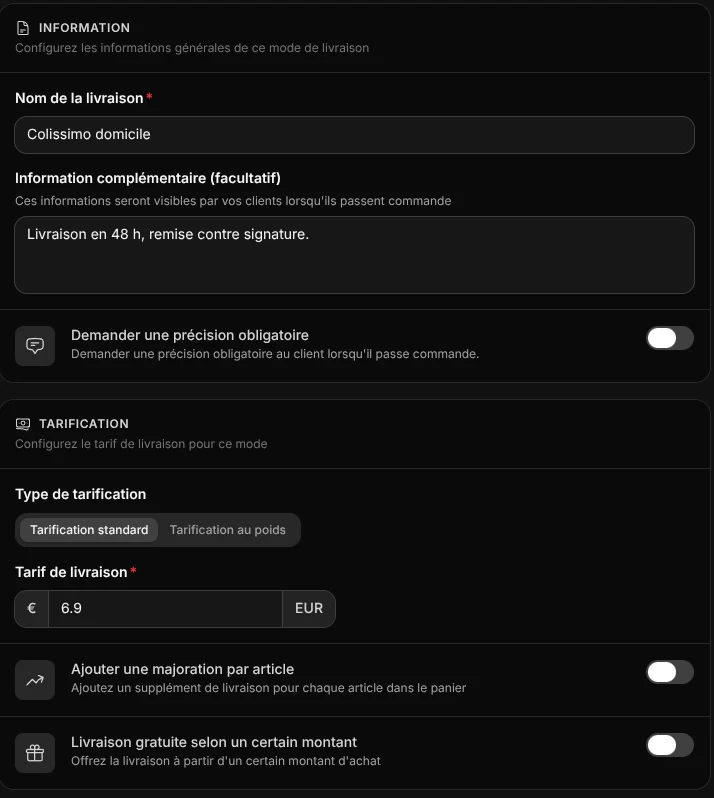
- Open Store > Shipping, then click Create a shipping method.
- Choose the type (see the table), then click Validate.
- Enter the Shipping name, read by the customer and printed on the receipt, for example Colissimo 48h.
- In Pricing, enter the Shipping rate including VAT (0 for free shipping).
- Check the Shipping area (France is ticked by default), then click Save.
The method is Available right away. Additional information (optional) adds a text shown to the customer on the online store.
| Type | What it's for | At the register |
|---|---|---|
| Package shipping | Send to the customer, with the carrier of your choice | Available, with the customer's address |
| Click & Collect pickup | The customer picks up their order from you or at a set location | Available, with no address to enter |
| Mondial Relay delivery | The customer picks a pickup point at checkout | Not available |
Several rates by destination
A method has only one rate or one weight grid. For a France price and a Europe price, create two methods with their countries. Duplicate, in the window's menu, speeds up creating the second one.
Manager role
Shipping methods are created and managed with the Manager role. Every role can add shipping to a sale. See Team.
Add shipping to a register sale
- On the Sale screen, add the items to the cart.
- Tap Cart actions (the three dots at the top of the cart), then Add delivery.
- Choose a method in the list, or search for it with Search delivery methods. Only active methods appear.
- For a delivery, fill in the delivery address: name, address, postal code, city and country are required. A pickup doesn't ask for an address.
- Tap Validate.
The register calculates the shipping price for this cart, with the same rules as online: flat rate or weight grid, per-item surcharge and free shipping above an amount. The price is added to the sale's total. The full flow, including removing shipping, is described in Sale.
The register refuses a method that doesn't fit the cart, with the message Check the delivery address and whether this method is available for all items. This happens:
- when an item in the cart is reserved for other shipping methods (see Products);
- when the address's country is not part of the method's Shipping area;
- when the cart's weight goes beyond the last level of a weight grid, unless shipping is free for that amount;
- when the method is inactive.
At the register, the customer picks neither a time slot nor a pickup point, and the mandatory detail is not asked. On the receipt, shipping carries the VAT of the items it delivers. If the cart mixes several rates, the shipping VAT is split in proportion to the amount of the items at each rate.
Pickup point not available
Mondial Relay methods appear greyed out in the list, with the note Relay point selection is not available at the register.
Charge by cart weight
- Open the method and choose Weight-based pricing in Pricing type.
- For each level, enter the Maximum weight (in kg) and the Shipping rate. The minimum weight takes over from the previous level.
- Add levels with Add a level, then click Save.
The weight of the items in the cart is added up, and the first level that covers it applies. The last row, with no maximum (∞), covers heavier carts.
Enter your products' weight
The calculation uses the weight entered on each product with Add a weight to the product (see Products). A product with no weight counts as 0 kg.
Offer free shipping above an amount
- Open the method and turn on Free shipping above a certain amount in Pricing.
- Enter the Minimum purchase amount, for example €50, then click Save.
As soon as the items reach this threshold, this method costs €0, at the register and online. The threshold is set method by method.
On the same card, Add a per-item surcharge adds a Surcharge per item beyond the first item: with a €6.95 rate and a €0.50 surcharge, a 3-item cart pays €7.95. To offer free shipping with a promo code, see Coupons.
Choose the countries served
- Open the method. In Shipping area, tick a whole zone, for example Metropolitan France or International Europe, or click its name to tick countries one by one. The search helps you find a country.
- To remove a country, click its cross at the top of the block, or Remove all, then click Save.
Online, the customer chooses their country and sees the methods that serve it. At the register, the country entered in the address must be part of the chosen method's area.
Announce the delivery delay
- Open the method, Delay and time slots card, and choose the duration in The delay is estimated at, from same day to 120 days.
- Choose the cut-off time, by half hour: after that time, an order takes one more day.
- Keep ticked the weekdays when you deliver or open for pickup (Monday to Friday by default), then click Save.
On the online store, the customer sees an estimated delivery date that always falls on a ticked day. To announce a precise date (a market, an event), turn on Set a fixed date on the same card and choose the date.
To let the customer pick a time slot online, turn on Set delivery time slots (or Set pickup time slots) and set the slot duration, start time and end time for each day. Time slots are not offered at the register.
Offer in-store pickup (Click & Collect)
- Click Create a shipping method, choose Click & Collect pickup, then click Validate.
- Enter the Pickup name, for example Pickup at the shop, and, required, the Pickup location address and hours, for example "12 rue des Lilas, 69003 Lyon. Tuesday to Saturday, 10 am to 6 pm".
- Leave the rate at €0 if pickup is free, then click Save.
At the register, this method is useful for example when the customer pays today for an item they will come back for. No address is asked.
Deliver to Mondial Relay pickup points
A Mondial Relay method needs a Mondial Relay account connected on the dashboard Carriers page. On your online store, the customer chooses their pickup point on a map before paying.
- Click Create a shipping method, choose Mondial Relay delivery, then click Validate, and enter the name.
- In Pricing, click Automatically generate Mondial Relay pricing to fill in the weight grid, then adjust it if needed.
- Tick the countries in Delivery area, then click Save.
The register cannot select a pickup point: this method stays reserved for the online store. Rates and covered countries are described on the dashboard Shipping page.
Ask the customer for a detail
- Open the method, Information card, and turn on Request a mandatory detail.
- Enter the text the customer will read, for example "Door code, floor and intercom", then click Save.
On the online store, the customer must fill in this field before paying. At the register, the detail is not asked: note the information in the address, for example in the second address line.
Disable a shipping method without deleting it
- Click the method in the list.
- In Status, choose Inactive.
- Click Save.
The method disappears from the register and the online store, with its settings kept. Set it back to Available to offer it again. For several methods, tick their rows in the list, then More actions > Activate or Deactivate.
Edit, duplicate or delete a shipping method
Click a row to open the method's settings. The arrows at the top of the window move to the previous or next method. The More actions menu (the three dots at the top of the window) offers Duplicate and Delete. After a change, Save and duplicate saves the method and opens a copy.
To delete several methods, tick their rows in the list, then More actions > Delete, and confirm. Deletion is permanent.
A change applies to later sales: receipts already issued keep the shipping name and price at the time of the sale.
Good to know
- Shipping reserved for some products: on the product form, Associate the product with specific shipping limits an item to certain methods (8 at most), at the register and online.
- Products without shipping: on the online store, a cart made only of digital products, events, subscriptions or donations offers no method.
- CSV export and labels: exporting methods to a CSV file and generating Mondial Relay labels happen in the dashboard.