

Settings
Settings open in a window over the current screen, without leaving the sale. They group the device settings, your business details, the layout of receipts and the lock screen, and emailed receipts. The Billing and Usage sections of the same window are covered in Subscription and billing.
What do you want to do?
- Open settings and find a setting
- Change the device language, appearance or colors
- Find the register software version
- Edit your business details and default VAT
- Change the first month of the fiscal year
- Add your logo
- Customize the lock screen
- Customize the receipt
- Choose how long credit notes stay valid
- Send receipts from your business email address
- Customize the look of emails
Open settings and find a setting
- At the bottom of the sidebar, open the Account menu (your name and the register's).
- Click Settings. The window opens on General.
- Choose a section from the list: General, Company, Receipts & lock screen, Emails, Billing or Usage. To go faster, type a word in Search settings, for example "logo".
- Close the window to return to the screen you had open.
The Company, Receipts & lock screen, Emails, Billing and Usage sections are reserved for the Manager role. A seller or supervisor only sees General. See roles.
In sections that need saving, click Save to apply your changes, or Cancel to return to the saved values. The Unsaved changes badge shows a pending change.
Change the device language, appearance or colors
The General section only affects the device you are using. Changes apply immediately, without saving, and do not affect other registers.
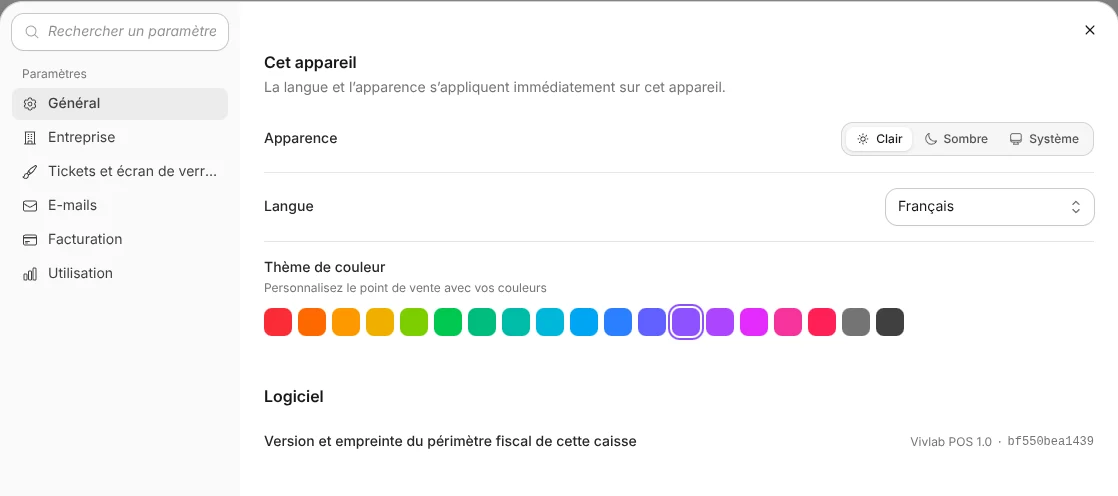
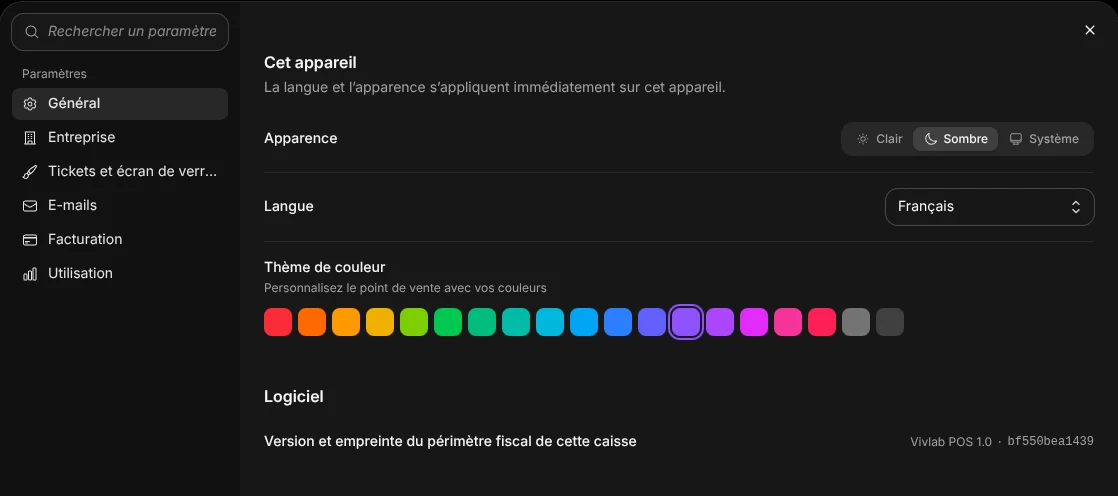
- Open Settings > General.
- In Appearance, choose Light, Dark or System (the appearance then follows the device setting).
- In Language, choose the register's language: French, English, German, Spanish, Italian, Dutch or Portuguese.
- In Color theme, choose the main color of the interface.
You can also change Appearance and Language directly from the Account menu.
Find the register software version
In Settings > General, the Software item shows the name and version of the register software, followed by the beginning of its fingerprint. The fiscal perimeter fingerprint is a code calculated from the software files that handle fiscal data: it is identical for every installation of the same version and lets anyone check that the software has not been modified. Hover over it to see the full fingerprint. This information is used during a tax audit.
Edit your business details and default VAT
The Company section contains the details entered during setup. They are shared with the Vivlab dashboard: a change here also updates your details in the dashboard.
- Open Settings > Company.
- In Business address, you can run a new search with Find your business (name, SIREN or SIRET) to fill everything in, or correct the Legal business name, Name on address, Phone, Street address, Address line 2, Postal code, City, State / region and Country.
- In Fiscal information, check the SIREN (9 digits), the SIRET (14 digits, starting with the SIREN), the EU VAT number and the Default tax rate, between 0 and 100%.
- Click Save. The Settings saved. message confirms the change.
The default tax rate applies to products that have no VAT rate set, when they are added to the cart. A product with an explicit rate, even 0%, keeps its own. Changing this rate changes neither the items already in the cart nor receipts already recorded.
Mandatory details
Each receipt carries the establishment's SIRET, or its full address if there is no SIRET. If these details are missing, checkout asks you to complete the company details here before recording the sale.
Change the first month of the fiscal year
The fiscal year is the twelve-month period over which your company prepares its accounts. The register's annual closing, in Reports, follows this fiscal year. By default, it starts in January and matches the calendar year.
- Open Settings > Company, Fiscal year item.
- In First month of the fiscal year, choose the month your fiscal year starts, for example July.
- Click Save.
The new month applies to later annual closings.
Change refused
The change is refused in two cases. If an annual closing is due, first close the elapsed fiscal years from the reports of each register concerned. If the new month would make a fiscal year begun at a register's last annual closing (or its opening) end in the past, choose a month whose next fiscal year end is still to come.
Add your logo
The logo is your Vivlab account logo, shared with the dashboard. It appears on the lock screen, printed receipts and emailed receipts.
- Open Settings > Receipts & lock screen.
- In Logo, upload your image or replace the current one.
- Click Save.
Customize the lock screen
The lock screen is shown on every register while it is locked or waiting for an operator. A preview next to the form shows the result.
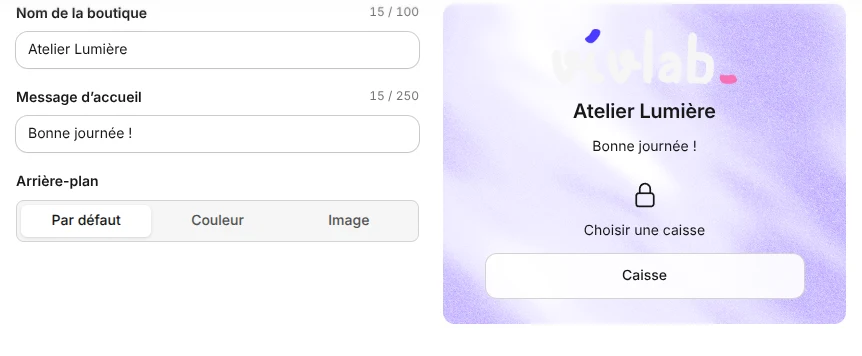
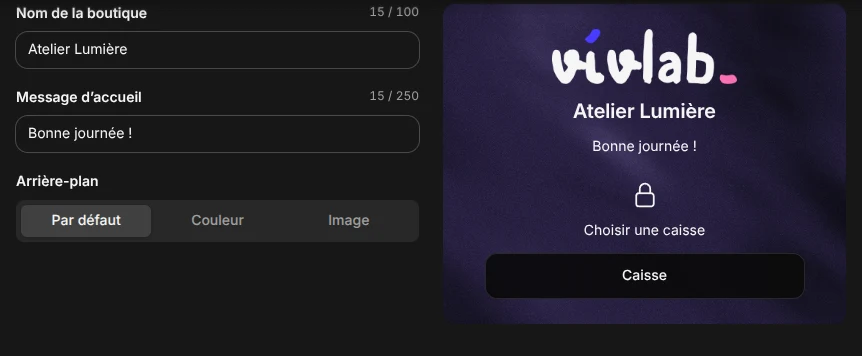
- Open Settings > Receipts & lock screen, Lock screen item.
- In Store name, enter the name to display (100 characters at most). If you leave it empty, the legal business name is shown.
- In Welcome message, add a line for your team, for example "Have a good day!" (250 characters at most).
- In Background, keep Default, choose Color and then a shade, or Image and then upload a photo.
- Click Save.
These settings apply to every register on the account once saved.
Customize the receipt
You can add your own text to the receipt and choose your printer's paper width. The business identity, amounts, taxes and fiscal reference always remain on printed receipts.
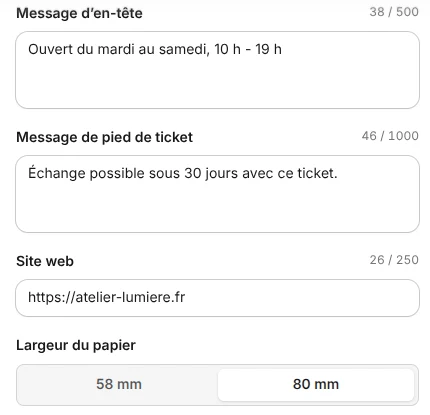
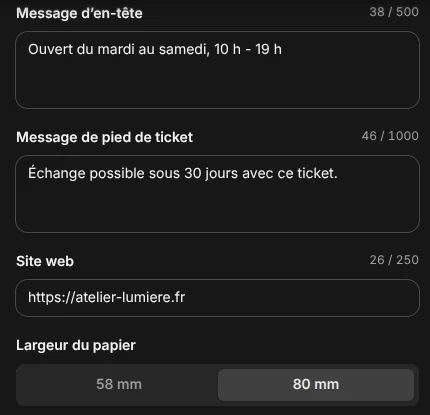
- Open Settings > Receipts & lock screen, Receipt item.
- In Header message, enter text printed at the top of the receipt (500 characters at most), for example your opening hours.
- In Footer message, enter text printed at the bottom (1,000 characters at most), for example your exchange policy.
- In Website, enter your website address, starting with
https://. - In Paper width, choose 58 mm or 80 mm to match your paper roll. The default width is 80 mm.
- Check the preview, then click Save.
Choose how long credit notes stay valid
A credit note is a voucher given to the customer for a return, instead of a refund: they spend it on a later purchase. See Receipts to issue one and Checkout to use one.
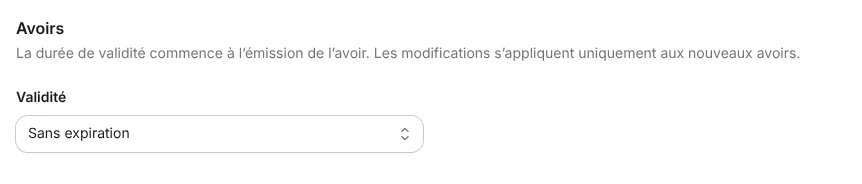
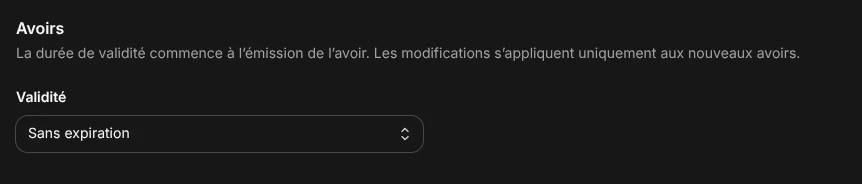
- Open Settings > Receipts & lock screen, Credit notes item.
- In Validity, choose Never expires (the default), 3 months, 6 months, 1 year, 2 years or Custom.
- With Custom, enter a whole number for Validity (days), from 1 to 3,650 days.
- Click Save.
Validity starts on the day the credit note is issued. A change only applies to new credit notes: those already issued keep their expiry date.
Send receipts from your business email address
At the end of a sale, you can email the receipt to the customer. Until a server is configured, receipts are sent from noreply@vivlab.com on behalf of your business. To send them from your own address, enter your mailbox's sending server (SMTP server). These settings are shared with the Vivlab dashboard.
- Open Settings > Emails, Sending server item.
- In Configuration, choose your email provider: Go Daddy, OVH, IONOS 1&1, Gandi, Gmail or Infomaniak. The Outgoing server and Outgoing port are filled in. For another provider, choose Custom and enter them yourself (the port is usually 465 or 587).
- Enter the Email address that will appear as the sender, and the Username and Password of that mailbox. The password is always encrypted.
- Click Send a test email, then check that it arrives in your inbox.
- Click Save.
If the test fails, the register tells you which item looks wrong: the email address, the outgoing server, the username or password, or the port. The test requires every server field to be filled in.
Customize the look of emails
- Open Settings > Emails, Email appearance item.
- Set the Background color, Border color, Border width and Corner radius.
- Check the result in the Preview, a sample emailed receipt with your current settings.
- Click Save.
The email logo is the one set in Add your logo.