

Getting started
Before the first sale, the register needs three things: your business details, which appear on every receipt, a register, and at least one staff member to record sales. A setup assistant walks you through them the first time. After that, the lock screen is where you choose who is at the register each day.
What do you want to do?
- Create an account or sign in
- Get back in after forgetting your password
- Set up the register the first time
- Unlock the register with your PIN
- Choose your PIN the first time
- Lock the register or hand over
- Change the register on this device
- Sign out
Create an account or sign in
The register uses your Vivlab account. If you already have an account for the dashboard or your website, sign in with the same email address: you will find your catalog, customers and business details.
- Open the register in your browser. The Welcome back screen appears.
- If you already have an account, enter your Email address and Password, then click Sign in, or click Sign in with Google.
- Otherwise, click Create an account at the bottom of the form. Enter your email address and a password of at least 8 characters, then click Create an account, or choose Sign up with Google.
- When signing up by email, enter the Verification code you received by email, then click Validate code. If nothing arrives after a few minutes, check your spam folder or click Resend code.
- If your account is protected by a passkey (signing in with your fingerprint, face or device code), confirm it when asked.
The register then opens on the setup assistant, or directly on the lock screen if the register is already set up.
Sign-in suspended after five errors
After five attempts with a wrong password, sign-in is suspended for five minutes. Use Forgot password? if you are unsure of your password.
Get back in after forgetting your password
- On the sign-in screen, click Forgot password?.
- Enter your email address, then click Send verification code.
- Enter the code you received by email, then click Validate code. Confirm your passkey too if your account has one.
- In Choose a new password, enter the New password twice, then click Reset password.
The new password also applies to the Vivlab dashboard. The change signs out your other sessions on other devices.
Set up the register the first time
The assistant has five steps: Business, Address, Taxes, Register and Operator. On the right, a receipt preview fills in as you go: these details appear on every receipt, as the law requires. At the top of the screen, you can change the Language and Appearance, or sign out from Account.
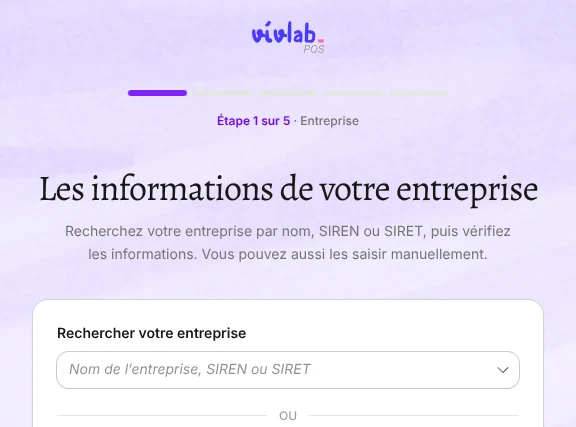

If your business is already set up in the Vivlab dashboard, the fields are prefilled and you only need to check them. If your business details are already saved, the assistant opens directly at the Register step.
- Business: in Find your business, type the name, SIREN or SIRET, then choose your establishment from the list. The legal business name, SIREN, SIRET, VAT number and address are filled in. If the search finds nothing, click Enter details manually. Check the Legal business name and SIREN, add the SIRET, Name on address and Phone if needed, then click Validate.
- Address: check the Street address, Postal code, City and Country (Address line 2 and State / region are optional), then click Validate. This address appears on your receipts and reports.
- Taxes: add your EU VAT number if you have one, check the Default tax rate (20% to start with), then click Validate. Your business details are saved at this step.
- Register: enter the Register name, for example "Counter", then click Create and open. If registers already exist, choose one and click Use this register, or click Create another register.
- Operator: enter the Staff name of the person who will run the register, then click Add and continue. This first staff member gets the Manager role, which opens every screen.
The lock screen then opens with this staff member already selected: all that is left is to choose their PIN. To add more sellers later, go to Staff.
A few terms used here:
- the SIREN is the 9-digit number that identifies your company in France;
- the SIRET has 14 digits, starts with the SIREN and identifies one specific establishment (a shop). The register prints the establishment's SIRET on every receipt, or its full address if there is no SIRET;
- the EU VAT number identifies your company for VAT within the European Union;
- the default tax rate applies to products that have no VAT rate set. A product with an explicit rate, even 0%, keeps its own.
You can change all of this later in Settings > Company.
One register and one staff member on the Free plan
On the Free plan, you can have only one open register and one active staff member. Creating a second register shows the plans. See Subscription and billing.
Unlock the register with your PIN
The lock screen appears when the register opens, after it is locked, and when nobody is signed in on the device yet. It shows the store name, your welcome message and the register name. You can customize it in Settings > Receipts & lock screen.
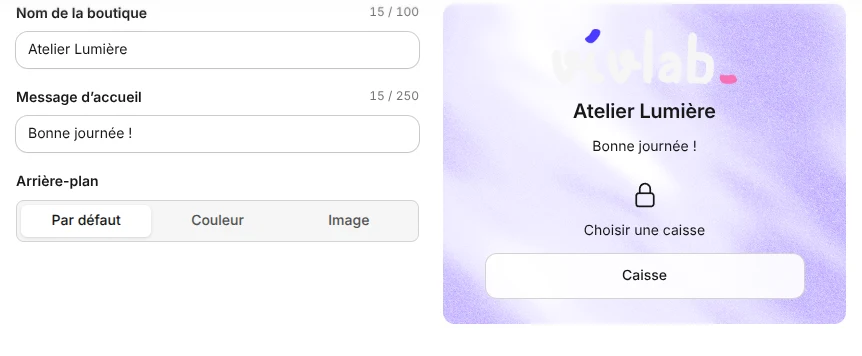
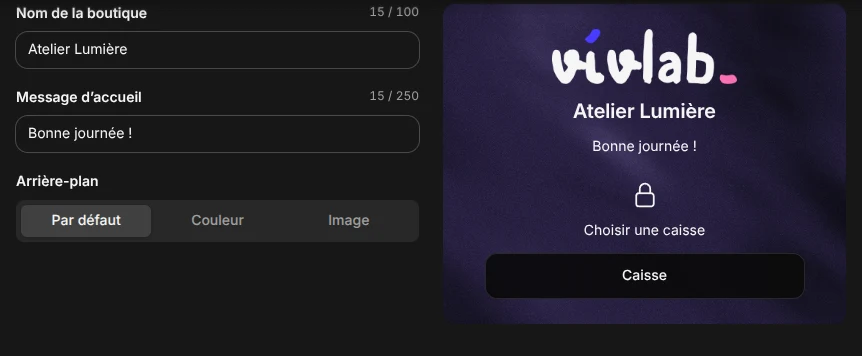
- In User, choose your name. If there is only one staff member, or if you were the last person to use this device, your name is already selected.
- Type your 4-digit PIN on the on-screen keypad or the computer keyboard.
The register opens on the Sale screen as soon as you type the fourth digit. Your name appears as the operator on the receipts you record.
Only active staff members allowed on this register appear in the list. If the message No active staff member is assigned to this register appears, change register or ask a manager to assign you to it in Staff.
Five wrong PINs block for five minutes
After five incorrect PINs, that staff member cannot unlock the register for 5 minutes. If a PIN is forgotten, a manager resets it from Staff: you choose a new one at the next unlock.
Choose your PIN the first time
A new staff member, or one whose PIN was reset, does not have a PIN yet. They choose it themselves on the lock screen.
- Choose your name in User. The register shows Choose a 4-digit PIN.
- Type 4 digits.
- At Enter the same PIN again, type the same 4 digits. If the two entries differ, the register asks you to start over.
The PIN is saved and the register opens. Keep it to yourself: it identifies who recorded each sale.
Lock the register or hand over
Lock the register when you step away or when a colleague takes over. The register stays open; only the operator changes.
- Click Lock register at the top of the screen, or in the Account menu at the bottom of the sidebar.
- On the lock screen, the next person chooses their name and types their PIN.
If the cart contains items, it is held automatically on the Pro plan: you will find it in Held tickets & quotes. On the Free plan, the cart stays on screen for the next operator on this device, but it is lost if the page is reloaded.
Payment in progress
You cannot lock the register while a payment has been entered for the current sale. Finish or remove the payment, then lock.
Change the register on this device
Each device works on one register. To use another one, for example to move a tablet to a second counter:
- Lock the register.
- On the lock screen, click Change register.
- In Choose this device's register, click the register you want, or New register to create one.
- Choose your name and type your PIN.
The list shows the register last used on this device first. When there is only one register, it opens automatically at startup. The Change register button is also available in the register's details, from Registers.
Registers marked Pro
After moving from the Pro plan back to the Free plan, only the oldest open register stays usable. The others carry the Pro badge and cannot be chosen. The same goes for staff members: only the oldest active manager can unlock the register.
Sign out
Click Sign out in the Account menu, or at the bottom of the lock screen. Signing out ends your Vivlab account session on this device: you will need to sign in again with your email address and password before the next sale. For a short break, use Lock register instead.