

Staff
Each person who takes payments has a record in the team. They unlock the register by choosing their name and entering their personal 4-digit PIN, and their name is recorded as the operator on everything they do: receipts, returns, closures and activity history lines. You know who rang up what. Staff members have no Vivlab account and no email address: no invitation is sent.
What do you want to do?
- Add a staff member
- Choose a member's role
- Limit a member to certain registers
- Reset a forgotten or blocked PIN
- Edit a member
- Deactivate a member who leaves
- Understand the Free plan limit
Add a staff member
- In the Registers & team menu, open Staff.
- Tap Add a staff member.
- Enter the Staff name, for example "Camille". This name appears as the operator on receipts, reports and activity.
- Choose their Role (see Choose a member's role). Seller is selected by default.
- Tick the Registers they may use if needed (see Limit a member to certain registers).
- Save.
The member has no PIN yet. At their first unlock, they choose their name on the lock screen, then choose their own 4-digit PIN (see Getting started). On their record, the PIN line shows Not set yet until then, then Set.
The first member, created during Vivlab POS setup, is always a Manager.
Choose a member's role
The role decides what the member sees in the menu and what they can do. Entries they cannot access don't appear.
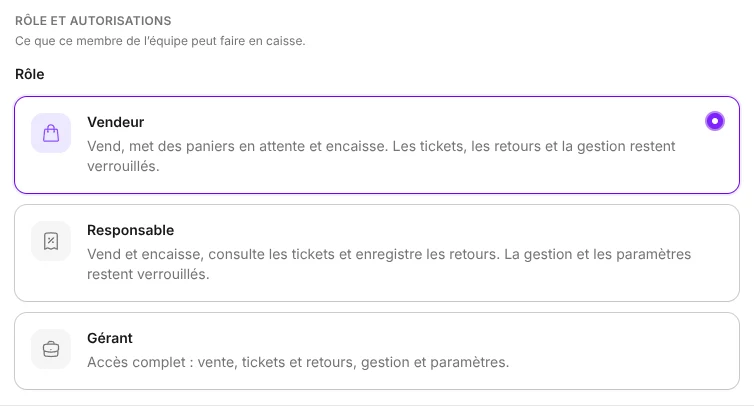
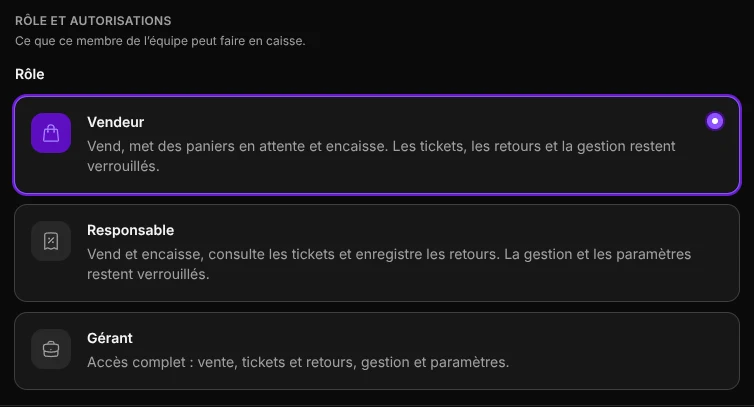
| What the member can do | Seller | Supervisor | Manager |
|---|---|---|---|
| Sell and take payments, hold baskets, save quotes | Yes | Yes | Yes |
| Link a customer to a sale | Yes | Yes | Yes |
| Browse the Receipts history, reprint and email a receipt, record a return, a refund or a credit note | No | Yes | Yes |
| Manage Members (customers), the catalog (Store), coupons and shipping | No | No | Yes |
| Open Management: analytics, reports and closures, activity history, tax audit | No | No | Yes |
| Manage Registers and Staff | No | No | Yes |
| Change the Settings (company, receipts and lock screen, emails) and the subscription | No | No | Yes |
With the Free plan, holding baskets, quotes and linking a customer to a sale are not available, whatever the role: they require the Pro plan (see Billing and usage).
For each role, the record sums up what it allows:
- Seller: sells, holds baskets and takes payments. Receipts, returns and management stay locked.
- Supervisor: sells and takes payments, views receipts and records returns. Management and settings stay locked.
- Manager: full access, from sales to settings.
- In Registers & team > Staff, tap the member.
- In Role and permissions, choose Seller, Supervisor or Manager.
- Save.
Always at least one manager
The team must keep at least one active Manager: you cannot remove the Manager role from, or deactivate, the last active manager. Likewise, the person who unlocked the register cannot change their own role (The current operator cannot change their own role.): ask another manager.
Limit a member to certain registers
By default, a member can use every register. For a seller who only works at the main counter, tick only that register.
- Open the member's record in Registers & team > Staff.
- In Registers, tick the registers they may use. With no register ticked, they can use every register.
- Save.
The member then only appears on the lock screen of the ticked registers. For a Supervisor, the limit also applies to receipts: they only see those of their registers. A Manager always sees the receipts of every register.
The team list shows each member's registers, or All registers.
Your own record
If you edit your own record, the register you are using must stay ticked (The current operator must stay assigned to this register.).
Reset a forgotten or blocked PIN
After five wrong PINs, unlocking is blocked for that member for five minutes. If the member forgot their PIN, a manager resets it: the PIN is cleared and the block lifted.
- In Registers & team > Staff, open the member's record.
- On the PIN line, tap Reset PIN.
- Ask the member to unlock the register: they choose a new PIN.
The button only appears if the member already has a PIN. The reset is logged in the activity history (Staff PIN reset event).
Edit a member
In Registers & team > Staff, search for the member by name or filter by Status (All, Active or Inactive), then tap them. You can change their name, role and registers, then save. The list also shows the date they were Added, and the Current operator badge marks the person who unlocked the register.
A name change does not alter receipts already issued: they keep the name recorded at the time of the sale.
Deactivate a member who leaves
A staff member cannot be deleted, because their name stays attached to the receipts they issued. Deactivate them instead: they disappear from the lock screen and can no longer unlock the register.
- Open the member's record.
- Turn off Active.
- Save.
To bring them back, turn Active on again the same way. You cannot deactivate your own record while you are the operator (The current operator cannot be deactivated.).
Understand the Free plan limit
The Free plan allows a single active team member: the manager created during Vivlab POS setup. When the limit is reached, a box appears above the list and Add a staff member opens the plans overview. Reactivating a member shows the same box in their record. Tap See plans to upgrade to the Pro plan, which has no staff limit (see Billing and usage).
If your team has several active members, for example after a Pro subscription ends, only the oldest active manager can still unlock the register.
Who manages the team
The Staff screen is reserved for the Manager role.