

Registers
A register is a checkout station: the main counter, a second counter, a tablet for a trade show. Each device works on one register, chosen when unlocking. Each register has its own receipt numbering, its own closures and its own turnover.
What do you want to do?
- Create a register
- Find a register and follow its activity
- Rename a register
- Change the register used on this device
- Understand the Free plan limit
Create a register
Create one register per station where you take payments at the same time. Two devices taking payments in parallel must use two different registers.
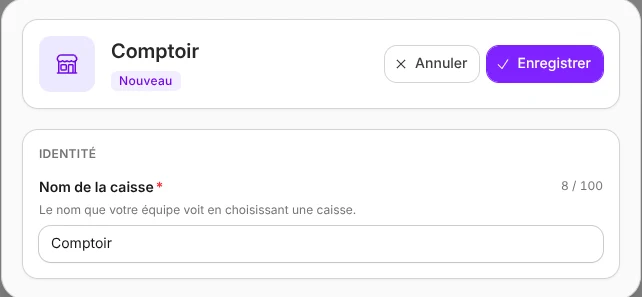
- In the Registers & team menu, open Registers.
- Tap Create a register.
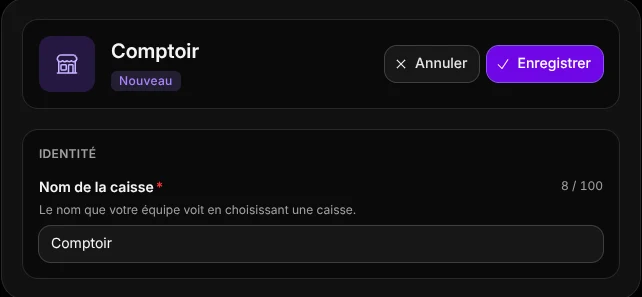
- Enter the Register name, for example "Main counter". This is the name your team sees when choosing a register.
- Save.
The register gets an ID that follows the previous ones (reg-01, reg-02 and so on). This ID appears on its receipts and closures and never changes. The creation is logged in the activity history (Register created event).
Creation not confirmed
If the connection drops during creation, the message The creation result could not be confirmed appears. Refresh the list and check whether the register was created before creating another one, to avoid a duplicate.
Find a register and follow its activity
The list shows for each register its name and ID, its Status (Open or Closed), its Receipts issued, its Turnover since opening and the Register opened date. The register of this device carries the Current register badge.
- In Registers & team > Registers, search for a register by name or ID, or filter by Status: All, Open or Closed.
- Tap a register to open it.
- Read the Activity block: the totals recorded on this register since it opened.
The turnover since opening is the register's grand total: the sum of all its receipts, refunds deducted, never reset. For a period's figures, see Analytics. A register cannot be deleted: its receipts and closures must remain available.
Rename a register
- In Registers & team > Registers, tap the register.
- Change the Register name.
- Save.
The new name appears the next time someone chooses a register. The ID does not change, and the change is logged in the activity history (Register renamed event).
Change the register used on this device
The This device block only appears on the current register's page. It shows Register ready, the signed-in Account (its email address) and two buttons:
- Change register releases the register and returns to the lock screen, where you choose another register then a staff member;
- Preferences reopens the Vivlab POS setup steps (company, address, VAT, register and operator), described in Getting started.
- In Registers & team > Registers, tap the register marked Current register.
- In This device, tap Change register.
- Choose the register you want, then your name and your PIN.
If you changed the name without saving it, these buttons stay disabled: save or cancel your changes first.
Understand the Free plan limit
The Free plan allows a single open register. When it is reached, a box appears above the list, and Create a register opens the plans overview. Tap See plans to upgrade to the Pro plan, which has no register limit (see Billing and usage).
If your account has several open registers, for example after a Pro subscription ends, only the oldest one can still be chosen to take payments.
Who manages registers
The Registers screen is reserved for the Manager role. See Staff.