

Coupons
A coupon is a promo code, for example SALE20, that grants a discount: a percentage or a fixed amount off the products, the shipping or both, following your rules. It is the only way to give a discount at the register, because an item's price cannot be changed in the cart. Coupons are shared with the dashboard and your online store: the same code works at the counter and on your website, with the same rules.
What do you want to do?
- Create a coupon
- Apply a coupon to a sale
- Offer free shipping with a code
- Limit a coupon: minimum order, number of uses, end date
- Discount only some products or categories
- Reserve a coupon for one customer
- Fix a coupon you already created
- Disable or delete a coupon
Create a coupon
The list shows each coupon's Coupon code, its number of uses, its Expiration date, its Status and the Discount. Search for a discount code finds a code.
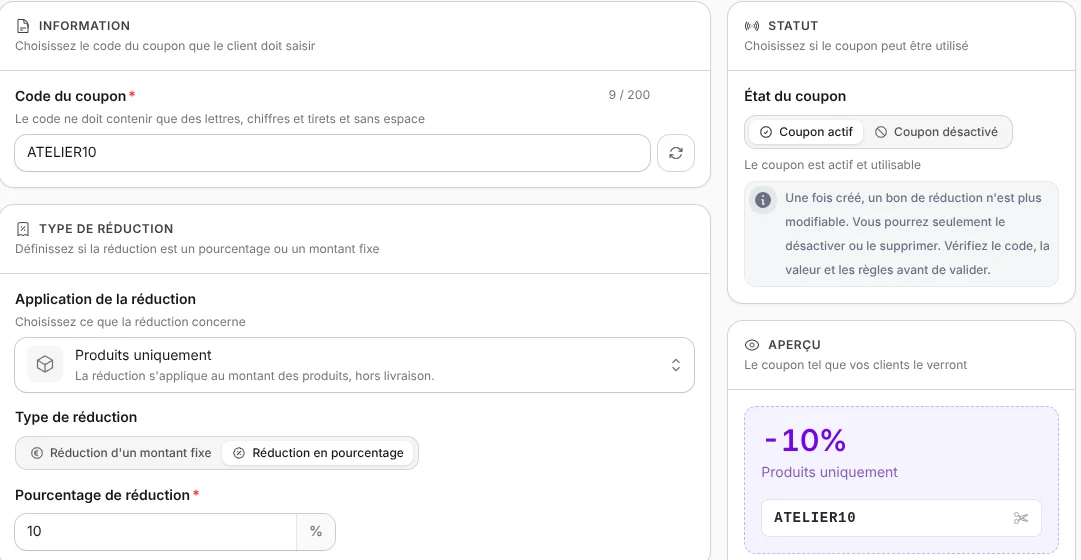
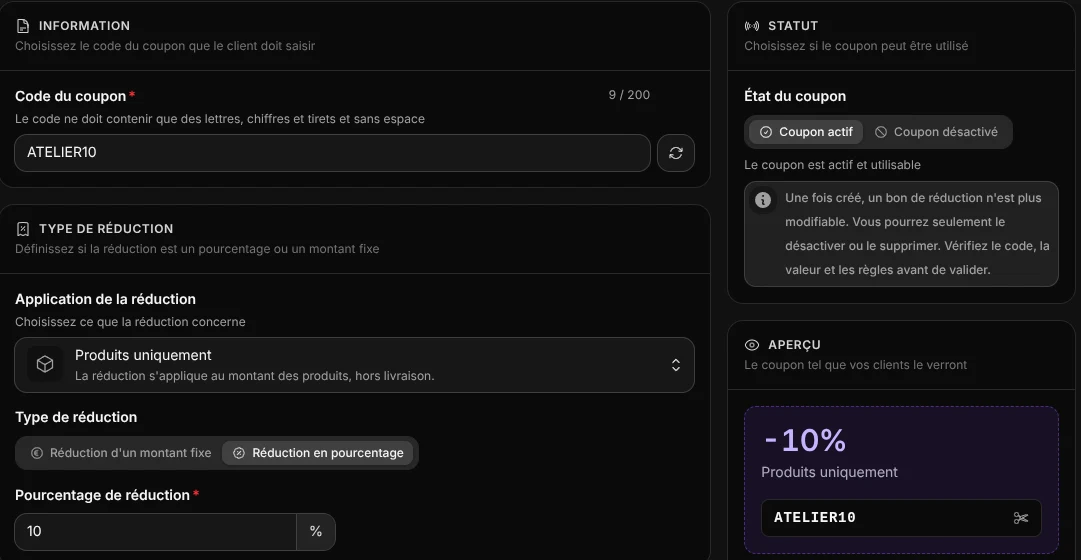
- Open Store > Coupons, then click Create a discount coupon.
- Enter the Coupon code, for example
SALE20, or click the Generate code button next to it. - In Discount applies to, keep Products only (excluding shipping) or choose Shipping only or Products and shipping.
- Choose Fixed amount discount or Percentage discount, then enter the value.
- Add rules if needed, check the Preview, then click Save.
The coupon is active as soon as you save it, at the register and online.
| Fixed amount (e.g. -€10) | Percentage (e.g. -20%) | |
|---|---|---|
| When the eligible cart grows | The discount stays the same | The discount grows proportionally |
| Capping the discount | Not needed | Possible with Maximum discount |
| With Restrict to certain products | At most the price of one unit of each selected product | Calculated on one unit of each selected product |
| With Restrict to certain categories | Taken once from the total of the category's products | Calculated on every unit of the category's products |
The code accepts letters, digits, dashes and underscores, with no spaces or accents, 200 characters at most. A code can only exist once: if you enter a code already in use, the window tells you.
Check before saving
A created coupon can no longer be edited; only its status (active or disabled) can change. See Fix a coupon you already created.
Manager role
Coupons are created and managed with the Manager role. Every role can apply a coupon to a sale. See Team.
Apply a coupon to a sale
- On the Sale screen, add the items to the cart.
- Tap Cart actions (the three dots at the top of the cart), then Add a coupon.
- Enter the Coupon code, then tap Validate.
The register recalculates the cart from your catalog and shows the discount. If the coupon doesn't fit the cart, the message This coupon cannot be applied to this cart appears. A sale can only carry one coupon: entering another one replaces the previous one. The full flow, including removing a coupon, is described in Sale.
At the register, the same points are checked as online:
- the coupon is active;
- its expiration date has not passed;
- its number of uses has not been reached;
- the items' amount reaches the minimum order;
- the cart contains eligible items, if the coupon is restricted to products or categories;
- the customer attached to the sale is the one the coupon is reserved for, if any.
The coupon counts as used when the sale is recorded, not when you add it to the cart. A held ticket or a quote therefore doesn't use up a redemption.
Offer free shipping with a code
Create a coupon (for example FREESHIPPING) with Shipping only and a Percentage discount of 100. Shipping drops to €0 whatever the shipping method, and the list shows the Free shipping condition. At the register, add a shipping method to the sale first: without one, this coupon is refused.
Free shipping without a code
To offer shipping above an order amount, with no code, use Free shipping above a certain amount in a shipping method.
Limit a coupon: minimum order, number of uses, end date
When creating the coupon, turn on one or more rules in the Rules block:
- Require a minimum order value: amount of products in the cart, excluding shipping, for example €50;
- Limit the number of uses: total across all customers, at the register and online, one use per paid sale or order, for example 100;
- Add an expiration date: the code stops working at midnight at the start of the chosen day (for a code valid through Sunday night, pick Monday);
- Maximum discount: cap in euros for a percentage discount, for example €30.
Once the quota is reached or the date has passed, the coupon switches to Expired in the list and is refused, at the register and online.
Discount only some products or categories
With Products only or Products and shipping (unavailable with Shipping only), turn on Restrict to certain products and add the products, or Restrict to certain categories and tick the categories. Other items stay at full price. With both options, an item is discounted if it is one of the chosen products or in one of the chosen categories.
One unit per product
Restricted to products, the coupon only discounts one unit of each product, even if the customer buys several. Restricted to categories, it covers every unit: put the item in a category to discount all its units.
Reserve a coupon for one customer
A reserved coupon only works for one specific customer, for example as a goodwill gesture.
- When creating the coupon, turn on Reserve for one member.
- Search the customer by name or email, then choose them.
- Click Save, then give them the code.
At the register, attach this customer to the sale before applying the code (see Sale). Online, the customer must be signed in to their account. The coupon appears in the Discount coupons of their customer profile.
Pro plan
Searching for a customer and attaching a customer to a sale require the register's Pro plan. See Billing and usage.
Fix a coupon you already created
A saved coupon can no longer be edited: create a corrected copy.
- Click the coupon in the list.
- Open the More actions menu (the three dots at the top of the window), then choose Duplicate: the form copies the settings, with the code followed by
_2. - Change the code, fix what's needed, then click Save.
- Disable or delete the old coupon.
To keep the same code, delete the old coupon first, then create the new one.
Disable or delete a coupon
- Click the coupon in the list.
- In Status, choose Disabled coupon.
- Click Save.
The code is refused at the register and online, but it stays in the list so you can turn it back on later. To delete a coupon, open its window's More actions menu, choose Delete and confirm.
For several coupons, tick their rows in the list, then More actions > Activate, Deactivate or Delete. Deletion is permanent and asks for confirmation.
Good to know
- Status in the list: Active, Inactive (disabled by you) or Expired (date passed or quota reached).
- Capped at the eligible amount: a €15 coupon on €10 of products takes off €10. A percentage is rounded up to the next cent.
- Discount and VAT: on the receipt, the discount is spread across the eligible items, and VAT is calculated on the discounted amounts.
- No automatic discount: a coupon always requires a code. To show a crossed-out price on the online store, use Show a promotion in the product form.
- Gift cards: the register doesn't sell gift cards and doesn't accept them as payment. To give value back to a customer at the register, use a credit note (see Receipts).
- CSV export: exporting coupons to a CSV file happens on the dashboard Coupons page.
- In a coupon's window, the arrows at the top move to the previous or next coupon in the list.