

Categories
A category groups products, by aisle or by family, and can contain subcategories, for example Clothing > T-shirts. Categories are shared with the dashboard and your online store, where each one has its own page. At the register, they filter the product list and let you reserve a coupon for certain aisles.
What do you want to do?
- Create a category
- Create a subcategory
- Put products in a category
- Change the order of categories
- Move a category
- Hide a category
- Edit the catalog page
- Delete a category
Create a category
The Categories page shows your category tree. Each row shows the category's status (Visible or Hidden) and its number of subcategories.
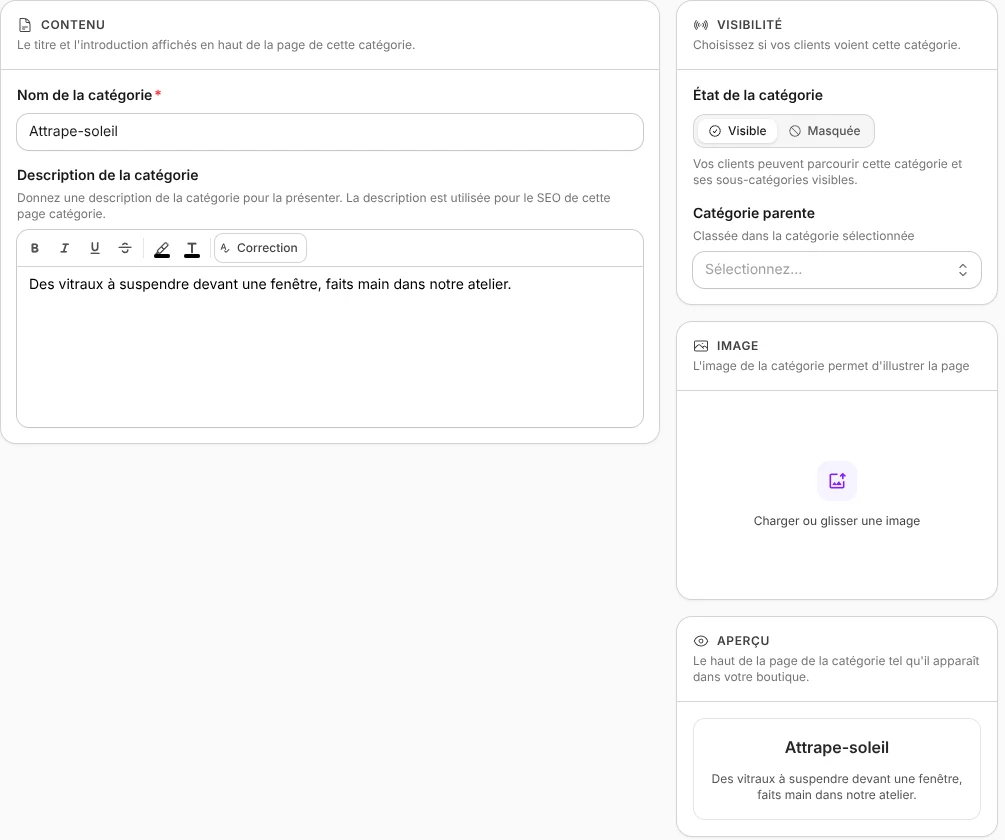
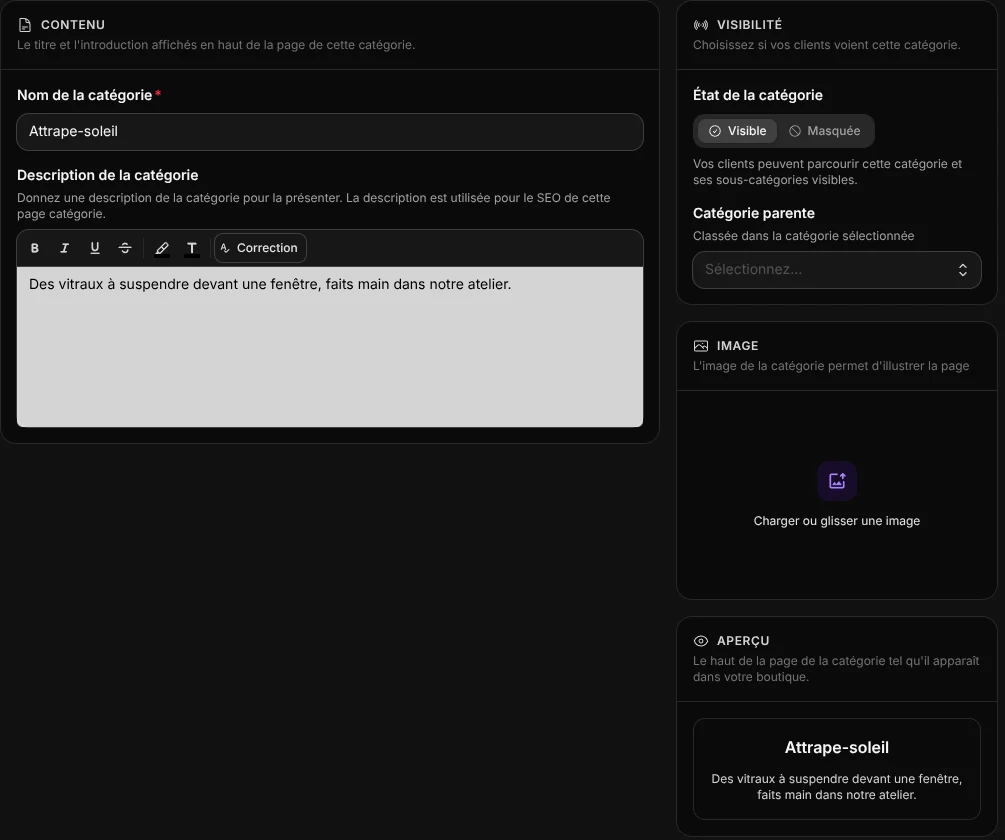
- Open Store > Categories, then click Create a category.
- In Content, enter the Category name, for example Fine foods. It is also the title and address of the category's page online.
- Add a Category description if needed (the introduction of the online page, also used for search engines) and, in Image, a Category image.
- Click Save.
The new category appears in the tree. The Preview, on the right of the window, shows the top of its online page.
Manager role
Categories are managed with the Manager role. See Team.
Create a subcategory
- On the parent category's row, click Add a sub-category.
- Enter the name, for example Jams, then click Save.
The subcategory appears under its parent in the tree and on the parent's online page.
Put products in a category
A category is filled from the products' forms.
- Open Store > Products, then the product's form.
- In Product categorization, choose its categories (8 at most).
- Click Save.
In the product list, Filter > Categories then shows only the products of one category. To sort many products at once, tick them on the dashboard Products page, then More actions > Edit categories.
Change the order of categories
The order is set in the parent category. For the main categories, the parent is the catalog page, at the top of the tree.
- Click the parent category.
- In the Subcategories block, drag the entries into the order you want.
- Click Save.
This order is the one used in the menu and the category lists of your online store.
Move a category
- Click the category.
- In Visibility, choose another Parent category.
- Click Save.
Its subcategories move with it.
Hide a category
- Click the category.
- In Visibility, set the Category status to Hidden.
- Click Save.
The category disappears from the online store and its navigation, along with its subcategories, without being deleted. Set it back to Visible to put it online again. Hiding a category does not remove its products from the register: they stay in the sale grid.
Edit the catalog page
The first item in the tree, marked Catalog page, is the page of your online store that lists the main categories. It is called Boutique by default. Open it to change its title, description and image, or the order of the main categories. This page can be neither hidden nor deleted.
Delete a category
- Click the category.
- Open the More actions menu (the three dots at the top of the window), then choose Delete.
- Confirm the deletion.
The category disappears from the register, the dashboard and the online store.
Good to know
- No aisles in the sale grid: at the register, the Sale screen is browsed with search and scanning, not by category. Categories filter the product list of the Store section and target coupons.
- View page, in the window's More actions menu, opens the category's online page, if your account has an online store and no change is in progress.
- The layout of online category pages is set on the dashboard Themes page. To sort your products by size or color, create filters.