

Checkout
The checkout screen opens when you tap Charge in the cart. There you record how the customer pays, in one or more payments, then complete the purchase: the register issues the receipt, signed and final, which you print or send by email.
What do you want to do?
- Choose a payment method
- Take cash and give change
- Take a card payment
- Split the payment across several methods
- Pay with a credit note
- Correct or remove a payment
- Complete the purchase
- Print the receipt or send it by email
- Start a new sale
- Understand an error message
Choose a payment method
When the screen opens, the register recalculates the cart against your current catalog. The large amount shown is the Remaining balance. Below it, the Payment method block offers five buttons:
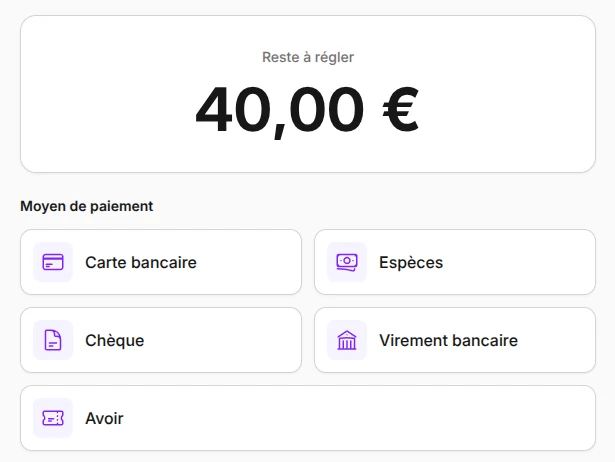
| Payment method | When to use it | Suggested amount |
|---|---|---|
| Card | The customer paid on your payment terminal | The remaining balance |
| Cash | The customer pays with notes and coins | None: enter the amount handed over, change is calculated |
| Cheque | The customer hands over a cheque | The remaining balance |
| Bank transfer | The customer made or will make a transfer | The remaining balance |
| Credit note | The customer presents a credit note issued for a return | The credit note balance, up to the remaining balance |
- Tap the payment method.
- Check or enter the amount with the number pad, the keyboard or the suggested amounts.
- Tap Accept. The payment is added to the Payments list and the remaining balance goes down.
The number pad fills in cents, like a cash register calculator: type 1, 2, 5, 0 for €12.50. The backspace key removes the last digit. With a physical keyboard, digits and the Enter key also work, and Escape takes you back to the list of payment methods.
To go back without saving, tap the Back to payments arrow. From the list, the Back to products arrow returns to the Sale screen with the cart intact.
An amount entered for card, cheque, bank transfer or credit note cannot exceed the remaining balance: the register shows This amount exceeds the remaining balance. Use cash to calculate change. Only cash accepts a higher amount, to calculate change.
What the register records
The register records the payment method and the amount received. It does not charge any card, cash any cheque or start any transfer: check that the payment is received before tapping Accept. Gift cards and meal vouchers are not among the register's payment methods.
Take cash and give change
- Tap Cash.
- In Cash tendered, enter the amount the customer hands you, or tap a suggested amount: Exact amount, the next whole euro or the next multiple of €5. For €17.30, the register suggests €17.30, €18 and €20.
- Check the Change to return tag, then tap Accept.
When the payment covers the total, the register shows Change due in large type, with the amount to give back to the customer. The amount stays visible after the purchase is completed. In the payments list, the cash line shows the amount received and the change given, for example "Received €20.00 · change €2.70".
The cash payment is recorded for the amount of the sale, not the amount handed over: the change given back does not count toward turnover.
Take a card payment
The register does not drive a payment terminal: you enter the amount on your own terminal, as usual.
- Tap Card. The suggested amount is the remaining balance.
- Have the customer pay this amount on your terminal.
- Once the terminal accepts the payment, tap Accept in the register.
If the customer pays only part by card, correct the amount before tapping Accept, then settle the rest with another method.
Split the payment across several methods
A customer can pay for one sale with several methods, for example €30 in cash and the rest by card, or with two different cards.
- Tap the first payment method, enter the amount of this payment and tap Accept.
- The block becomes Add a payment and the Remaining balance goes down. A progress bar shows the amount already paid, for example "€30.00 paid of €75.00".
- Tap the next method: the suggested amount is the remaining balance. Tap Accept.
- Repeat until the register shows Payment complete.
You can use the same payment method several times in one sale. The receipt lists each payment separately.
If the sale includes a cash payment with change to give back, record it last: it is the only method that accepts an amount above the remaining balance.
Pay with a credit note
A credit note is a store voucher the register issues when a customer returns an item without being refunded (see Receipts). It carries an amount, a reference and a QR code, and may have an expiration date. It can be spent in one go or over several purchases, on any register of your account.
- Tap Credit note.
- In Credit note reference, scan the QR code printed on the credit note or type its reference, then tap Check credit note.
- The register shows the Usable balance, the Original amount, the Valid until date (or No expiration) and the credit note status: Available, Used or Expired.
- The suggested amount is the credit note balance, up to the remaining balance. Correct it if needed, or tap Use followed by the maximum amount.
- Tap Accept.
If the credit note covers more than the sale, the register shows what will remain on it, for example "€12.00 will remain on this credit note." That balance stays available for a future purchase. If the sale is larger than the credit note, settle the difference with another payment method.
To try another reference, tap Use another credit note. One sale can be paid with several credit notes: add a Credit note payment for each one.
The credit note balance is only deducted when the purchase is completed. A credit note gives no change.
Credit note refused
The register refuses an expired credit note (This credit note has expired and can no longer be used.), a fully used one (This credit note has already been fully used.) or an unknown one (No credit note matches this reference.). Check the reference printed under the QR code.
Correct or remove a payment
Until the purchase is completed, payments can still be changed in the Payments list.
- Tap a payment's pencil icon to change its amount, then tap Save payment.
- Tap the trash icon to remove a payment.
- Tap Clear payments to remove everything, when the list holds at least two.
If you go back to the cart and change quantities after recording payments, the total may fall below the amount already paid. The register then shows The cart total changed. Reduce or remove followed by the excess amount: correct the payments to balance them again.
Coupon and delivery locked
As soon as a payment is recorded, the coupon and delivery can no longer change, and the cart can neither be held nor cleared. Remove all payments to get these actions back.
Complete the purchase
When the payments exactly cover the total, the register shows Payment complete and the Complete purchase button.
- Check the payments and, if any, the Change due.
- Tap Complete purchase.
The register records the receipt and shows Sale recorded, with the amount, the receipt number, the number of items and the payment methods used. The coupon counts as used and the credit note balances are deducted at that moment.
A €0 sale, for example an item made free by a coupon, needs no payment: the register shows This sale is free. No payment is required. and you complete it directly.
If the sale came from a resumed held ticket or quote, it disappears from Held tickets and quotes.
A completed receipt can no longer change
As the rules for cash register software require, a recorded receipt is signed and can be neither edited, deleted nor cancelled. To fix a mistake, record a return from Receipts: it issues a refund receipt or a credit note, and the original receipt is kept.
Print the receipt or send it by email
After completion, the Receipt options block offers two ways to hand the receipt to the customer. Both are optional, and you can use both.
- For a paper receipt, tap Print on the Print receipt line. Your browser's print window opens: choose your receipt printer and confirm. The line then shows Receipt printed.
- For an emailed receipt, tap Email on the Email receipt line, check the Customer email address (filled in with the linked customer's address), then tap Send. The line shows Receipt sent to followed by the address.
The first issue of the receipt, on paper or by email, is the original. Every later print or email carries the DUPLICATE mark. The receipt stays available in Receipts for reprinting or resending.
Printing opens a small window: if nothing appears, allow pop-ups for the register in your browser. Paper width and receipt messages are set in Settings.
Sending by email
If sending fails, check the sending server in the Emails section of Settings. Beyond 200 receipts sent by email in one hour on your account, the register shows Too many receipts sent recently. Try again later.
Start a new sale
Tap New sale at the bottom of the Sale recorded screen. The cart, customer, coupon, delivery and payments are cleared, and you return to the sale tiles.
Until you tap New sale, the cart of the recorded sale stays on screen and locked. Likewise, while payments are recorded or a sale is waiting for New sale, you cannot lock the register: the register shows Finish the current payment before locking the register.
Understand an error message
- Enter the establishment's SIRET: every receipt must show your establishment's SIRET. Fill in the 14-digit SIRET in Settings, then tap Try again.
- Set the tax rates for all paid items before completing the purchase.: an item has neither a VAT rate in its product nor a default rate. Set the rate in Products or the Default tax rate in Settings.
- The receipt could not be created. Check the connection and register, then try again.: check the internet connection (the register's connection indicator should show Online), then tap Complete purchase again. A price or coupon changed in the catalog in the meantime also causes this message: tap Try again to recalculate the cart, then adjust the payments.
- Receipt creation could not be confirmed. The sale may have been recorded.: the connection dropped while recording. The register locks the cart to avoid recording the sale twice. Have someone check in Receipts whether the sale is there. If it is not, reload the page and ring up the sale again.
- Sell without limits and unlock every register feature. banner: a Free plan limit has been reached and the payment methods are greyed out. A Manager can upgrade to the Pro plan with See plans (see Billing and usage). Other roles see Ask a manager to upgrade to the Pro plan.
The register needs an internet connection to record a sale: each receipt is signed and recorded when the purchase is completed.
Free plan limits
The Free plan lets you record 120 sale receipts per calendar year, on a single register (the oldest open one) and with a single team member (the oldest active Manager). Once the 120 receipts are reached, or if the sale is made on another register or by another operator, the sale is refused until you upgrade to the Pro plan. Details are in Billing and usage.