Rectangle selection
The rectangle selection lets you select several blocks in one action by drawing a rectangle in an empty area of the canvas.
Draw the rectangle
Click and hold the mouse button in an empty area of the canvas (outside any block), then drag to draw the rectangle. Every block the rectangle touches, even partially, will be selected when you release: no need to enclose them entirely.
The rectangle appears translucent in your dashboard's accent color while you draw, and the blocks it picks up get outlined as you go.
Two limits worth knowing: the selection never mixes several sections (if the rectangle overlaps two sections, only the blocks of one of them are kept), and locked blocks are ignored.
Add to current selection
Hold the Shift key during the rectangle selection to add the new blocks to your current selection instead of replacing it. Handy for gathering scattered blocks in several gestures (adding only works within the same section).
Without Shift, the previous selection is replaced by the blocks found inside the rectangle.
Once selection is done
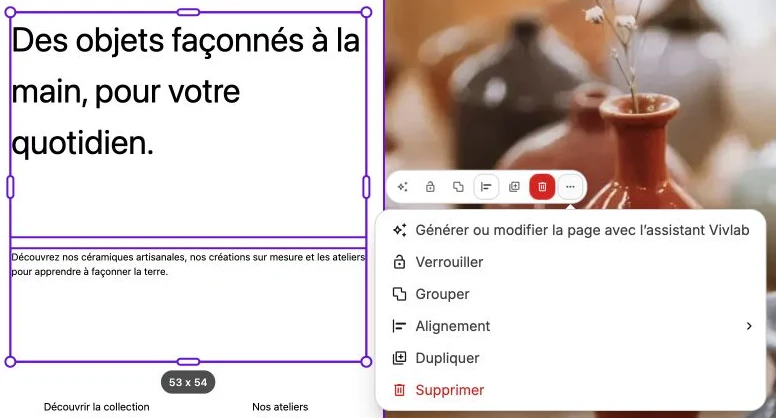
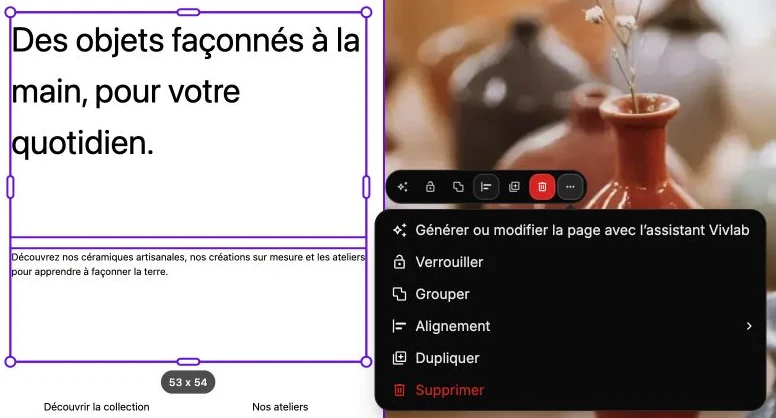
The Block action bar appears above the selection, and the side panel switches to Multiple selection mode to only offer the settings shared across every selected block.