

Add an element
The Add an element panel opens from the Element button of the top bar. It lists the blocks you can insert on the current page.
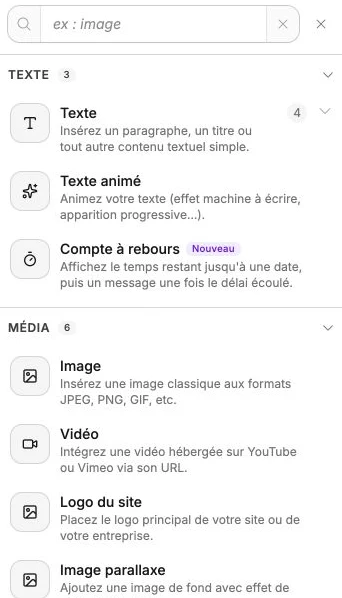
Drag an element onto the canvas
Drag an element from the list to the desired place on the canvas. A visual marker shows where it will be positioned. Release to confirm: the element is inserted with a default style adapted to your theme, which you can then customize from the side panel.
You can also click an element: it is then inserted at the center of the visible area (or into the selected section). Elements available in several variants show a counter: click it to expand a grid of previews, then drag or click the variant you want.
Available categories
Elements are grouped by category to help you find them quickly.
In a current section, you have:
- Text: Text, Animated text, Countdown.
- Media: Image, Video, Site logo, Parallax image, Before/after image, Gallery.
- Elements: Button, Shape, Social media, Announcement bar, FAQ.
- Carousel: Carousel.
- Contact: Form.
- Navigation: Navigation, Dropdown menu, Mobile menu, Language menu.
- E-commerce: Product for sale, Product catalog, Search bar, and the Search icon, E-commerce cart and Customer account buttons.
- Code: Iframe embed, HTML code.
In the navigation bar, only the elements suitable for a header are offered: navigation, dropdown menu, mobile menu, language menu, image, site logo, button, shape, social media, announcement bar, search bar, search icon, e-commerce cart, customer account and text.
Quick search
A search field at the top of the panel filters the list by element name. Type for example "button" or "image" to keep only the relevant variants.