

Image
The Image element displays a regular image in JPEG, PNG, GIF, WebP or AVIF format. It's the block used for decorative visuals, product photos or illustrations.
Crop means keeping only part of a photo. An aspect ratio, such as 1:1 or 16:9, describes its proportions: square or wide. The alternative text is a written description for people who cannot see the image.
Image element
Click Change image to replace the visual. The import window lets you upload a file, reuse an image already sent (My images tab), search for a royalty-free photo in the Pexels library or pick from the Artworks. After the import, a cropping tool lets you adjust the image, with preset ratios from 2:3 to 21:9.
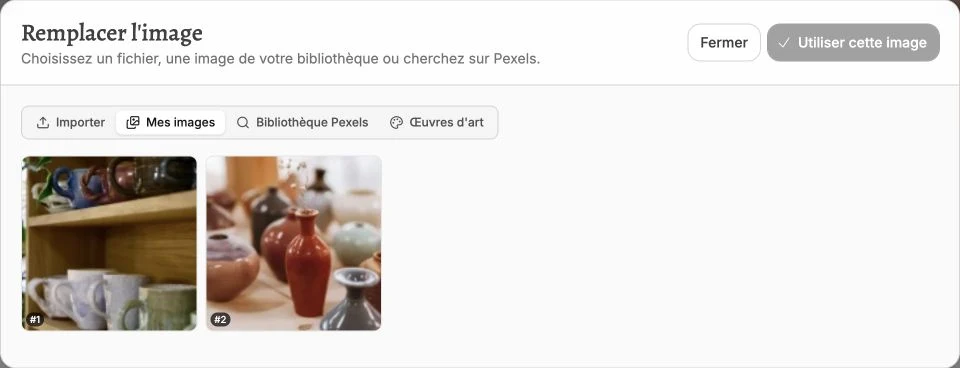
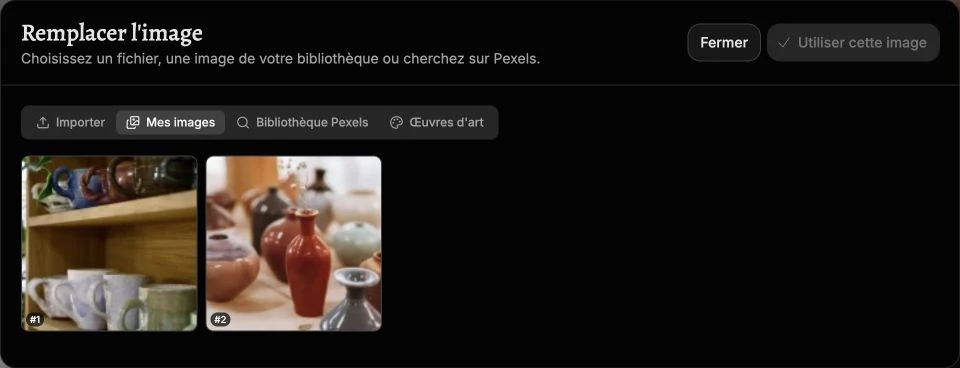
Once the image is in place, drag the frame shown at the top of the panel to choose which part stays visible: the frame keeps the proportions of the block as drawn on the canvas.
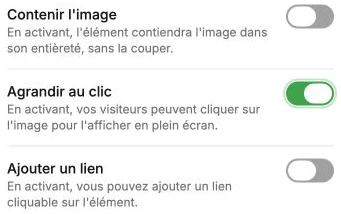
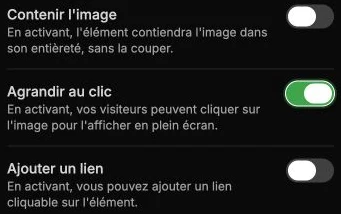
The Contain image option forces the image to fit entirely inside the block, without cropping. When disabled, the image covers the entire block and overflows if needed (recommended for full-width banners).
The Enlarge on click option lets your visitors click the image to view it full screen.
The Add a link option turns the image into a clickable link. Enable it then fill in the click action (external link, internal page, anchor, email, phone, PDF, product, category…). See the link options described for the button.
Alternative text
The alternative text is a short description of the image used by search engines and screen readers. Fill it in to improve your site's SEO and accessibility.
The Generate alternative text with AI button analyzes your image and suggests a description automatically. If the field is empty, the description is also generated when a new image is imported. You can always correct it after generation.
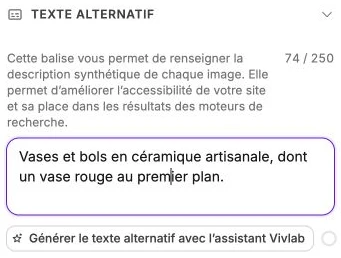
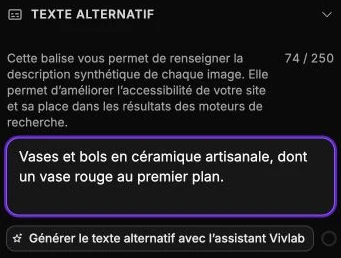
Image style
The style panel gathers the background, borders, corner radius, shadow, inner margins, filters (opacity, blur, grayscale…) and transitions. You can also frame the image in a device mockup (MacBook, iPhone…).