

Background
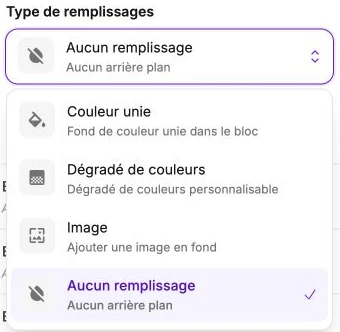
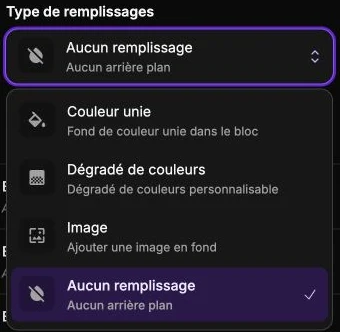
The Background subsection sets the background of an element, a section or a block. Four modes are offered: Solid color, Color gradient, Image or No fill.
A gradient blends one color into another. Each color added to the list is a point in that blend, called a stop. A transparent background lets the content behind the element remain visible.
Choose a fill type
The Fill type selector at the top switches between the four modes. As long as the subsection stays open, Vivlab remembers the setting you had on each mode: if you go from Solid color to Color gradient then back to Solid color, your initial color is restored.
Solid color
Solid color mode: a single setting, Background color. Use the standard color picker. The colors of your theme appear as shortcuts to keep a consistent identity.
Color gradient
Color gradient mode: a large square shows the gradient preview. Drag inside the area to change the gradient direction (the angle is shown in degrees in the center).
Below, the list of colors defines the gradient stops. Click + to add an intermediate color, click on an existing color to edit it (Gradient color setting), or use the list actions to duplicate or delete it. A gradient has at least two colors; you can stack as many as you want to create complex transitions.
Image
Image mode: click Change image to upload a file (JPEG, PNG, WebP, AVIF, GIF). Once the image is loaded:
- The Toggle image as repeating pattern option toggles between covering the entire block with the image and repeating it as a pattern. Enable the pattern for backgrounds with textures (paper, wood, wallpaper…).
- In pattern mode, Pattern size sets the pattern's zoom percentage (from 1 to 100%), and Vertical position + Horizontal position move its starting point.
No fill
No fill mode: the background is transparent. The block lets you see what's behind (the parent section, the page color). If a parent element has a background of its own, a message in the subsection points out that the transparent background lets it show through.
Backdrop blur
The Backdrop blur slider (0 to 20 px) blurs whatever shows behind the block, whatever the fill type. Combined with a semi-transparent solid color, it gives a frosted-glass effect, for example for a header that stays readable over images while scrolling.
Reset
The Reset settings button completely clears the background and switches to No fill mode.