

Carousel
The Carousel element shows several slides the visitor can scroll through horizontally or vertically. Each slide is a mini-block in which you insert elements as in any section: text, image, button, video…
Slides
The Slides subsection shows the list of slides in the carousel. Click on a slide to edit it (the canvas then switches to slide-by-slide editing mode), or use the list actions to duplicate, delete or add a new one.
The Create button at the bottom of the list adds a slide holding a sample text ("Slide #3"), where you then add your elements as in a section.
Carousel element
The main subsection gathers the animation settings:
- Scrolling: choose between Dynamic scrolling (animation with natural acceleration and deceleration, ideal for a smooth movement) and Continuous scrolling (linear animation at constant speed, no acceleration).
- Scroll direction: Horizontal or Vertical.
- Number of visible slides: how many slides are visible at once.
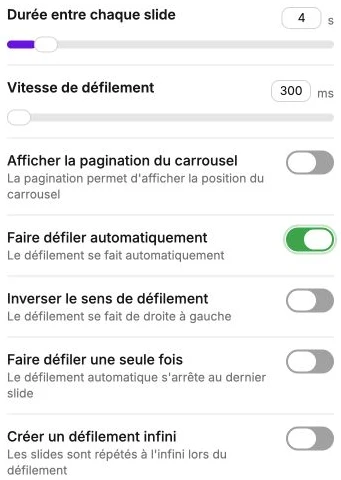
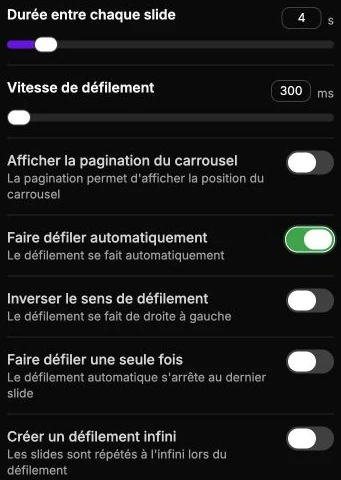
- Duration between each slide: wait time before moving to the next slide (in seconds, between 0 and 45). Combined with Continuous scrolling, a duration of 0 gives an uninterrupted, marquee-style movement.
- Scroll speed: duration of the transition animation (between 300 ms and 10 seconds).
- Show carousel pagination: shows the position dots at the bottom of the carousel.
- Scroll automatically: enables automatic scrolling based on Duration between each slide.
- Reverse scroll direction: scrolls right to left instead of left to right.
- Scroll only once: automatic scrolling stops at the last slide instead of going back to the first.
- Create infinite scrolling: repeats the slides indefinitely (recommended for a carousel of reviews or partner logos).
Exit slide editing
When you edit a slide, an Exit editing button appears at the bottom of the screen to return to the global carousel editing mode.
Carousel style
The style panel gathers the background, borders and inner margins applied to the carousel container.