Block action bar
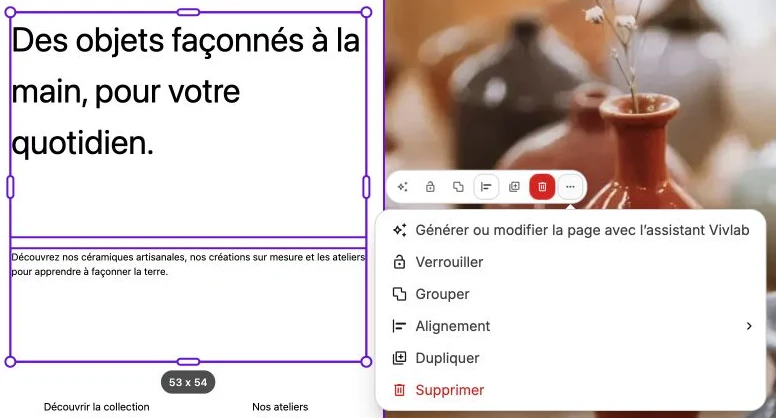
When one or more blocks are selected, a floating action bar appears just above the selection. It gathers the most frequent operations so you don't have to look for them in the side panel.
The actions shown depend on the context (a single block, several blocks, aligned selection or not…). Irrelevant options are hidden automatically.
AI assistant
The stars icon, first in the bar, opens the AI assistant panel with the selection already targeted: describe the change you want and the AI applies it to the selected blocks.
Lock / Unlock
The Lock icon prevents any movement or resize of the block. It's useful for freezing a key element (logo, background banner) you don't want to edit by mistake.
When a block is locked, the action bar only shows Unlock: click on it to take control again.
Group / Ungroup
Group brings several selected blocks into the same group: they move and resize together by default, which is handy for cards or blocks that should stay tied together.
Ungroup separates the blocks of an existing group again.
These two actions only appear if you have several blocks selected (and whether or not they are already in the same group).
Send backward / forward
When two blocks overlap, one of them appears above the other. Send backward sends the block behind the one it currently overlaps, Send forward brings it back above.
Alignment
The Alignment submenu appears as soon as several blocks are selected (a group counts as a single block). It offers six possible alignments, calculated relative to the bounding rectangle of the selection:
- Left, horizontal center, right.
- Top, vertical center, bottom.
The option already applied is disabled to indicate the current alignment.
Spacing
The Spacing submenu appears as soon as three or more blocks are selected. It equalizes the gap between blocks:
- Horizontal: distributes blocks evenly across the width.
- Vertical: distributes evenly across the height.
- Distribute: combines distribution (on the main axis) and centering (on the secondary axis), for a perfectly symmetrical grid.
Duplicate
Duplicate creates an immediate copy of the selection, slightly offset so you see the new block right away. The copy inherits every setting from the original (style, link, content, animation…).
Delete
Delete removes the selection from the page. The action can be undone with Ctrl+Z / Cmd+Z or via Undo in the top bar.
"Advanced" button
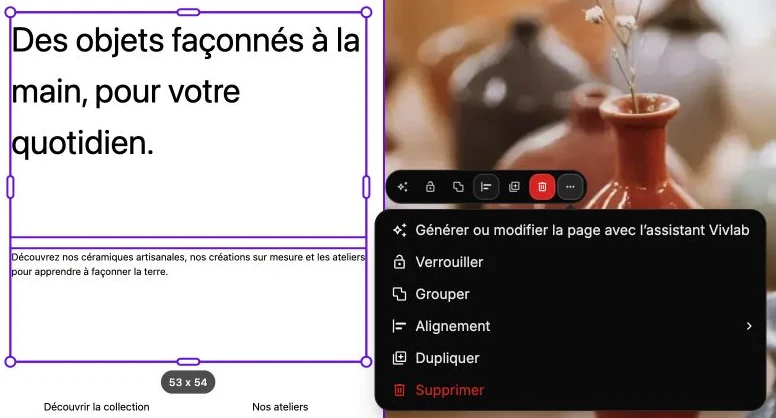
An Advanced button (three-dot icon) on the right opens a menu with the same actions and their labels spelled out. Handy when you're unsure what an icon means.