

Carousel editing
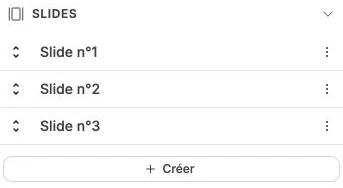
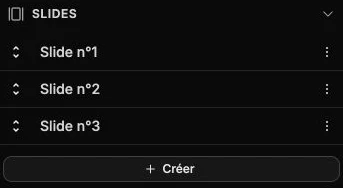
To edit the content of a Carousel, select it then click on it again (a double-click works too): the canvas switches to slide-by-slide editing mode. The rest of the page dims to isolate the carousel, and you can edit the blocks of each slide just like in a section. Clicking a slide in the Slides subsection of the side panel opens the same mode.
Slide markers
A dashed frame outlines the carousel and splits it into as many zones as there are slides visible at once (the Number of visible slides setting). The zones follow the carousel's direction: side by side for horizontal scroll, stacked for vertical scroll.
Pagination
A pill shows the current position and the total (for example 2 / 5). Two previous and next arrows, placed on either side of the carousel, scroll through the slides — one page at a time when several slides are visible at once.
The arrows are automatically disabled at the beginning and end of the carousel.
Add, duplicate and delete a slide
These actions happen in the Slides subsection of the side panel: the slide list lets you select one, add, duplicate or delete slides.
Exit editing
The red Exit editing button at the bottom of the canvas takes the canvas back to global editing mode: the carousel becomes a single block among others again, and you can move or resize it as a whole.
While slide mode is active, the selection is limited to the carousel's content: to select a block in the rest of the page, exit editing first.