

Top bar
The bar at the top of the editor lets you switch pages, choose the preview format, add elements, undo or redo an action, copy formatting and publish the page. It stays visible even when other panels are open.
Dashboard
The Dashboard button closes the editor and takes you back to the Pages. Your changes have been saved automatically, you don't lose anything when you leave.
Page selector
Right next to the previous button, the selector shows the title of the current page. Click on it to open the list of all your site's pages and quickly switch from one to another without going back through the dashboard.
Each row shows a green or gray dot (page visible or hidden), a house icon for the home page, a padlock for password-protected pages, its URL and a thumbnail. Hover over a page to see a large preview on the right, click to open it.
Desktop or mobile preview selector
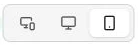
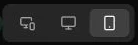
The center selector controls the canvas display. Three modes are available: Desktop and mobile to display both renderings side by side and work on them in parallel, Desktop only to focus on the large screen, or Mobile only to specifically tune the phone rendering.
Each element has independent settings between desktop and mobile. Switch from one mode to the other to make sure your page stays legible and harmonious on both formats.
Element
The Element button opens the library of elements to insert into your page (text, image, video, button, form, carousel, HTML code, product, search bar, social icons…). See Add an element for the detailed procedure.
The button is only active if the page already contains at least one section.
Undo and redo
At any time, use Undo to step back on the last action and Redo to replay it. The usual keyboard shortcuts also work (Ctrl+Z and Ctrl+Shift+Z, or Cmd+Z and Cmd+Shift+Z on Mac). The history covers every change made since opening the page.
Copy style
The paint roller icon duplicates an element's appearance (colors, borders, shadows, fonts…) to apply it to another.
First select the element whose appearance you want to reuse, click Copy style, then click on the element to modify: its style is immediately replaced by the copied one and the tool deactivates. While it's active, the message Click on a block to apply the style stays displayed at the top of the canvas; click the icon again to cancel without applying anything.
It's the fastest tool for harmonizing the formatting of a page without re-entering each setting manually.
Save indicator
The pill on the right shows Saving while a save is in progress and Changes saved when every change is synchronized with the server. You don't need to trigger the save yourself: it happens automatically as you make your changes.
Visit the site
To the left of the publish button, Visit the site opens the published page in a new tab. Hovering the button shows a QR code to open the page straight on your phone. The button stays grayed out until the page has been published at least once.
Publish the page
The button on the right opens the publish window. As long as no change has happened since the last publish, it shows Page up to date; otherwise, it shows Refresh the page.
The window walks you through two steps. Preview your page first shows the desktop and mobile rendering, along with badges that recall the page's state (hidden, home page, password protected, hidden from search engines…).
Publish your page then lists what publishing will trigger: going live on your domain, notifying search engines (Google Search Console, IndexNow), regenerating the share image, automatic translation within 24 h if you have languages enabled, and creating a restore point.
Confirm with Publish to put the page online. Once the page is published, the window shows a share preview (QR code, Google result, social preview) and the Visit page button opens the live version in a new tab.
A hidden page cannot be published: the window offers Make the page visible. If it's hidden but still online, the button becomes Unpublish to remove it from the site.
On mobile
On a narrow screen the bar folds up: the center selector offers AI, desktop, mobile and Edit tabs (the last one opens the settings panel), and the other actions — element, undo, redo, site visit and publishing — move into the three-dot menu on the right.