

Gallery
The Gallery element displays several images in a regular grid, all in the same format. It's the ideal block to showcase a portfolio, a collection of work, photos of a place or an event, or a mosaic of inspirations, without having to align each image by hand.
Gallery
The side panel lists the gallery's images, in the order they appear on the page.
- Click Add an image to insert an empty slot to fill, or Import multiple images to upload a whole batch of photos at once, handy for a gallery of several dozen images. The import fills any empty slots first before creating new ones.
- Drag an image by its handle to change the display order.
- Each image's menu lets you Duplicate or Delete it.
Click an image in the list to expand its settings:
- Image: drag and drop or click to upload a JPEG, PNG, GIF, WebP or AVIF file. Once the image is loaded, the Change image button lets you replace it, and the frame shown above lets you drag the image to choose which part stays visible in its cell, useful since each image is cropped to fill its whole cell.
- Alternative text: a short description of the image, used by search engines and screen readers to improve SEO and accessibility. This text also serves as the caption when the Show captions option is enabled (see Grid).
- Add a link: makes the image clickable. Set the click action: external link, internal page, anchor, email, phone, PDF, product or category. See the link options described for the button.
Grid
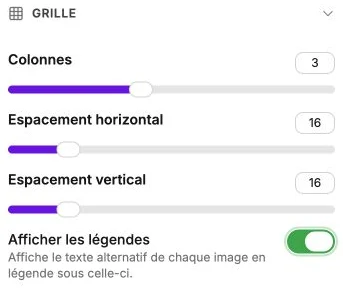
The Grid section controls the layout of all the images at once. The images fill the block's height and are cropped to cover their whole cell, which keeps the grid perfectly regular even when your original files have different dimensions. To make the images larger or smaller, simply resize the block on the canvas.
- Columns: the number of images per row. Set it separately for desktop and mobile (for example 3 columns on desktop and 2 on mobile).
- Horizontal spacing: the gap between columns, in pixels.
- Vertical spacing: the gap between rows, in pixels.
- Show captions: displays each image's Alternative text as a caption, right below it. Be sure to fill in this text for each image before enabling the option.
Style
The style panel gathers the text style of the captions, the background, borders, corner radius, shadow, inner margins and transitions.