

Pop-up
A pop-up is a window that opens on top of your site to collect an email address, promote a discount code or announce something new. You build it in the same editor as a page, with additional settings that determine when and where it appears.
You open a pop-up in the editor from the Pop-up section of the dashboard. The panel below shows as soon as nothing is selected on the canvas — the equivalent of the page settings for a pop-up.
Pop-up information
- Pop-up name: only visible in your dashboard, never on your site. It is used to find the pop-up in the list.
- Targets: the pages on which the pop-up may open (see below).
- Pop-up enabled: turn this off, then publish again to hide the pop-up without deleting its published version. It stays saved, appears Inactive in the list and its mockup is striped on the canvas; after publication, visitors no longer see it.
Targets
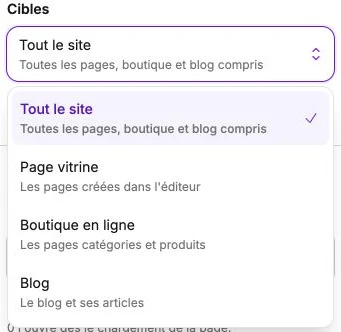
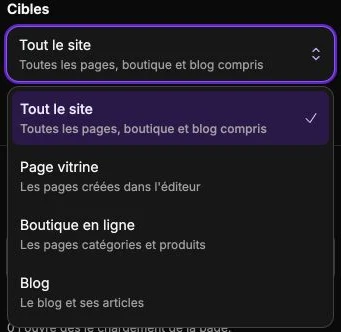
The first menu picks the scope:
| Scope | What is targeted |
|---|---|
| Whole site | Every page, shop and blog included |
| Storefront page | The pages created in the editor |
| Online shop | Category and product pages |
| Blog | The blog and its articles |
As soon as you pick anything but Whole site, a second menu appears to narrow further: a specific page, a shop category or an article category. Leave it on "All storefront pages", "All categories" or "Whole blog" to cover the entire scope.
A selected category also covers its related content: for the online shop, its subcategories and the pages of products assigned to it; for the blog, the articles filed in it.
Display
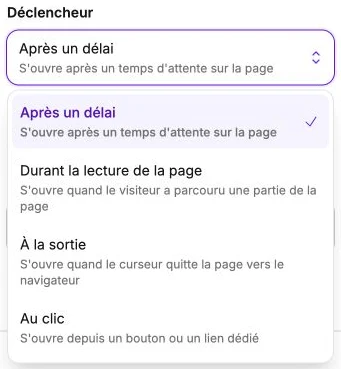
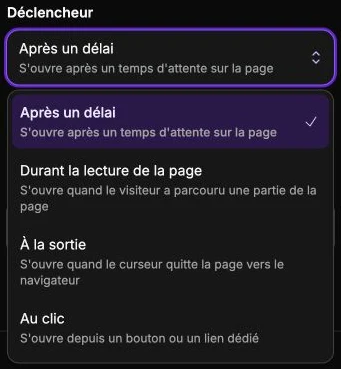
Trigger
- After a delay: opens after a wait on the page. The Delay before display slider goes from 0 to 120 seconds (3 s by default);
0opens it as soon as the page loads. - While reading the page: opens once the visitor has scrolled through part of the page. Set the Read progress at threshold between 0 and 100% (50% by default); on a page that does not scroll, the threshold is considered reached.
- On exit: opens when the cursor leaves the window towards the browser bar. Desktop only — there is no equivalent gesture on mobile.
- On click: only opens from a button or a link you designate. The panel then shows the target to copy, of the form
popup:….
Open a pop-up from a button
Pick the On click trigger, copy the popup:… target shown in the panel, then paste it as the External link to open in a button's click action, or as the address of a link placed in a text. The click opens the pop-up instead of changing page.
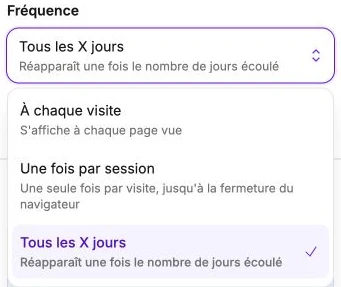
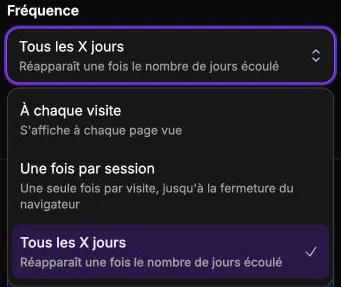
Frequency
Available for every trigger except On click:
- Every visit: shows on every page view.
- Once per session: only once in the current tab, until that tab is closed.
- Every X days: shows again once the chosen number of days has passed, from 1 to 365 (7 by default).
The frequency is recorded when the visitor closes the pop-up. Once per session uses the current tab, while Every X days uses the browser profile. The pop-up can therefore reappear on another device, in another browser or in a private window.
Devices
Devices are not set here but in the Visibility section of the style panel: hide the pop-up on mobile for a desktop-only display, or the reverse. The pop-up list reflects this choice as a Desktop only or Mobile only badge.
Compose the content
The content is assembled like on a page: adding elements, drag and drop on the canvas, style panel for formatting. Three differences:
- The navigation bar, the footer and full-width sections are not available in a pop-up.
- The pop-up width is set by dragging the handle on the edge of the mockup, separately for desktop and for mobile. On phones, the pop-up takes at most the full screen width.
- The pop-up's own style panel only offers the background, the border and visibility. The corner radius is fixed (16 px) so borders always follow the window shape.
For visitors, the pop-up closes with the cross, the Escape key or a click outside the window.
Publish the pop-up
The Publish the pop-up button at the top right opens the publication window: it shows a desktop and mobile preview of the pop-up placed on the targeted page (your home page by default, the shop or the blog depending on the targets), then puts the displayed version online. Its enabled state, trigger, targets, frequency and devices are published with the content.
If the pop-up is disabled, the window says so and offers Enable the pop-up before publishing. When nothing changed since the last publication, the button reads Pop-up up to date.