

Navigation bar
The Navigation bar panel appears as soon as you click on the navigation bar at the top of the canvas. The navigation bar is shared across every page of the site: editing it here updates the entire site in one go.
Navigation bar
The Blended navigation bar option integrates the bar into the first section of every page (and removes its background so it blends in). Make sure every page on the site works with this option enabled: it changes the appearance of the first section everywhere.
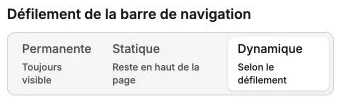
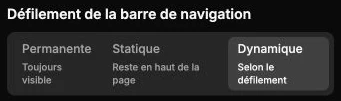
The Navigation bar scroll behavior controls how it behaves when the visitor scrolls the page:
- Permanent: the bar always stays visible, even when scrolling.
- Static: the bar stays at the top of the page and disappears as soon as you scroll.
- Dynamic: the bar appears and disappears automatically based on scroll direction (visible when scrolling up, hidden when scrolling down).
Navigation bar templates
The Select a template button opens a library of ready-to-use templates. Hover over a template to Add it as is, or click Adapt content to have the AI rework it with your site's content (a field then lets you adjust the result). The Create from a blank bar button starts from scratch.
In every case the current bar is overwritten: a confirmation is asked before the replacement.
Automatic mobile layout
The Automatic mobile layout subsection generates the mobile layout of the bar's elements from their desktop organization, via the Reorder elements button. Only the mobile view is modified.
Bar style
The style panel gathers the background, inner spacing and border of the bar.
Add an element to the bar
To insert a new element (logo, link, menu, cart button, etc.), keep the bar selected then click Element in the top bar. Only the elements suitable for a header are then offered. See Add an element for the detailed list.