

Multiple selection
The Multiple elements panel appears as soon as you select several blocks at the same time (click + Shift+click on the canvas, or rectangle selection).
Shared settings only
The panel only offers the settings common to all selected blocks. For example:
- If you select two texts, you get the typographic settings.
- If you select a text and an image, only the shared settings (background, margins, border, shadow, transitions, vertical alignment) are offered.
It's the fastest way to harmonize several blocks in one operation (for example, giving the same background color to three side-by-side cards).
Automatic mobile layout
The Automatic mobile layout subsection regenerates the mobile layout of the selected blocks only, from their desktop organization, via the Reorder selection button. Only the mobile view is modified.
Common style
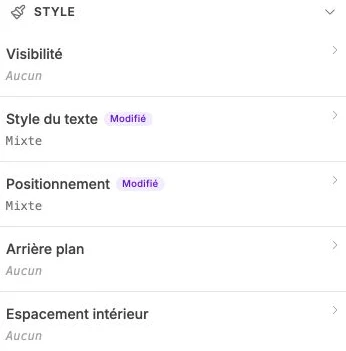
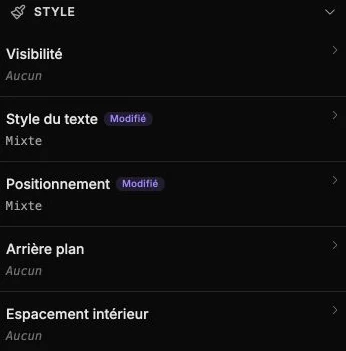
The style panel shows, for each subsection, the value shared by all selected elements. If a value differs from one block to another, the summary shows Mixte (mixed): edit it to align every block on the same value.
Exit multiple mode
Click on a single block, or on an empty area of the canvas, to leave multiple selection.