

Text style
The Text style subsection edits the font, size, color, weight and spacing of an element's text. It's available on every element that contains text (Text, Animated text, Button, Navigation, Dropdown menu, Product, Search bar, Form, Gallery, Announcement bar).
Weight means how thick the letters are. Line height is the space used by each line of text. A font is a lettering design; changing it affects the look of the letters rather than the words you wrote.
The Social media, Button action and Language menu elements don't show this subsection: they offer instead two reduced subsections, Size (slider from 8 to 128 px) and Color (color picker).
Case (Uppercase/Lowercase)
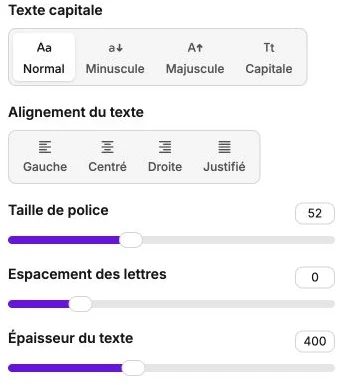
The Text case selector offers four options: Normal (leaves the text as entered), Lowercase (forces every letter to lowercase), Uppercase (forces every letter to uppercase) or Capitalize (capitalize every word). Handy for giving consistent rendering to a heading or button without editing the source text.
Text alignment
Choose Left, Center, Right or Justified to position the text inside its block. Justified adjusts the spaces between words so the text lines up with both edges.
Font size
Slider between 8 and 128 pixels, default value 16 px. Adjust based on the importance of the content: page titles between 32 and 64 px, subheadings around 24 px, body text between 14 and 18 px.
Letter spacing
Slider between -200 and 800 (in relative values, 0 by default). Increase to space out an uppercase title, decrease very slightly for very large headings.
Text weight
Slider between 100 and 900 (in steps of 100, 400 by default). 100-300 for very thin text, 400 for normal text, 600-700 for bold, 800-900 for very bold. Not all weights are available for every font: the actual value depends on the weights provided by the font.
Text spacing (line height)
Slider between 0.5 and 2.5 (1.5 by default). Increase to space out a long paragraph, decrease to tighten a short title.
Color
Standard color picker. The colors of your theme appear as shortcuts at the top of the picker to stay consistent with your identity.
INFO
On Text and Button elements, the color and the font are set directly from the text toolbar on the canvas; these two settings only appear in the Style panel once a value is already defined there. On Navigation and Dropdown menu, they are always shown.
Font
Click on the button that shows the current font name to open the font library. You can choose from the available fonts (Google Fonts) or upload your own custom font file.
The Heading 1 font, Heading 2 font, Button font and Body font set on the Themes page serve as the default for the entire site. Choosing a font here overrides it for this element only.