

Zoom and full screen
The editor's bottom bar controls the zoom level of the canvas and toggles full-screen mode, and hosts the AI assistant button. The zoom and full-screen settings have no effect on how your site looks to visitors: they only serve to make the editor more comfortable to work in.
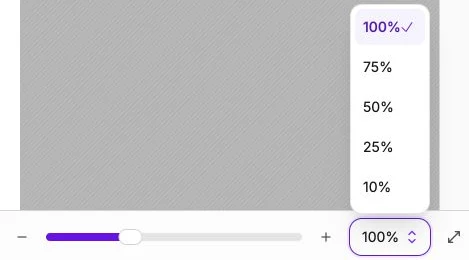
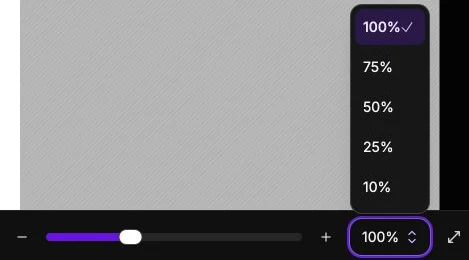
Set the zoom level
Use the + and - buttons to zoom in or out by steps. The center slider provides continuous adjustment, and the list on the right offers preset levels 100%, 75%, 50%, 25% and 10%.
Zoom in heavily (up to 500%) to precisely align a detail (icon size, a few pixels of spacing). Zoom out to step back on the overall composition of a long page.
From these controls, the zoom keeps the point at the center of the visible area fixed: the canvas doesn't jump when you change level. You can also zoom directly on the canvas with Ctrl + mouse wheel (or by pinching the trackpad or touch screen): the zoom then centers on the cursor.
Full screen
The Fullscreen icon hides the side panel to give you the full width of the screen for the canvas. It's useful when you're working on a complex layout or want to preview the appearance without distraction.
Click the icon again (Exit fullscreen) to restore the usual display.
In full screen, you keep access to the top bar and the bottom bar, so you can keep publishing the page, undoing an action, switching pages or adjusting the zoom without going back to the normal view.
AI assistant
On the left of the bottom bar, the AI assistant button opens a conversation panel on the left side of the editor. Describe what you want to create or change ("Make the title punchier", "Add a booking button"…): the changes are applied directly to the page. Select blocks before sending your request to narrow it: the AI sees the whole page but focuses on the selection.