

Iframe
The Iframe element displays content from another service inside your page: a Google Maps map, calendar, booking tool or audio player, for example. It uses a piece of HTML code called an <iframe> tag, supplied by that service.
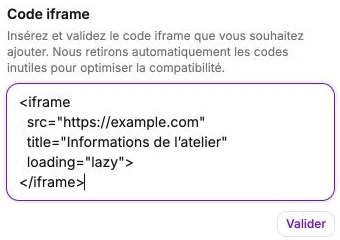
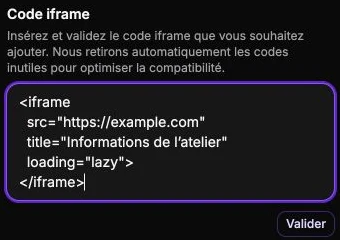
Iframe code
Paste the full code (for example <iframe src="https://…"></iframe>) into the Iframe code field, then click Validate. Vivlab parses the code and keeps only the useful part to optimize compatibility with your site.
If the code isn't valid (wrong structure, missing src attribute, tag other than <iframe>), an error message The inserted code is invalid appears: make sure that what you paste is an HTML iframe tag.
The Cancel button discards the current change and Edit reopens the code to edit it again.
Style
The style panel gathers the background, borders, corner radius, shadow, inner margins, filters and transitions. You can also frame the block in a device mockup to present an external site inside a MacBook or iPhone.
Common use cases
Embed a Google Maps location
Showing the location of your shop or appointment address reassures your visitors and helps them get there.
- On google.com/maps, search for your address or business listing.
- Click Share on the location card, then the Embed a map tab.
- Choose the size you want (small, medium, large, custom), then click COPY HTML.
- Back on your Vivlab page, add an Iframe element, paste the copied code in the Iframe code field, then click Validate.
Embed an appointment booking calendar
To let your customers book a slot themselves, embed an external scheduling tool like Calendly, Cal.com, or Google Calendar (public appointments).
- Create your calendar and define your availability in the tool of your choice.
- Retrieve the embed code (
<iframe>) offered by the tool, often from a Share or Embed menu. - On your Vivlab page, add an Iframe element and paste the code in Iframe code, then validate.
You can also replace the embed with a simple button that opens the public URL of your calendar in a new tab.
Other use cases
The iframe accepts any valid external content: audio player (Soundcloud, Spotify), signup form (see Form for Tally or Brevo), booking widget (Booking, The Fork), virtual tour, etc. Follow the same logic: retrieve the <iframe> code offered by the service, paste it, validate.
Sites that refuse embedding
Some sites prevent display in an iframe via their security headers (X-Frame-Options). If the content stays blank once pasted, it's usually because the site forbids embedding: use a button opening the link in a new tab instead.