

Form
The Form element creates a contact or data-entry form on your page. The visitors' answers are sent to you and stored on the Contacts page.
Field list
The main subsection shows the list of fields in the form. Click on a field to edit it, or use the actions to duplicate, delete or add a new one.
For each field:
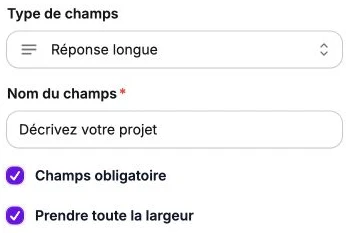
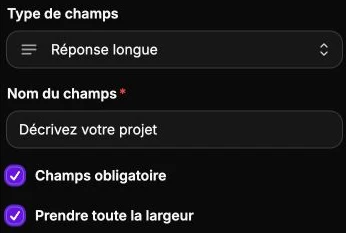
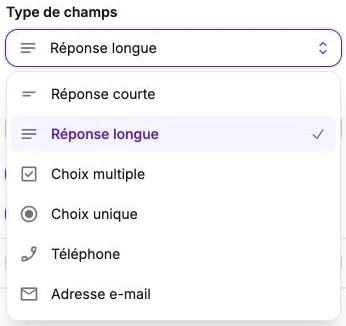
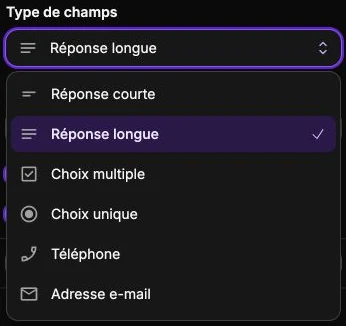
- Field type: choose between Short answer, Long answer, Multiple choice, Single choice, Phone or Email address. The type determines the validation applied to the visitor's input.
- Field name: the label shown above the field.
- For Multiple choice and Single choice, a secondary list lets you set the options offered to the visitor.
- Required field: prevents the form from being submitted if this field is empty.
- Full width: extends the field over the full width of the form instead of half-width. On mobile, every field automatically takes full width.
Field style
The Field style subsection sets the appearance of input boxes:
- Text color: color of the value typed by the visitor.
- Field color: background color of the input boxes.
- Border color: color of the box outline.
Button style
The Button style subsection customizes the form's submit button:
- Button text: its label (for example "Send", "Validate", "Sign up").
- Button color: color of the button text.
- Button background color: fill color.
- Border color: outline color.
Global style
The style panel gathers the global text style, the background of the form, borders, corner radius, shadow, inner margins, vertical alignment and transitions.
Tracking responses
Each form submission triggers an e-mail to your account address with the input content, and feeds the Contacts page where you find the detail of every request, the page of origin and a shortcut to reply directly by e-mail.
External alternatives
If you need a more advanced form (conditional logic, calculations, direct CRM or e-mailing integration), you can integrate a third-party form into your page via the Iframe element.
- Tally (tally.so): rich form builder with conditional logic and a wide range of field types. Create your form on Tally, copy the embed code (
<iframe>), then paste it into an Iframe element on your page. - Brevo (brevo.com, formerly Sendinblue): French e-mail marketing platform, particularly suited to newsletter signup. Brevo handles GDPR compliance, double opt-in confirmation and list management. Retrieve the form embed code from Brevo, then paste it into an Iframe element.
You can also replace the embedded form with a simple button pointing to the hosted URL of your Tally or Brevo form.