

Resize
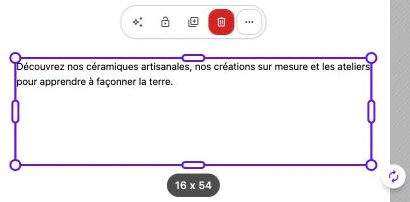
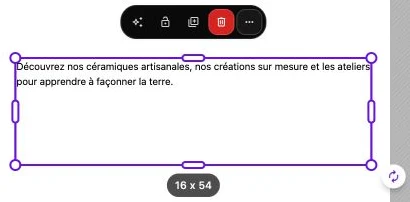
When a block is selected, eight handles appear around it: four on the corners (top-left, top-right, bottom-left, bottom-right) and four in the middle of each side. Grab any one of them to resize the block. On a block that's very small on screen, only the corner handles remain visible.
Corner handles
Corner handles change the width and height of the block at the same time, keeping its proportions. Drag outward to enlarge, inward to shrink. The opposite corner stays fixed.
Edge handles
Edge handles change a single dimension:
- Top or bottom edge: changes the height only.
- Left or right edge: changes the width only.
This is the option to choose when you want to adjust a single dimension without touching the other.
A Text or Button block can't get smaller than the text it contains: its height automatically readjusts to the content.
Multiple selection
If several blocks are selected, the resize applies to the bounding rectangle of the selection. Every block is scaled proportionally to that rectangle.
Alignment and grid
While you resize, the guides and alignment appear to help you snap the block to the grid or to other elements in the section. The final size is automatically rounded to the grid.
Locked block
A locked block from the action bar cannot be resized. Click Unlock to take control again.