

Page
The Page panel appears as soon as you click on an empty area of the canvas, outside any element or section. It gathers the page's global settings: title, description, SEO, visibility, share image and management actions.
Page
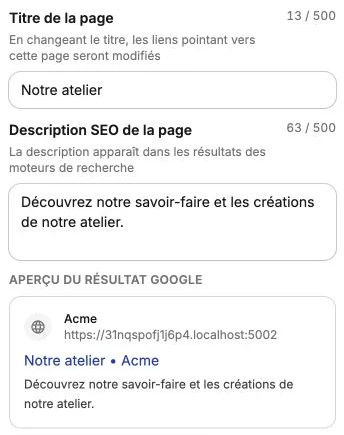
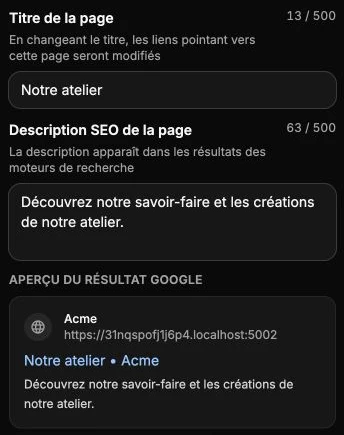
The Page subsection brings together the SEO information and the page identity.
- Page title is used both as the title in the browser tab and as the SEO title in search results. Editing this title also updates internal links pointing to the page.
- Page SEO description is the short description shown in search engine results.
- The Google result preview below these two fields shows live how the title and description will appear in search results.
- Generate with AI automatically suggests several title + description pairs written from your page's actual content. The more complete the page, the more relevant the suggestions. Click on one of them to apply it immediately, or on Generate more proposals to get new ones.
Page settings
This subsection gathers the visibility and access settings.
- Set as home page replaces the page currently used as your site's home page.
- Make the page visible: if the page is hidden, it remains accessible only to you. Enable the option when you're ready to make it public. As long as it's hidden, a warning reminds you.
- Customize the link name edits the page URL (for example
mysite.com/about). Use only letters and dashes, no spaces or special characters. - Protect with a password restricts access to visitors who know the password you set. Handy for confidential pages or a private customer area.
- Hide navigation bar and footer removes the header and footer on this page only. Useful for landing pages or maintenance pages that should remain distraction-free.
- Hide this page from search engines asks search engines not to index the page. It stays accessible to visitors who have its link.
Page share image
The Page share image sets the thumbnail used when the page is shared on social media or messaging. It must be 1200 × 630 pixels. Without a custom image, Vivlab automatically generates a visual from the title and a content image.
Click Edit image to upload your own (you can then Replace, Crop or Delete it with a click on the thumbnail). Deleting the custom image switches back to the generated visual.
Duplicate or delete the page
The two icons at the top right of the Page subsection let you Duplicate the page (useful to start from an existing template) or Delete it permanently.
Duplication opens a window that repeats all the page settings: title (pre-filled with the " (copy)" suffix), description, visibility, URL, password… All the blocks and formatting are reproduced identically.
Deletion requires explicit confirmation (you must type Delete permanently) because the action is irreversible: the page is removed from the site immediately, the linked URLs become inactive and the publish history is permanently lost.
Automatic mobile layout
The Automatic mobile layout subsection generates the page's mobile layout from the desktop organization. Click Reorder elements: only the mobile view is modified, the desktop view stays untouched.
Page style
The style panel at the bottom lets you set a background, inner spacing and a border for the entire page. These settings apply to the area around the sections, never inside.