

Target marker
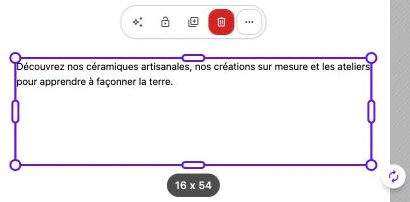
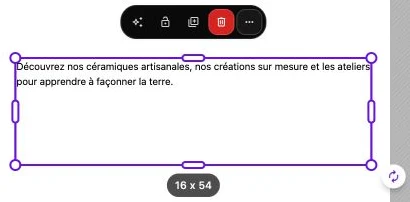
When you select a block, a purple frame called the target marker shows the space it occupies on the grid. As you move or resize it, the frame shows its final position after the editor aligns it with the grid.
What the target marker is for
The canvas snaps to a grid (in columns and rows), even when your mouse moves continuously. The target marker shows you the area actually taken by the block once the value is rounded to the grid, which avoids surprises when you release the mouse.
When you select several blocks, two frames appear: one frame per block, and a bounding frame for the entire group.
Grid size indicator
A floating black pill constantly shows the size of the target area in grid units, in the form row × col (for example 4 × 12 for four rows by twelve columns).
It's valuable information for reproducing consistent proportions: for example, if your cards are 8 × 6 on the first row, you'll know immediately when your new card reaches the same size.
When the marker appears
The marker is visible as long as the selection is active: at rest, it hugs the block's current position; during a movement, it shows the landing position. As soon as you release the mouse button, the block joins the frame.